
User Manual


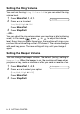


Table Of Contents
- USER'S GUIDE FAX-1840C/FAX-1940CN/MFC-3240C/MFC-3340CN
- Brother numbers
- Ordering accessories and supplies
- Safety precautions
- Choosing a location
- Quick Reference Guide
- Table of Contents
- 1 Introduction
- 2 Getting started
- Initial Setup
- General Setup
- Setting the Mode Timer (MFC-3240C and MFC-3340CN only)
- Setting the Mode Timer (FAX-1840C and FAX-1940CN only)
- Setting the Paper Type
- Setting the Paper Size
- Setting the Ring Volume
- Setting the Beeper Volume
- Setting the Speaker Volume
- Setting the Handset Volume (FAX-1840C and FAX-1940CN only)
- Choosing the Handset Volume (For Volume Amplify) (FAX-1840C and FAX-1940CN only)
- Setting Volume Amplify (FAX-1840C and FAX-1940CN only)
- Turning on Automatic Daylight Savings Time
- Setting the LCD Contrast
- 3 Setup Send
- 4 Setup Receive
- Basic receiving operations (FAX-1840C, MFC-3240C and MFC-3340CN only)
- Basic receiving operations (FAX-1940CN only)
- Choosing the Receive Mode
- Setting the Ring Delay
- Setting Toll Saver (Msg Ctr mode)
- Setting the F/T Ring Time (Fax/Tel mode only)
- Setting the Fax/Tel Announcement (FAX-1940CN only)
- Easy Receive (MFC-3240C and MFC-3340CN only)
- Easy Receive (FAX-1840C and FAX-1940CN only)
- Printing a reduced incoming fax (Auto Reduction)
- Receiving a fax at the end of a conversation
- Printing a fax from the memory
- Polling
- 5 Quick-Dial numbers and dialing options
- 6 Remote Fax Options (Not available for color faxes)
- 7 Message Center (FAX-1940CN only)
- Message Center mode
- Setting up the Message Center
- Recording Message Center Outgoing Message
- Activating Message Center mode
- Message indicator
- Playing voice messages
- Printing a fax message
- Erasing incoming messages
- Setting Maximum Time for incoming messages
- Setting Toll Saver
- ICM Recording Monitor
- Recording a conversation
- Record Fax/Tel Outgoing Announcement (F/T OGM)
- Message Center mode
- 8 Printing reports
- 9 Making copies
- 10 Walk-Up PhotoCapture Center™ (MFC-3340CN only)
- 11 Important information
- Standard telephone and FCC Notices These notices are in effect on models sold and used in the United States only.
- Federal Communications Commission (FCC) Declaration of Conformity (USA only)
- Industry Canada Compliance Statement (Canada only)
- For your safety
- LAN connection (FAX-1940CN and MFC-3340CN only)
- Important safety instructions
- Trademarks
- 12 Troubleshooting and routine maintenance
- Appendix A
- Appendix B
- Glossary
- Specifications
- Product description
- General
- Print media
- Copy
- PhotoCapture Center™ (MFC-3340CN only)
- Fax
- Scanner (MFC-3240C and MFC-3340CN only)
- Printer
- Interfaces
- Computer requirements
- Consumable items
- Network (LAN) (FAX-1940CN and MFC-3340CN only)
- Optional External Wireless Print/Scan Server (NC-2200w) (MFC-3240C and MFC-3340CN only)
- Index
- Remote Retrieval Access card (FAX-1940CN only)
- Remote Retrieval Access card (FAX-1840C, MFC-3240C and MFC-3340CN only)
- brother USA/CAN

GETTING STARTED 2 - 6
Setting the Speaker Volume
You can adjust the speaker volume.
1
Press
Menu/Set
,
1
,
4
,
3
.
2
Press
▲
or
▼
to select
Low
,
Med
,
High
or
Off
.
Press
Menu/Set
.
3
Press
Stop/Exit
.
—OR—
Press
Hook
, and then adjust the speaker volume by pressing
or . The LCD shows the setting you are choosing. Each
key press changes the volume to the next setting. The new
setting will remain until you change it again.
FAX-1940CN only
When (
Fax
) is illuminated you can also change the speaker
volume in the following ways:
Press
Speaker Phone
, and then adjust the speaker volume by
pressing or . The LCD shows the setting you are
choosing. Each key press changes the volume to the next
setting. The new setting will remain until you change it again.
—OR—
You can adjust the speaker volume while you are listening to
your OGM (Outgoing Message) and ICMs (Incoming Messages)
by pressing or .
If you turn Incoming Recording Monitor to OFF (
Menu/Set
,
2
,
7
,
3
) the Speaker for screening calls will be disabled and you
won’t hear callers leaving messages. The volume for other
operations can still be controlled using or .
3.Speaker