
User Manual



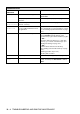
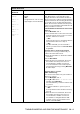
Table Of Contents
- USER'S GUIDE FAX-1840C/FAX-1940CN/MFC-3240C/MFC-3340CN
- Brother numbers
- Ordering accessories and supplies
- Safety precautions
- Choosing a location
- Quick Reference Guide
- Table of Contents
- 1 Introduction
- 2 Getting started
- Initial Setup
- General Setup
- Setting the Mode Timer (MFC-3240C and MFC-3340CN only)
- Setting the Mode Timer (FAX-1840C and FAX-1940CN only)
- Setting the Paper Type
- Setting the Paper Size
- Setting the Ring Volume
- Setting the Beeper Volume
- Setting the Speaker Volume
- Setting the Handset Volume (FAX-1840C and FAX-1940CN only)
- Choosing the Handset Volume (For Volume Amplify) (FAX-1840C and FAX-1940CN only)
- Setting Volume Amplify (FAX-1840C and FAX-1940CN only)
- Turning on Automatic Daylight Savings Time
- Setting the LCD Contrast
- 3 Setup Send
- 4 Setup Receive
- Basic receiving operations (FAX-1840C, MFC-3240C and MFC-3340CN only)
- Basic receiving operations (FAX-1940CN only)
- Choosing the Receive Mode
- Setting the Ring Delay
- Setting Toll Saver (Msg Ctr mode)
- Setting the F/T Ring Time (Fax/Tel mode only)
- Setting the Fax/Tel Announcement (FAX-1940CN only)
- Easy Receive (MFC-3240C and MFC-3340CN only)
- Easy Receive (FAX-1840C and FAX-1940CN only)
- Printing a reduced incoming fax (Auto Reduction)
- Receiving a fax at the end of a conversation
- Printing a fax from the memory
- Polling
- 5 Quick-Dial numbers and dialing options
- 6 Remote Fax Options (Not available for color faxes)
- 7 Message Center (FAX-1940CN only)
- Message Center mode
- Setting up the Message Center
- Recording Message Center Outgoing Message
- Activating Message Center mode
- Message indicator
- Playing voice messages
- Printing a fax message
- Erasing incoming messages
- Setting Maximum Time for incoming messages
- Setting Toll Saver
- ICM Recording Monitor
- Recording a conversation
- Record Fax/Tel Outgoing Announcement (F/T OGM)
- Message Center mode
- 8 Printing reports
- 9 Making copies
- 10 Walk-Up PhotoCapture Center™ (MFC-3340CN only)
- 11 Important information
- Standard telephone and FCC Notices These notices are in effect on models sold and used in the United States only.
- Federal Communications Commission (FCC) Declaration of Conformity (USA only)
- Industry Canada Compliance Statement (Canada only)
- For your safety
- LAN connection (FAX-1940CN and MFC-3340CN only)
- Important safety instructions
- Trademarks
- 12 Troubleshooting and routine maintenance
- Appendix A
- Appendix B
- Glossary
- Specifications
- Product description
- General
- Print media
- Copy
- PhotoCapture Center™ (MFC-3340CN only)
- Fax
- Scanner (MFC-3240C and MFC-3340CN only)
- Printer
- Interfaces
- Computer requirements
- Consumable items
- Network (LAN) (FAX-1940CN and MFC-3340CN only)
- Optional External Wireless Print/Scan Server (NC-2200w) (MFC-3240C and MFC-3340CN only)
- Index
- Remote Retrieval Access card (FAX-1940CN only)
- Remote Retrieval Access card (FAX-1840C, MFC-3240C and MFC-3340CN only)
- brother USA/CAN

TROUBLESHOOTING AND ROUTINE MAINTENANCE 12 - 4
Unable to
Change
Unable to
Clean
Unable to
Init.
Unable to
Print
Unable to
Scan
The machine has a mechanical
problem.
—OR—
A foreign obstacle, such as a clip
or ripped paper, is in the machine.
Close the document support and the document
tray. Open the top cover and remove any
foreign obstacles from inside the machine. If
the error message continues, please follow the
steps below before disconnecting the machine
so you will not lose any important messages.
Then, disconnect the machine from the power
source for several minutes (which will erase all
faxes), and then reconnect it.
Check whether the machine has faxes in the
memory
1. Press Menu/Set, 9, 0, 1.
2. If the machine has no faxes, disconnect the
machine from the power source for several
minutes, and then reconnect it.
—OR—
If faxes are present, you can transfer them to
another fax machine. Go to Step 3.
—OR—
For MFC-3340CN, you can forward the
faxes to your PC. Please see Transfer faxes
to your PC.
Transfer faxes to another fax machine
If you have not set up your Station ID, you
cannot enter fax transfer mode.
3. Enter the fax number to which faxes will be
forwarded.
4. Press Black Start.
5. After the faxes are transferred, disconnect
the machine from the power source for
several minutes, and then reconnect it.
You can transfer the Fax Journal report to
another fax machine by pressing Menu/Set,
9, 0, 2 in Step1.
Transfer faxes to your PC
(MFC-3340CN only)
You can move the faxes from your machine’s
memory to your PC.
1. Press Menu/Set, 2, 5, 1.
2. Using
▲
or
▼
, select 1.PC Fax Receive,
and then press Menu/Set.
The LCD will ask if you want to transfer a fax
to your PC.
3. To transfer all faxes to your PC, press 1.
—OR—
To keep all faxes in the machine’s memory,
press 2.
4. After the faxes are transferred, disconnect
the machine from the power source for
several minutes, and then reconnect it.
(For details see Using Brother PC-FAX
software on page 5-1 in Software User’s
Guide on the CD-ROM.)
ERROR MESSAGES
ERROR
MESSAGE
CAUSE ACTION