
User`s guide
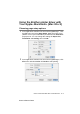

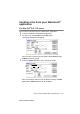


Table Of Contents
- SOFTWARE USER'S GUIDE
- Table of Contents
- Using the machine as a printer
- Using Brother PC-FAX software (For Windows®)
- PC-FAX sending
- Speed-Dial setup
- The Address Book
- Setting up a Member in the Address Book
- Setting up a Group for Broadcasting
- Editing Member information
- Deleting a Member or Group
- Exporting the Address Book
- Importing to the Address Book
- Setting up a Cover Page
- Entering Coverpage Information
- Sending a file as a PC-FAX using the Facsimile style user interface
- Sending a file as a PC-FAX using the Simple style user interface
- Additional Information for Network PC-FAX users with FAX-1920CN
- Using your machine with a Macintosh®
- Brother Network PC-FAX software (For FAX-1920CN only)
- Index

3 - 7 USING YOUR MACHINE WITH A MACINTOSH
®
BHL2-Software-FM6.0
4
Click Send Fax.
The Send Fax dialog box appears:
The Send Fax dialog box has two list boxes. The left box shows
all the previously Stored Fax Numbers and the right box shows
the Destination Fax Numbers as you select them.
5
To address the fax, type a fax number in the Input Fax Number
box.
6
When you are finished addressing your fax, click Send Fax.
Click OK to go to the Send Fax dialog box.
Sending a Network PC-FAX from your Macintosh
®
application (FAX-1920CN only)
You can send a fax directly from your Macintosh
®
application using
the following steps:
1
Please download the software from the Brother Solutions Center
at: http://solutions.brother.com
2
Follow the steps on pages 3-6.
To select and only send certain pages of the original, click OK
to go to the Print dialog box.
If you click Send Fax without addressing your fax, the following
error message will appear: