
Operation Manual

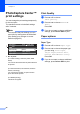


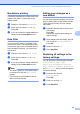

Table Of Contents
- ADVANCED USER’S GUIDE DCP-J515W DCP-J715W
- User's Guides and where do I find it?
- Table of Contents
- 1 General setup
- 2 Printing reports
- 3 Making copies
- Copy settings
- Stop copying
- Changing copy speed and quality
- Enlarging or reducing the copied image
- Making N in 1 copies or a poster (Page Layout)
- Sorting copies using the ADF (DCP-J715W only)
- Adjusting Density
- Ink Save Mode
- Book Copy
- Watermark Copy
- Setting your changes as a new default
- Restoring all settings to the factory settings
- Copy settings
- 4 Printing photos from a memory card or USB Flash memory drive
- 5 Printing photos from a camera (DCP-J715W only)
- A Routine maintenance
- B Glossary
- Index
- brother UK/IRE/GEN
Printing photos from a memory card or USB Flash memory drive
21
4
Paper and print size 4
a Press a or b to choose Paper Size.
b Press d or c to choose the paper size
you are using, 10x15cm, 13x18cm, A4
or Letter.
Press OK.
c If you chose A4 or Letter, press b.
Then press d or c to choose the print
size.
Press OK.
d If you do not want to change additional
settings, press Colour Start to print.
Adjusting Brightness,
Contrast and Colour 4
Brightness 4
a Press a or b to choose Brightness.
b Press d or c to make a darker or lighter
print.
Press OK.
c If you do not want to change additional
settings, press Colour Start to print.
Contrast 4
You can choose the contrast setting.
Increasing the contrast will make an image
look sharper and more vivid.
a Press a or b to choose Contrast.
b Press d or c to change the contrast.
Press OK.
c If you do not want to change additional
settings, press Colour Start to print.
Colour Enhancement 4
You can turn on the colour enhancement
feature to print more vivid images. Printing
time will be slower.
a Press a or b to choose
Color Enhance.
Press OK.
b Do one of the following:
If you want to customize the
White Balance, Sharpness or
Color Density, press d or c to
choose On, and then go to step c.
If you do not want to customize,
press d or c to choose Off.
Press OK and then go to step f.
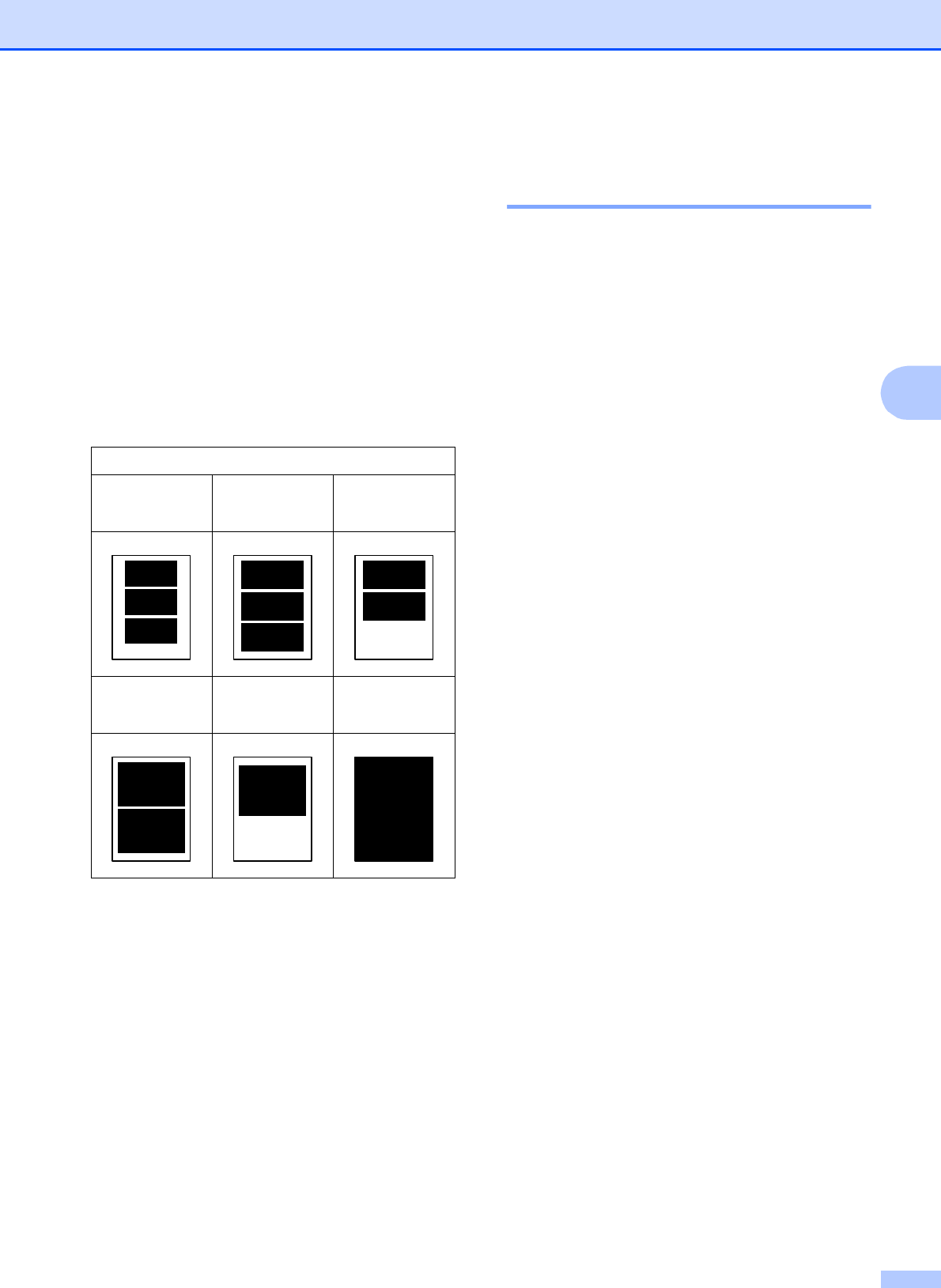
Example: Printed Position for A4 paper
1
8 x 10cm
2
9 x 13cm
3
10 x 15cm
4
13 x 18cm
5
15 x 20cm
6
Max. Size