ADVANCED USER’S GUIDE DCP-J125 DCP-J315W Version 0 UK/IRE/GEN
User's Guides and where do I find it? Which manual? i What's in it? Where is it? Safety and Legal Please read the Safety Instructions before you set up your machine. Printed / In the box Quick Setup Guide Read this Guide first. Follow the instructions for setting up your machine and installing the drivers and software for the operating system and connection type you are using.
Table of Contents 1 General setup 1 Memory storage.....................................................................................................1 Sleep Mode ...........................................................................................................1 LCD display ...........................................................................................................1 Changing LCD language .................................................................................
A Routine maintenance 16 Cleaning and checking the machine ....................................................................16 Cleaning the outside of the machine .............................................................16 Cleaning the machine’s printer platen ...........................................................17 Checking the ink volume ...............................................................................17 Packing and shipping the machine ........................................
1 General setup Memory storage 1 Your menu settings are stored permanently, and in the event of a power failure will not be lost. If you have chosen Set New Default, settings in the PHOTO CAPTURE mode will not be lost. Temporary settings (for example, Contrast) will be lost. Sleep Mode You can choose how long the machine must be idle (from 1 to 60 minutes) before it goes into sleep mode. The timer will restart if any operation is carried out on the machine. a b Press a or b to choose General Setup.
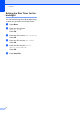
Chapter 1 Setting the Dim Timer for the backlight 1 You can set how long the LCD backlight stays on after you go back to the Ready screen. a b Press Menu. Press a or b to choose General Setup. Press OK. c Press a or b to choose LCD Settings. Press OK. d Press a or b to choose Dim Timer. Press OK. e Press a or b to choose 10Secs, 20Secs, 30Secs or Off. Press OK. f Press Stop/Exit.
2 Printing reports Reports 2 2 2 The following reports are available: Help List A help list showing how to program your machine. User Settings Lists your settings. Network Config (DCP-J315W only) Lists your Network settings. WLAN Report (DCP-J315W only) Prints a WLAN connection report. How to print a report a b Press Menu. c Press a or b to choose the report you want. Press OK. d e Press Mono Start. 2 Press a or b to choose Print Reports. Press OK. Press Stop/Exit.
3 Making copies Copy settings 3 You can change the copy settings temporarily for multiple copies. 3 Changing copy speed and quality You can choose the copy quality. The factory setting is Normal. The machine returns to its default settings after 1 minute. To change a setting, press a or b to scroll through the copy settings. When the setting you want is highlighted, press OK. When you are finished choosing settings, press Mono Start or Colour Start.
Making copies Enlarging or reducing the copied image You can choose an enlargement or reduction ratio. If you choose Fit to Page, your machine will adjust the size automatically to the paper size you set. a b c Load your document. Enter the number of copies you want. Press a or b to choose Enlarge/Reduce. Press OK. d Press a or b to choose 100%, Enlarge, Reduce, Fit to Page, Custom(25-400%).
Chapter 3 Making N in 1 copies or a poster (Page Layout) Note 3 The N in 1 copy feature can help you save paper by letting you copy two or four pages onto one printed page. You can also produce a poster. When you use the poster feature your machine divides your document into sections, then enlarges the sections so you can assemble them into a poster. Enlarge/Reduce is not available with Page Layout. a b c Load your document.
Making copies Place your document face down in the direction shown below. 2 in 1 (P) 2 in 1 (L) Adjusting Density You can adjust the copy density to make copies darker or lighter. a b c Load your document. d Press d or c to make a lighter or darker copy. Press OK. e If you do not want to change additional settings, press Mono Start or Colour Start. 4 in 1 (P) 4 in 1 (L) Poster(3 x 3) You can make a poster size copy of a photograph. 3 Enter the number of copies you want.
Chapter 3 Restoring all settings to the factory settings You can restore the copy settings Quality, Enlarge/Reduce, Density and Page Layout, that you have changed, to the factory settings. a Press a or b to choose Factory Reset. Press OK. b c Press + to choose Yes. 8 Press Stop/Exit.
4 Printing photos from a memory card PhotoCapture Center™ operations Memory cards folder structure Your machine is designed to be compatible with modern digital camera image files and memory cards; however, please read the points below to avoid errors: The image file extension must be .JPG (other image file extensions like .JPEG, .TIF, .GIF and so on will not be recognized). Direct PhotoCapture Center™ printing must be performed separately from PhotoCapture Center™ operations using the PC.
Chapter 4 d Print Images 4 Print Index (Thumbnails) 4 Press a or b to choose the paper settings, Paper Type and Paper Size. Do one of the following: If you chose Paper Type, press OK and press a or b to choose the type of paper you are using, Plain Paper, Inkjet Paper, Brother BP71, Brother BP61 or Other Glossy. The PhotoCapture Center™ assigns numbers for images (such as No.1, No.2, No.3, and so on). Press OK.
Printing photos from a memory card e DPOF printing Repeat step d until you have entered all the image numbers that you want to print. (For example, enter 1, OK, 3, OK, 6, OK to print images No.1, No.3 and No.6.) DPOF stands for Digital Print Order Format. Major digital camera manufacturers (Canon Inc., Eastman Kodak Company, FUJIFILM Corporation, Panasonic Corporation and Sony Corporation) created this standard to make it easier to print images from a digital camera.
Chapter 4 PhotoCapture Center™ print settings Paper options 4 4 Paper Type 4 You can change the print settings temporarily for the next print. a The machine returns to its default settings after 3 minutes. Press a or b to choose Paper Type. Press OK. b Press a or b to choose the paper type you are using, Plain Paper, Inkjet Paper, Brother BP71, Brother BP61 or Other Glossy. Press OK. c If you do not want to change additional settings, press Colour Start to print.
Printing photos from a memory card Adjusting Brightness, Contrast and Colour Brightness a Press a or b to choose Brightness. Press OK. b Press d or c to make a darker or lighter print. Press OK. c Cropping 4 4 You can choose the contrast setting. Increasing the contrast will make an image look sharper and more vivid. a Press a or b to choose Contrast. Press OK. b Press d or c to change the contrast. Press OK. c If you do not want to change additional settings, press Colour Start to print.
Chapter 4 Borderless printing 4 This feature expands the printable area to the edges of the paper. Printing time will be slightly slower. a Press a or b to choose Borderless. Press OK. b Press a or b to choose Off (or On). Press OK. c If you do not want to change additional settings, press Colour Start to print. Date Print You can print the date if it is already in the data on your photo. The date will be printed on the lower right corner.
Printing photos from a memory card Scan to a memory card 4 How to set a new default 4 You can save the Scan to Media settings (Quality and File Type) you use most often by setting them as the default settings. These settings will stay until you change them again. a Press b Press a or b to choose Scan to Media. Press OK. c Press a or b to choose Set New Default. Press OK. d e Press + to choose Yes. 4 (SCAN). Press Stop/Exit.
A Routine maintenance Cleaning and checking the machine Cleaning the outside of the machine b Wipe the outside of the machine with a dry, lint-free soft cloth to remove dust. c Lift the output paper tray cover and remove anything that is stuck inside the paper tray. d Wipe the inside and outside of the paper tray with a dry, lint-free soft cloth to remove dust. e Close the output paper tray cover and put the paper tray firmly back in the machine. A A IMPORTANT • Use neutral detergents.
Routine maintenance Cleaning the machine’s printer platen CAUTION Be sure to unplug the machine from the electrical socket before cleaning the printer platen (1). a b Lift the scanner cover until it locks securely into the open position. Clean the machine’s printer platen (1) and the area around it, wiping off any scattered ink with a dry, lint-free soft cloth.
Packing and shipping the machine When you transport the machine, use the packing materials that came with your machine. Follow the instructions below to correctly pack your machine. Damage caused to your machine during transit is not covered by your warranty. IMPORTANT A • Make sure that the plastic tabs on both sides of the green protective part (1) have securely clicked into place (2). IMPORTANT It is important to allow the machine to “park” the print head after a print job.
Routine maintenance e Unplug the machine from the electrical socket. f Using both hands, use the plastic tabs on both sides of the machine to lift the scanner cover until it locks securely into the open position. Then unplug the interface cable from the machine, if it is connected. g Lift the scanner cover to release the i Pack the machine and the printed materials in the original carton with the original packing material as shown below. Do not pack the used ink cartridges in the carton. lock ( ).
B Glossary B This is a comprehensive list of features and terms that appear in Brother manuals. Availability of these features depends on the model you purchased. Brightness Changing the Brightness makes the whole image lighter or darker. Contrast Setting to compensate for dark or light documents, by making copies of dark documents lighter and light documents darker. Density Changing the Density makes the whole image lighter or darker. Greyscale The shades of grey available for copying and scanning.
C Index A P Apple Macintosh See Software User's Guide. Packing and shipping the machine .......... 18 PhotoCapture Center™ Borderless ............................................ 14 Cropping ............................................... 13 Date Print ............................................. 14 DPOF printing ...................................... 11 from PC See Software User's Guide. Print settings Brightness ......................................... 13 Contrast ..................................
T Troubleshooting checking ink volume ..............................17 W Windows® See Software User's Guide.
Visit us on the World Wide Web http://www.brother.com This machine is approved for use in the country of purchase only. Local Brother companies or their dealers will only support machines purchased in their own countries.