ADVANCED USER’S GUIDE DCP-9055CDN Not all models are available in all countries.
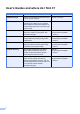
User's Guides and where do I find it? i Which manual? What's in it? Where is it? Safety and Legal Please read the Safety Instructions before you set up your machine. Printed / In the box Quick Setup Guide Read this Guide first. Follow the instructions for setting up your machine and installing the drivers and software for the operating system and connection type you are using. Printed / In the box Basic User's Guide Learn the basic Copy and Scan operations and how to replace consumables.
Table of Contents 1 General Setup 1 Memory storage..................................................................................................... 1 Automatic daylight savings time ............................................................................ 1 Ecology features.................................................................................................... 2 Toner Save ......................................................................................................
B Options 28 Optional paper tray (LT-300CL)...........................................................................28 Memory board......................................................................................................28 SO-DIMM Types ............................................................................................28 Installing extra memory .................................................................................
1 General Setup Memory storage Your menu settings are stored permanently, and in the event of a power failure will not be lost. Temporary settings (for example, Contrast) will be lost. Also, during a power failure the machine will retain the date and time for up to 60 hours. 1 1 Automatic daylight savings time 1 1 You can set the machine to change automatically for Daylight Savings Time. It will set itself forward one hour in the Spring, and back one hour in the Autumn. a b Press Menu, 5, 1, 2.
Chapter 1 Ecology features Toner Save 1 1 You can save toner using this feature. When you set Toner Save to On, prints appear lighter. The default setting is Off. a b c Press Menu, 1, 3, 1. Press a or b to choose On or Off. Press OK. Press Stop/Exit. Note We do not recommend Toner Save for printing Photo or Greyscale images. Sleep Mode The Sleep Mode Setting can reduce power consumption. When the machine is in Sleep Mode (Power Save mode) it acts as though it were turned off.
General Setup LCD Contrast 1 User Settings List You can change the contrast to make the LCD look lighter or darker. You can print a list of the settings you programmed. a b a b c c Press Menu, 1, 5. Press c to make the LCD darker. Or, press d to make the LCD lighter. Press OK. 1 1 Press Menu, 5, 4. Press Mono Start or Colour Start. Press Stop/Exit. Press Stop/Exit.
Chapter 1 Network Configuration List The Network Configuration List is a report listing the current network configuration including the network print server settings. Note Node name: Node name appears in the Network Configuration List. The default node name is “BRNXXXXXXXXXXXX”. a b c 4 Press Menu, 5, 5. Press Mono Start or Colour Start. Press Stop/Exit.
2 Security features Secure Function Lock 2.0 Secure Function Lock lets you restrict Public access to the following machine functions: Copy Scan PC Print Colour Print This feature also prevents users from changing the Default settings of the machine by limiting access to the Menu settings. Before using the security features you must first enter an administrator password. Access to restricted operations can be enabled by creating a restricted user.
Chapter 2 Changing the password for the administrator 2 a b Press Menu, 1, 6. c Enter the registered four-digit password. Press OK. d Enter a four-digit number for the new password. Press OK. e f 6 Press a or b to choose Set Password. Press OK. If the LCD shows Verify: re-enter the new password. Press OK. Press Stop/Exit. Setting up the public user mode Public user mode restricts the functions that are available for Public users.
Security features Setting up restricted users 2 You can set up users with restrictions and a password for functions that are available to them. You can set up more advanced restrictions, such as by page count or PC user login name, through Web Based Management. (For more information, see the Network User's Guide.) You can set up to 25 restricted users with restrictions and a password. a b Press a or b to choose Setup ID. Press OK. Enter the administrator password. Press OK.
Chapter 2 Switching Users 2 This setting allows you to switch between registered restricted users or Public mode when Secure Function Lock is turned on. Changing to the restricted user Mode a b c Hold down d as you press Secure. • If the function you want to use is restricted for all users, Not Available will appear on the LCD and then the machine will go back to the Ready mode. You cannot access to the function you want to use. Contact your administrator to check your Secure Function Lock Settings.
3 Making copies Copy settings 3 When you want to quickly change the copy settings temporarily for the next copy, use the temporary COPY keys. You can use different combinations. 3 Enlarging or reducing the image copied 3 You can choose the following enlargement or reduction ratios: Press 100%* 97% LTRiA4 94% A4iLTR The machine returns to its default settings one minute after copying. 91% Full Page 85% LTRiEXE To change a setting, press a or b and d or c to scroll through the COPY settings.
Chapter 3 d Do one of the following: Press a or b to choose the enlargement or reduction ratio you want. Press OK. Press a or b to choose Custom(25-400%). Press OK. Use the numeric keys to enter an enlargement or reduction ratio from 25% to 400%. (For example, press 5 3 to enter 53%.) Press OK. e Press Mono Start or Colour Start. Note Page Layout Options 2 in 1 (P), 2 in 1 (L), 2 in 1 (ID), 4 in 1 (P) and 4 in 1 (L) are not available with Enlarge/Reduce.
Making copies Using the Options key 3 Use the Options key to quickly set the following copy settings temporarily for the next copy.
Chapter 3 Sorting copies using the ADF You can sort multiple copies. Pages will be stacked in the order 1 2 3, 1 2 3, 1 2 3, and so on. a b c d e Load your document in the ADF. Use the numeric keys to enter the number of copies (up to 99). Press Options. Press a or b to choose Stack/Sort. Press OK. Press a or b to choose Sort. Press OK. Press Mono Start or Colour Start. 3 Improving copy quality 3 You can choose from a range of quality settings. The default setting is Auto.
Making copies Adjusting Contrast, Colour and Brightness Contrast c Press Options. Press a or b to choose Contrast. Press OK. d Press d or c to increase or decrease the contrast. Press OK. e Press Mono Start or Colour Start. c d Press d or c to make a lighter copy or a darker copy. Press OK. Press Mono Start or Colour Start. a b Press Menu, 2, 2. c Press Stop/Exit. Press d or c to make a lighter copy or a darker copy. Press OK.
Chapter 3 Making N in 1 copies (page layout) You can reduce the amount of paper used when copying by using the N in 1 copy feature. This allows you to copy two or four pages onto one page. If you want to copy both sides of an ID card onto one page, see 2 in 1 ID Copy on page 15. f 3 Flatbed Copy: Next Page? a 1.Yes b 2.No Select ab or OK g Put the next page on the scanner glass. Press OK. Repeat steps f and g for each page of the layout.
Making copies If you are copying from the scanner glass: Insert your document face down in the direction shown below: 2 in 1 (P) 2 in 1 ID Copy 3 3 You can copy both sides of your identification card onto one page, keeping the original card size. Note 2 in 1 (L) You can copy an identification card to the extent permitted under applicable laws. See Unlawful use of copying equipment in the Safety and Legal Booklet.
Chapter 3 Press Mono Start or Colour Start. The machine scans the other side of the card and prints the page. Duplex (2-sided) copying Note If you want to use the automatic duplex copy feature, load your document in the ADF. When 2 in 1 ID Copy is chosen, the machine sets the quality to Photo and the contrast to +2 (-nnnno+.) Tray selection If you get an Out of Memory message while you are making duplex copies, try installing extra memory. (See Installing extra memory on page 29.
Making copies Advanced Duplex Copy (short edge flip) 3 1 sided i 2 sided S Portrait 1 3 1 2 2 Landscape 11 1 2 2 a b Load your document. c Press Duplex and a or b to select 1sidedi2sided S. Press OK. d Press Mono Start or Colour Start to copy the document. Enter the number of copies (up to 99) using the numeric keys.
A Routine maintenance Cleaning and checking the machine Clean the outside and inside of the machine regularly with a dry, lint-free cloth. When you replace the toner cartridge or the drum unit, make sure that you clean the inside of the machine. If printed pages are stained with toner, clean the inside of the machine with a dry, lint-free cloth.
Routine maintenance Replacing periodic maintenance parts A The periodic maintenance parts will need to be replaced regularly to maintain the print quality. The parts listed below will have to be replaced after printing approximately 50,000 pages 1 for PF KitMP and 100,000 pages 1 for PF Kit 1, PF Kit 2, Fuser and Laser. Please call your Brother dealer when the following messages appear on the LCD. 1 A A4 or Letter size single-sided pages.
Packing and shipping the machine Note If for any reason you must ship your machine, carefully repack the machine in the original packaging to avoid any damage during transit. The machine should be adequately insured with the carrier. A WARNING This machine is heavy and weighs approximately 26.5 kg. To prevent possible injuries at least two people should lift the machine. Be careful not to pinch your fingers when you put the machine down.
Routine maintenance a Turn off the machine. Disconnect all cables, and then unplug the power cord from the electrical socket. b Press the front cover release button and then open the front cover. c Hold the green handle of the drum unit. Pull the drum unit out until it stops.
d Turn the green lock lever (1) at the left of the machine anticlockwise to the release position. Holding the green handles of the drum unit, lift the front of the drum unit and remove it from the machine. 1 IMPORTANT • Hold the green handles of the drum unit when you carry it. DO NOT hold the sides of the drum unit. • We recommend that you place the drum unit on a clean, flat surface with a piece of disposable paper underneath it in case you accidentally spill or scatter toner.
Routine maintenance e Hold the green handle of the belt unit with both hands and lift the belt unit up, then pull it out. Note This step is only necessary when you are replacing the waste toner box for the first time, and is not required for the replacement waste toner box. The orange packing pieces are installed at the factory to protect your machine during shipment. g f Remove the waste toner box from the machine using the green handle, and then put it in a plastic bag and seal the bag completely.
h Put the belt unit back into the machine. Make sure the belt unit is level and fits firmly into place. 1 2 i Install orange packing materials to the drum unit as follows: Install one orange packing material (1) to secure the toner cartridges to the drum unit on the left and right sides respectively. Install one orange packing material (2) to the drum’s side surface on the left side only, as viewed from the front.
Routine maintenance j Put a piece of paper (A4 or Letter) on the belt unit to prevent damage to the belt unit. l Match the guide ends (2) of the drum unit to the c marks (1) on both sides of the machine, then gently slide the drum unit into the machine until it stops at the green lock lever. 1 2 k A Make sure the green lock lever (1) is in the release position as shown in the illustration. m Turn the green lock lever (1) clockwise to the lock position.
n Push the drum unit in until it stops. p Put the Styrofoam piece (1) into the carton. Then put the waste toner box in the Styrofoam piece. FRONT q o Wrap the machine with a plastic bag. Put the machine on the Styrofoam piece (1). Close the front cover of the machine.
Routine maintenance r Put the two styrofoam pieces (1) into the carton matching the right of the machine to the "RIGHT" mark on one of the styrofoam pieces, and the left of the machine to the "LEFT" mark on the other styrofoam piece. Put the AC power cord and printed materials in the original carton as shown in the illustration. A LEFT 1 RIGHT 1 s Close the carton and tape it shut.
B Options Optional paper tray (LT-300CL) An optional lower tray can be installed, and it can hold up to 500 sheets of 80 g/m2 paper. When an optional tray is installed, the machine can hold up to 800 sheets of plain paper. B Memory board B DCP-9055CDN has 128 MB of standard memory. The machine has one slot for optional memory expansion. You can increase the memory up to maximum of 384 MB by installing one SO-DIMM (Small Outline Dual In-line Memory Module).
Options Installing extra memory a b B e Turn off the machine. Disconnect the interface cables from the machine, and then unplug the power cord from the electrical socket. Hold the SO-DIMM by the edges and align the notches in the SO-DIMM with the protrusions in the slot. Insert the SO-DIMM diagonally (1), then tilt it toward the interface board until it clicks into place (2). 1 2 Note Be sure to turn off the machine’s power switch before you install or remove the SO-DIMM.
g Plug the machine’s power cord back into the electrical socket first, and then connect the interface cables. h Turn on the machine’s power switch. Note To make sure that you have installed the SO-DIMM properly, you can print the user settings page that shows the current memory size. (See User Settings List on page 3.
C Glossary C This is a comprehensive list of features and terms that appear in Brother manuals. Availability of these features depends on the model you purchased. ADF (automatic document feeder) The document can be placed in the ADF and scanned one page at a time automatically. Beeper Volume Volume setting for the beep when you press a key or make an error. Cancel Job Cancels a programmed print job and clears the machine’s memory.
D Index A M Apple Macintosh See Software User’s Guide. Machine information checking remaining life of parts ............ 18 page counts .......................................... 18 Macintosh See Software User’s Guide. Maintenance, routine ............................... 18 checking the remaining life of parts ...... 18 Memory adding DIMM (option) ........................... 28 installing ............................................ 29 storage ...................................................
R Reducing copies .....................................................9 Restricted users .........................................7 S Scanning See Software User’s Guide. Security Secure function lock administrator password ........................5 Public user mode ................................. 6 restricted users ....................................7 Sleep mode ................................................2 Sort ..........................................................
The machine is approved for use in the country of purchase only, local Brother companies or their dealers will only support machines purchased in their own countries.