
All in One Printer User Manual

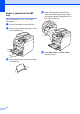
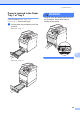
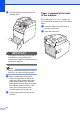
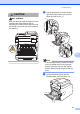
Table Of Contents
- BASIC USER’S GUIDE DCP-9055CDN
- User's Guides and where do I find it?
- Table of Contents
- 1 General information
- 2 Loading paper
- 3 Loading documents
- 4 Making copies
- 5 How to print from a computer
- 6 How to scan to a computer
- A Routine maintenance
- B Troubleshooting
- Error and maintenance messages
- Document is jammed in the top of the ADF unit
- Document is jammed under the document cover
- Removing small documents jammed in the ADF
- Document is jammed at the output tray
- Paper is jammed in the MP tray
- Paper is jammed in the Paper Tray 1 or Tray 2
- Paper is jammed at the back of the machine
- Paper is jammed inside the machine
- Paper is jammed underneath paper tray 1
- Troubleshooting
- Machine Information
- Error and maintenance messages
- C Menu and features
- D Specifications
- Index
- brother ARL/ASA/NZ/SAF/GLF
90
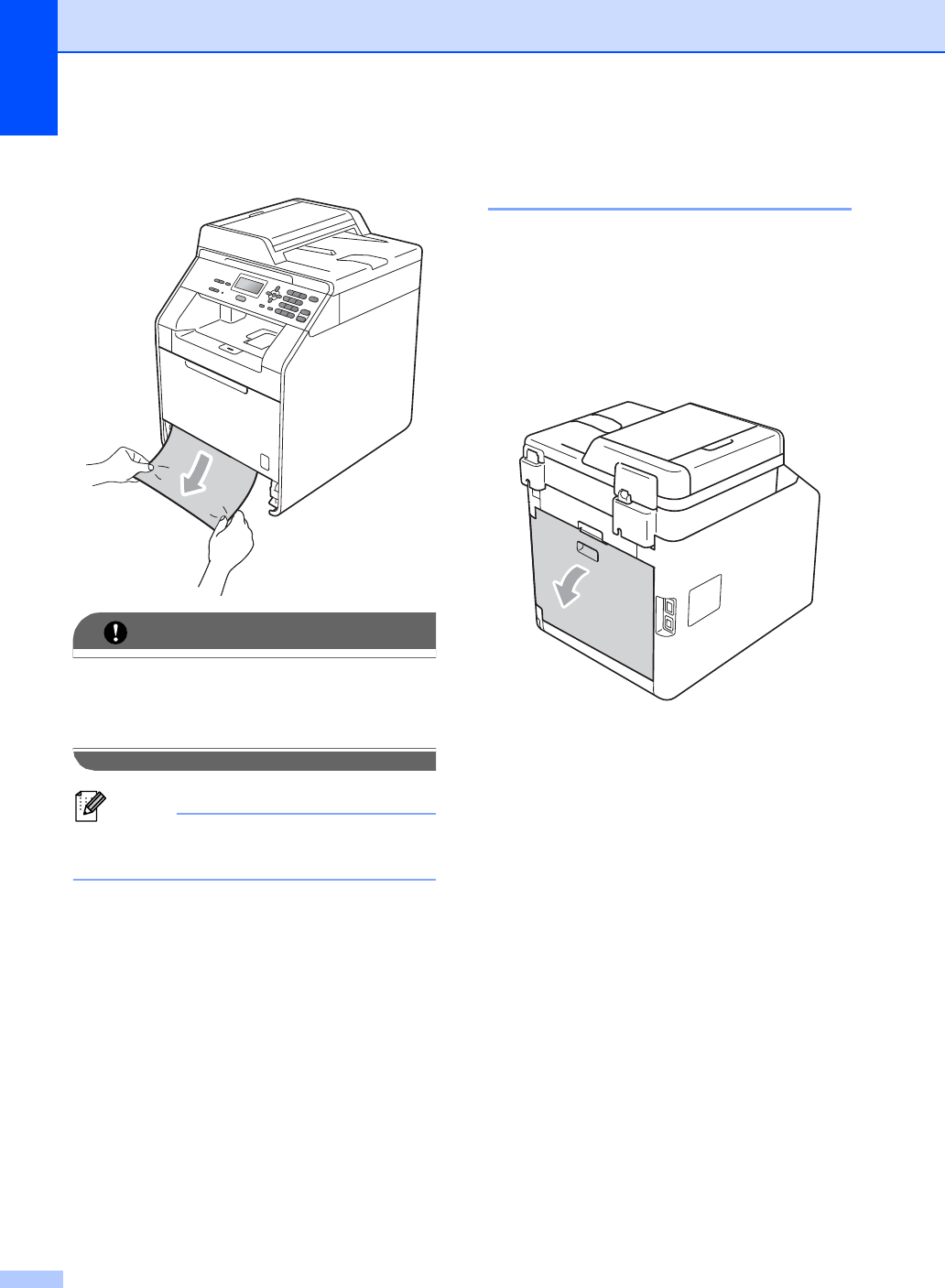
b Use both hands to slowly pull out the
jammed paper.
IMPORTANT
If the paper cannot easily be removed in
this direction, stop and follow the
instructions for Paper is jammed inside the
machine on page 92.
Note
Pulling out the jammed paper downwards
allows you to remove the paper easier.
c Make sure the paper is below the
maximum paper mark (b b b) of the
paper tray. While pressing the green
paper-guide release lever, slide the
paper guides to fit the paper size. Make
sure that the guides are firmly in the
slots. (See Loading paper in the
standard paper tray on page 10.)
d Put the paper tray firmly back in the
machine.
Paper is jammed at the back
of the machine B
If the LCD shows Jam Rear, a paper jam
occurred behind the back cover. Follow these
steps:
a Leave the machine turned on for 10
minutes to cool down.
b Open the back cover.