
All in One Printer User Manual
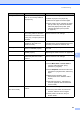
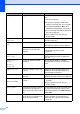

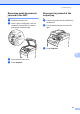
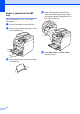
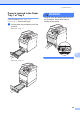
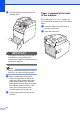
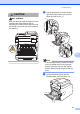
Table Of Contents
- BASIC USER’S GUIDE DCP-9055CDN
- User's Guides and where do I find it?
- Table of Contents
- 1 General information
- 2 Loading paper
- 3 Loading documents
- 4 Making copies
- 5 How to print from a computer
- 6 How to scan to a computer
- A Routine maintenance
- B Troubleshooting
- Error and maintenance messages
- Document is jammed in the top of the ADF unit
- Document is jammed under the document cover
- Removing small documents jammed in the ADF
- Document is jammed at the output tray
- Paper is jammed in the MP tray
- Paper is jammed in the Paper Tray 1 or Tray 2
- Paper is jammed at the back of the machine
- Paper is jammed inside the machine
- Paper is jammed underneath paper tray 1
- Troubleshooting
- Machine Information
- Error and maintenance messages
- C Menu and features
- D Specifications
- Index
- brother ARL/ASA/NZ/SAF/GLF
Troubleshooting
83
B
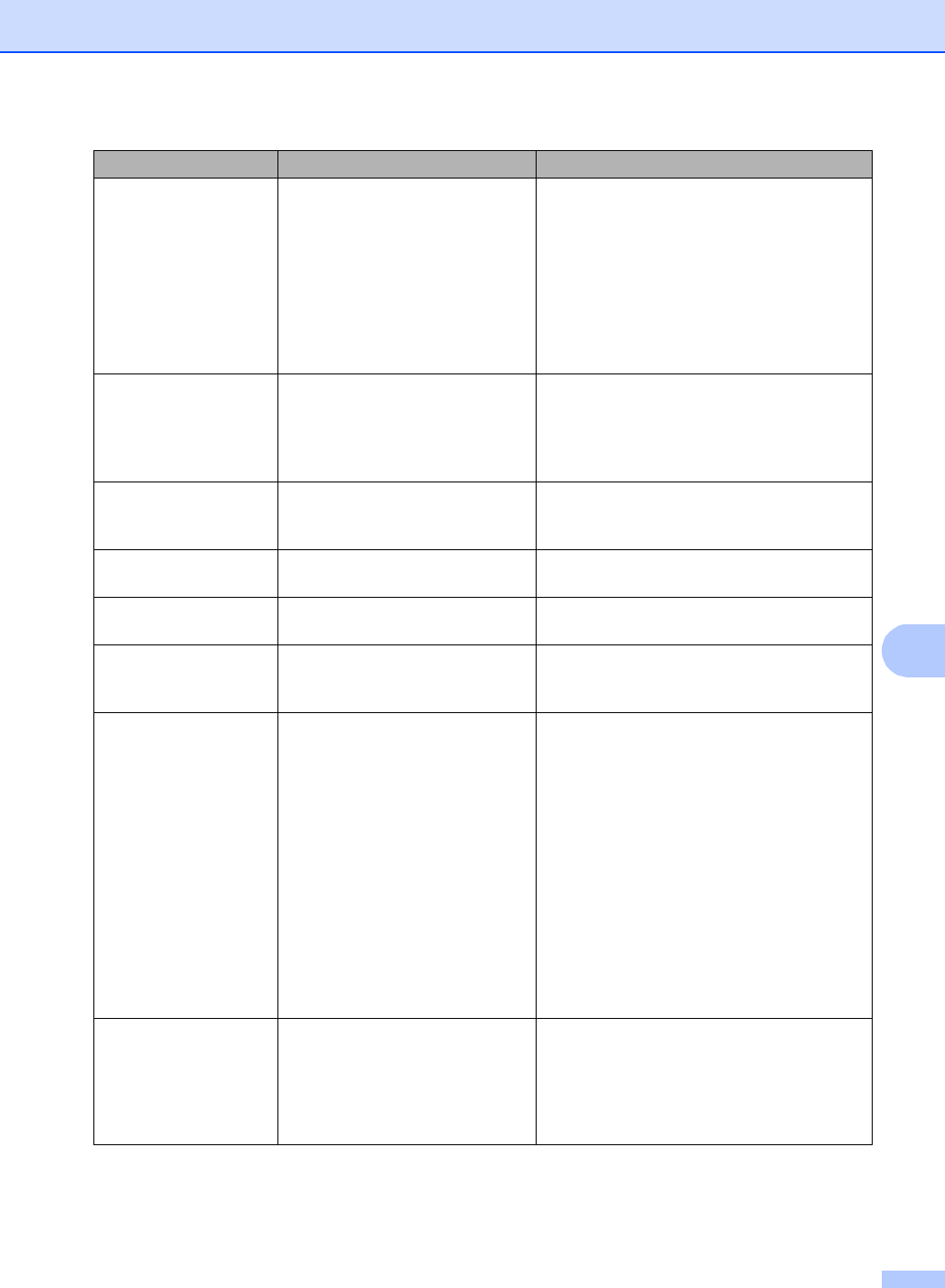
No Paper The machine is out of paper or
paper is not correctly loaded in
the paper tray.
Do one of the following:
Refill the paper in the paper tray.
Remove the paper and load it again.
If the problem is not resolved, the paper
pick-up roller may need to be cleaned.
Clean the paper pick-up roller. (See
Cleaning the paper pick-up rollers
on page 76.)
No Permission You have attempted to print in
colour using a Secure Function
Lock ID that is restricted to mono
printing only. The print job will be
cancelled.
Contact your administrator to check your
Secure Function Lock Settings.
No Toner The toner cartridge for the colour
indicated on the LCD is not
installed correctly.
Pull out the drum unit. Take out the toner
cartridge for the colour indicated on the LCD,
and then put it back into the drum unit.
No Tray The paper tray indicated on the
LCD is not installed properly.
Re-install the paper tray that is indicated on
the LCD.
No Waste Toner The waste toner box is not
installed properly.
Re-install the waste toner box. (See
Replacing the waste toner box on page 53.)
Not Available The attempted function is
restricted by Secure Function
Lock 2.0.
Contact your administrator to check your
Secure Function Lock Settings.
Out of Memory The machine’s memory is full. Do one of the following:
Press Mono Start or Colour Start to
copy the scanned pages. (Copy
operation in progress)
Press Stop/Exit and wait until the other
operations in progress finish, and then try
again.
Reduce print resolution. (See
Advanced tab in the Software User's
Guide.)
Add optional memory. (See Memory
board in Appendix B of the Advanced
User's Guide.)
Print Unable XX
(XX = Error Code)
The machine has a mechanical
problem.
Do one of the following:
Turn the power switch off, wait a few
minutes, and then turn it on again.
If the problem continues, call your
Brother dealer.
Error Message Cause Action