
All in One Printer User Manual
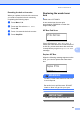
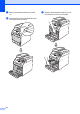
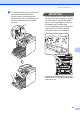
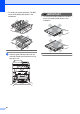
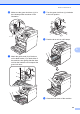
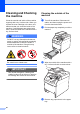
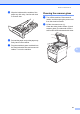
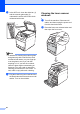
Table Of Contents
- BASIC USER’S GUIDE DCP-9055CDN
- User's Guides and where do I find it?
- Table of Contents
- 1 General information
- 2 Loading paper
- 3 Loading documents
- 4 Making copies
- 5 How to print from a computer
- 6 How to scan to a computer
- A Routine maintenance
- B Troubleshooting
- Error and maintenance messages
- Document is jammed in the top of the ADF unit
- Document is jammed under the document cover
- Removing small documents jammed in the ADF
- Document is jammed at the output tray
- Paper is jammed in the MP tray
- Paper is jammed in the Paper Tray 1 or Tray 2
- Paper is jammed at the back of the machine
- Paper is jammed inside the machine
- Paper is jammed underneath paper tray 1
- Troubleshooting
- Machine Information
- Error and maintenance messages
- C Menu and features
- D Specifications
- Index
- brother ARL/ASA/NZ/SAF/GLF
Routine maintenance
61
A
e Wipe the inside and the outside of the
paper tray with a dry, lint-free soft cloth
to remove dust.
f Re-load the paper and put the paper tray
firmly back in the machine.
g Plug the machine’s power cord back into
the electrical socket first, and connect all
cables. Turn on the machine.
Cleaning the scanner glass A
a Turn off the machine. Disconnect all
cables, and then unplug the power cord
from the electrical socket.
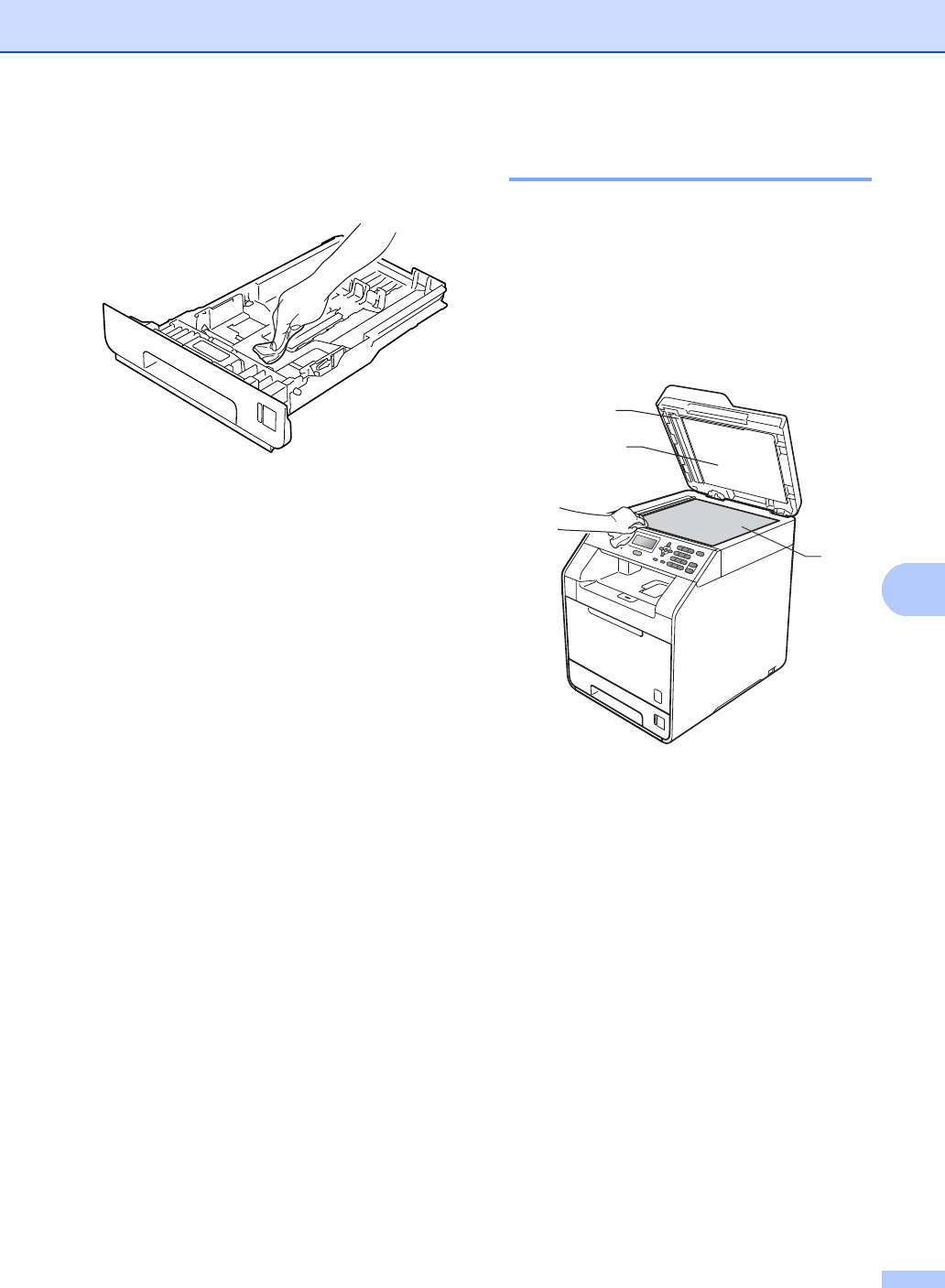
b Lift the document cover (1).
Clean the white plastic surface (2) and
scanner glass (3) underneath it with a
soft lint-free cloth moistened with water.
1
2
3