
All in One Printer User Manual
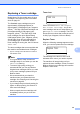
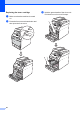
Table Of Contents
- BASIC USER’S GUIDE DCP-9055CDN
- User's Guides and where do I find it?
- Table of Contents
- 1 General information
- 2 Loading paper
- 3 Loading documents
- 4 Making copies
- 5 How to print from a computer
- 6 How to scan to a computer
- A Routine maintenance
- B Troubleshooting
- Error and maintenance messages
- Document is jammed in the top of the ADF unit
- Document is jammed under the document cover
- Removing small documents jammed in the ADF
- Document is jammed at the output tray
- Paper is jammed in the MP tray
- Paper is jammed in the Paper Tray 1 or Tray 2
- Paper is jammed at the back of the machine
- Paper is jammed inside the machine
- Paper is jammed underneath paper tray 1
- Troubleshooting
- Machine Information
- Error and maintenance messages
- C Menu and features
- D Specifications
- Index
- brother ARL/ASA/NZ/SAF/GLF
Routine maintenance
35
A
Replacing a Toner cartridge A
Model Name: For the model name of toner
cartridges, see Replacing the consumable
items on page 31.
The Standard toner cartridges can print
approximately 2,500 pages (black) or
approximately 1,500 pages (cyan, magenta,
yellow)
1
. The High Yield toner cartridges can
print approximately 3,500 pages (cyan,
magenta, yellow)
1
. The Super High Yield
toner cartridges can print approximately
6,000 pages (black, cyan, magenta, yellow).
Actual page count will vary depending on
your average type of document. When a
toner cartridge is running low, the LCD shows
Toner Low.
The toner cartridges that come supplied with
the machine are standard toner cartridges.
1
Approx. cartridge yield is declared in accordance
with ISO/IEC 19798.
Note
• It is a good idea to keep a new toner
cartridge ready for use when you see the
Toner Low warning.
• To ensure high quality printing, we
recommend that you use only Brother
Original toner cartridges. When you want
to buy toner cartridges, please call your
Brother dealer.
• We recommend that you clean the
machine when you replace the toner
cartridge. See Cleaning and Checking the
machine on page 60.
• If you change the print density setting for
lighter or darker printing, the amount of
toner used will change.
• Wait to unpack the toner cartridge until
immediately before you put it into the
machine.
Toner Low A
Toner Low
Prepare...
If the LCD shows Toner Low Prepare
New X Toner Cartridge., buy a new
toner cartridge and have it ready before you
get a Replace Toner message. The LCD
shows the toner colour that is near the end of
its life (Cyan, Magenta, Yellow or Black).
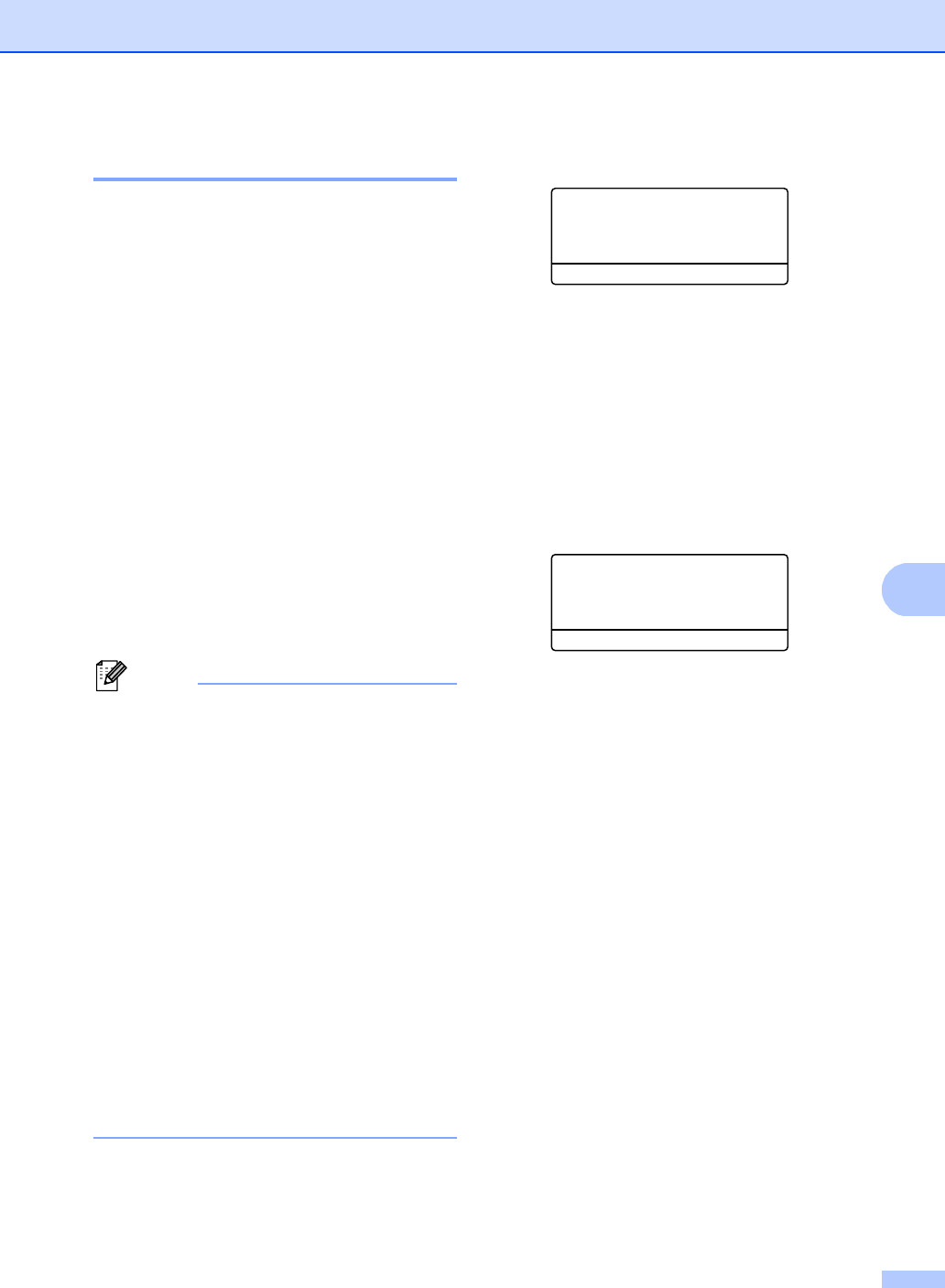
Replace Toner A
When the following message appears on the
LCD, you need to replace the toner cartridge:
Replace Toner
Open the Front...
The message in the last line of the LCD
indicates which colour you need to replace.
The machine will stop printing until you
replace the toner cartridge. A new or unused
Brother Original toner cartridge will reset the
Replace Toner mode.