
All in One Printer User Manual
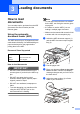

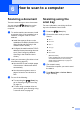
Table Of Contents
- BASIC USER’S GUIDE DCP-9055CDN
- User's Guides and where do I find it?
- Table of Contents
- 1 General information
- 2 Loading paper
- 3 Loading documents
- 4 Making copies
- 5 How to print from a computer
- 6 How to scan to a computer
- A Routine maintenance
- B Troubleshooting
- Error and maintenance messages
- Document is jammed in the top of the ADF unit
- Document is jammed under the document cover
- Removing small documents jammed in the ADF
- Document is jammed at the output tray
- Paper is jammed in the MP tray
- Paper is jammed in the Paper Tray 1 or Tray 2
- Paper is jammed at the back of the machine
- Paper is jammed inside the machine
- Paper is jammed underneath paper tray 1
- Troubleshooting
- Machine Information
- Error and maintenance messages
- C Menu and features
- D Specifications
- Index
- brother ARL/ASA/NZ/SAF/GLF

29
6
6
Scanning a document 6
There are several ways to scan documents.
You can use the (Scan) key on the
machine or the scanner drivers on your
computer.
a To use the machine as a scanner, install
a scanner driver. If the machine is on a
Network, configure it with a TCP/IP
address.
Install the scanner drivers on the
Installation CD-ROM. (See the Quick
Setup Guide and Scanning in the
Software User's Guide.)
Configure the machine with a TCP/IP
address if network scanning does not
work. (See Configuring Network
Scanning in the Software User's
Guide.)
b Load your document. (See How to load
documents on page 25.)
Use the ADF to scan multiple pages
of documents. It feeds each sheet
automatically.
Use the scanner glass to scan a
page of a book or one sheet at a
time.
c Do one of the following:
To scan using the (Scan) key,
go to Scanning using the scan key
on page 29.
To scan using a scanner driver at
your computer, go to Scanning using
a scanner driver on page 30.
Scanning using the
scan key
6
For more information, see Using the Scan
key in the Software User's Guide.
a Press the (Scan) key.
b Choose the scan mode you want.
Scan to:
File
E-mail
OCR
1
Image
FTP
Network
1
(Macintosh users)
Presto! PageManager must be downloaded
and installed before use. See Accessing
Brother Support (Macintosh) on page 4 for
further instructions.
c (For network users)
Choose the computer you want to send
the data to.
d Press Mono Start or Colour Start to
begin scanning.
How to scan to a computer 6