
All in One Printer User Manual


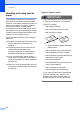
Table Of Contents
- BASIC USER’S GUIDE DCP-9055CDN
- User's Guides and where do I find it?
- Table of Contents
- 1 General information
- 2 Loading paper
- 3 Loading documents
- 4 Making copies
- 5 How to print from a computer
- 6 How to scan to a computer
- A Routine maintenance
- B Troubleshooting
- Error and maintenance messages
- Document is jammed in the top of the ADF unit
- Document is jammed under the document cover
- Removing small documents jammed in the ADF
- Document is jammed at the output tray
- Paper is jammed in the MP tray
- Paper is jammed in the Paper Tray 1 or Tray 2
- Paper is jammed at the back of the machine
- Paper is jammed inside the machine
- Paper is jammed underneath paper tray 1
- Troubleshooting
- Machine Information
- Error and maintenance messages
- C Menu and features
- D Specifications
- Index
- brother ARL/ASA/NZ/SAF/GLF
Chapter 2
20
Acceptable paper and
other print media 2
Print quality may vary according to the type of
paper you are using.
You can use the following types of print
media: thin paper, plain paper, thick paper,
bond paper, recycled paper, glossy paper,
labels or envelopes.
For best results, follow the instructions below:
DO NOT put different types of paper in the
paper tray at the same time because it
may cause paper jams or misfeeds.
For correct printing, you must choose the
same paper size from your software
application as the paper in the tray.
Avoid touching the printed surface of the
paper immediately after printing.
Before you buy a lot of paper, test a small
quantity to make sure the paper is
suitable.
Type and size of paper 2
The machine feeds paper from the installed
standard paper tray, multi-purpose tray or
optional lower tray.
The name for the paper trays in the
printer driver and this Guide are as
follows: 2
Tray and optional unit Name
Standard paper tray Tray 1
Multi-purpose tray MP Tray
Optional lower tray Tray 2