
All in One Printer User Manual

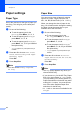
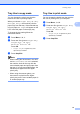

Table Of Contents
- BASIC USER’S GUIDE DCP-9055CDN
- User's Guides and where do I find it?
- Table of Contents
- 1 General information
- 2 Loading paper
- 3 Loading documents
- 4 Making copies
- 5 How to print from a computer
- 6 How to scan to a computer
- A Routine maintenance
- B Troubleshooting
- Error and maintenance messages
- Document is jammed in the top of the ADF unit
- Document is jammed under the document cover
- Removing small documents jammed in the ADF
- Document is jammed at the output tray
- Paper is jammed in the MP tray
- Paper is jammed in the Paper Tray 1 or Tray 2
- Paper is jammed at the back of the machine
- Paper is jammed inside the machine
- Paper is jammed underneath paper tray 1
- Troubleshooting
- Machine Information
- Error and maintenance messages
- C Menu and features
- D Specifications
- Index
- brother ARL/ASA/NZ/SAF/GLF

Chapter 2
18
Paper settings 2
Paper Type 2
Set up the machine for the type of paper you
are using. This will give you the best print
quality.
a Do one of the following:
To set the paper type for the
MP Tray press Menu, 1, 1, 1, 1.
To set the paper type for Tray#1
press Menu, 1, 1, 1, 2.
To set the paper type for Tray#2
1
press Menu, 1, 1, 1, 3 if you installed
the optional tray.
1
Tray#2 appears only if the optional tray is
installed.
b Press a or b to choose Thin, Plain,
Thick, Thicker, Recycled Paper
or Glossy Paper.
Press OK.
c Press Stop/Exit.
Note
You can choose Glossy Paper for
MP Tray.
Paper Size 2
You can use ten sizes of paper for printing
copies: A4, Letter, Legal, Executive, A5,
A5 L, A6, B5, B6 and Folio (8.5 in. × 13 in.).
When you change the size of paper in the
tray, you will also need to change the setting
for paper size at the same time so your
machine can fit the document.
a Do one of the following:
To set the paper size for the
MP Tray press Menu, 1, 1, 2, 1.
To set the paper size for Tray#1
press Menu, 1, 1, 2, 2.
To set the paper size for Tray#2
1
press Menu, 1, 1, 2, 3 if you installed
the optional tray.
1
Tray#2 appears only if the optional tray is
installed.
b Press a or b to choose A4, Letter,
Legal, Executive, A5, A5 L, A6, B5,
B6, Folio or Any.
Press OK.
c Press Stop/Exit.
Note
• The Any option appears only when you
choose the MP tray.
• If you choose Any for the MP Tray Paper
Size: You must choose MP Only for the
Tray Use setting. You cannot use the Any
Paper Size selection for the MP tray when
making N in 1 copies. You must choose
one of the other available Paper Size
selections for the MP tray.
• A5 L and A6 size are not available for the
Tray#2.