
All in One Printer User Manual


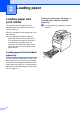
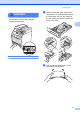
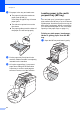
Table Of Contents
- BASIC USER’S GUIDE DCP-9055CDN
- User's Guides and where do I find it?
- Table of Contents
- 1 General information
- 2 Loading paper
- 3 Loading documents
- 4 Making copies
- 5 How to print from a computer
- 6 How to scan to a computer
- A Routine maintenance
- B Troubleshooting
- Error and maintenance messages
- Document is jammed in the top of the ADF unit
- Document is jammed under the document cover
- Removing small documents jammed in the ADF
- Document is jammed at the output tray
- Paper is jammed in the MP tray
- Paper is jammed in the Paper Tray 1 or Tray 2
- Paper is jammed at the back of the machine
- Paper is jammed inside the machine
- Paper is jammed underneath paper tray 1
- Troubleshooting
- Machine Information
- Error and maintenance messages
- C Menu and features
- D Specifications
- Index
- brother ARL/ASA/NZ/SAF/GLF
10
2
Loading paper and
print media
2
The machine can feed paper from the
standard paper tray, optional lower tray or
multi-purpose tray.
When you put paper into the paper tray, note
the following:
If your application software supports
paper size selection on the print menu,
you can select it through the software. If
your application software does not
support it, you can set the paper size in
the printer driver or by using the control
panel buttons.
Loading paper in the standard
paper tray 2
You can load up to 250 sheets for Tray 1 and
500 sheets for Tray 2. Paper can be loaded
up to the maximum paper mark (b b b) on the
sliding paper with guide. (For recommended
paper to use, see Paper capacity of the paper
trays on page 21.)
Printing on plain paper, thin paper or
recycled paper from the standard
paper tray 2
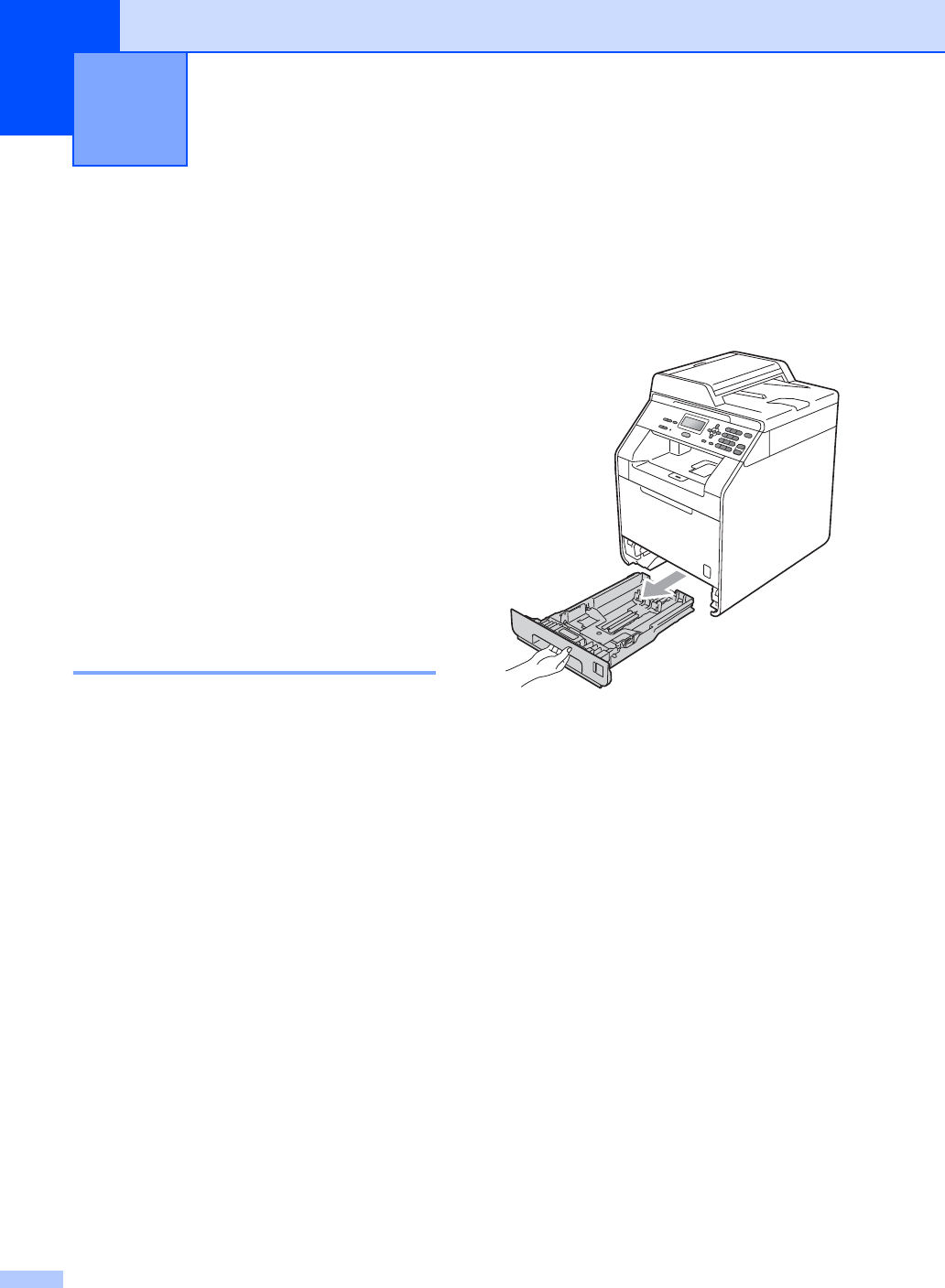
a Pull the paper tray completely out of the
machine.
Loading paper 2