
All in One Printer User Manual
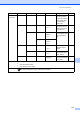

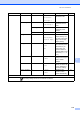
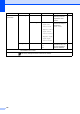
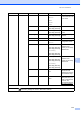
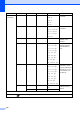
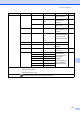
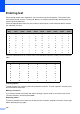
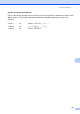
Table Of Contents
- BASIC USER’S GUIDE DCP-9055CDN
- User's Guides and where do I find it?
- Table of Contents
- 1 General information
- 2 Loading paper
- 3 Loading documents
- 4 Making copies
- 5 How to print from a computer
- 6 How to scan to a computer
- A Routine maintenance
- B Troubleshooting
- Error and maintenance messages
- Document is jammed in the top of the ADF unit
- Document is jammed under the document cover
- Removing small documents jammed in the ADF
- Document is jammed at the output tray
- Paper is jammed in the MP tray
- Paper is jammed in the Paper Tray 1 or Tray 2
- Paper is jammed at the back of the machine
- Paper is jammed inside the machine
- Paper is jammed underneath paper tray 1
- Troubleshooting
- Machine Information
- Error and maintenance messages
- C Menu and features
- D Specifications
- Index
- brother ARL/ASA/NZ/SAF/GLF
118
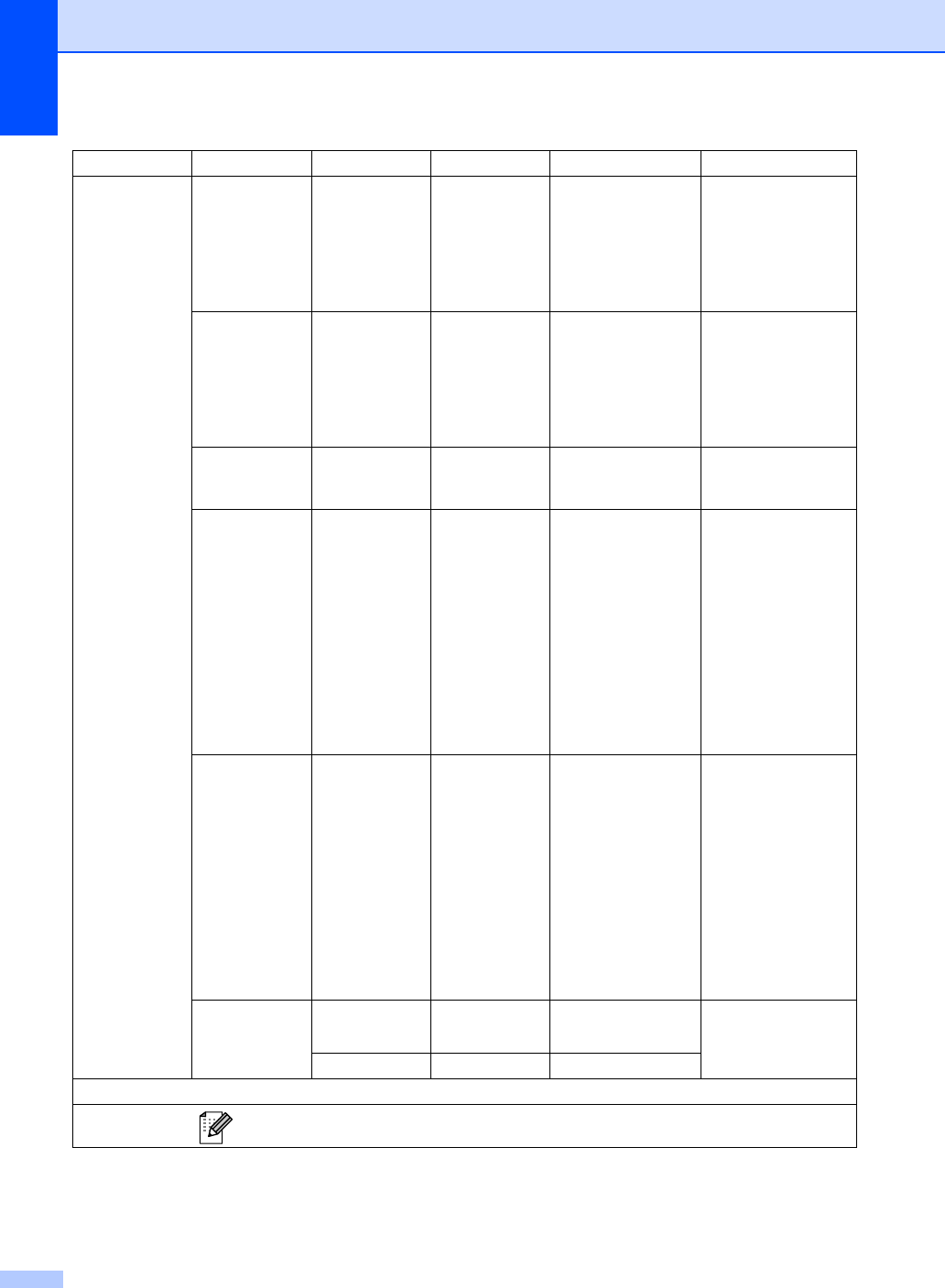
4.Network
(Continued)
2.Ethernet ——Auto*
100B-FD
100B-HD
10B-FD
10B-HD
Chooses the Ethernet
link mode.
3.Status ——Active 100B-FD
Active 100B-HD
Active 10B-FD
Active 10B-HD
Inactive
Shows the Ethernet
link status.
4.MAC Address
— — — Shows the MAC
address of the
machine.
5.Scan To FTP
——Color 100 dpi*
Color 200 dpi
Color 300 dpi
Color 600 dpi
Gray 100 dpi
Gray 200 dpi
Gray 300 dpi
B&W 200 dpi
B&W 200x100 dpi
Chooses the file
format to send the
scanned data via
FTP.
6.ScanTo Network
——Color 100 dpi*
Color 200 dpi
Color 300 dpi
Color 600 dpi
Gray 100 dpi
Gray 200 dpi
Gray 300 dpi
B&W 200 dpi
B&W 200x100 dpi
You can scan a black
and white or colour
document directly to a
CIFS server on your
local network or on
the internet.
0.Network Reset
1.Reset — 1.Yes
2.No
Restore all network
settings to factory
default.
2.Exit ——
Level 1 Level 2 Level 3 Level 4 Options Descriptions
See Network User's Guide.
The factory settings are shown in Bold with an asterisk.