
All in One Printer User Manual

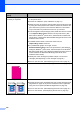
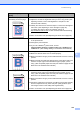
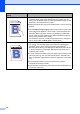
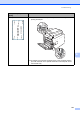

Table Of Contents
- BASIC USER’S GUIDE DCP-9055CDN
- User's Guides and where do I find it?
- Table of Contents
- 1 General information
- 2 Loading paper
- 3 Loading documents
- 4 Making copies
- 5 How to print from a computer
- 6 How to scan to a computer
- A Routine maintenance
- B Troubleshooting
- Error and maintenance messages
- Document is jammed in the top of the ADF unit
- Document is jammed under the document cover
- Removing small documents jammed in the ADF
- Document is jammed at the output tray
- Paper is jammed in the MP tray
- Paper is jammed in the Paper Tray 1 or Tray 2
- Paper is jammed at the back of the machine
- Paper is jammed inside the machine
- Paper is jammed underneath paper tray 1
- Troubleshooting
- Machine Information
- Error and maintenance messages
- C Menu and features
- D Specifications
- Index
- brother ARL/ASA/NZ/SAF/GLF
104
The colour of your printouts is
not what you expected
Make sure Toner Save mode is off in the control panel of the machine
or the printer driver.
Perform the calibration. (See Calibration on page 77.)
Adjust the colour by using the custom setting in the printer driver and
by using the control panel of the machine. Colours the machine can
print and colours you see on a monitor are different. The machine
may not be able to reproduce the colours on your monitor.
If colours appear in the printed grey areas, make sure there is a check
in the Improve Grey Colour check box of the printer driver. (See
Basic tab for Windows
®
printer driver, Advanced tab for Macintosh
printer driver or Features for Macintosh BR-Script printer driver in the
Software User's Guide.)
If shaded areas look dull, remove the check from the
Improve Grey Colour check box.
If a printed black graphic is too light, choose
Enhance Black Printing mode in the printer driver. (See Settings
Dialog for Windows
®
printer driver, Advanced options for Windows
®
BR-Script printer driver, Print Settings for Macintosh printer driver or
Printer Features for Macintosh BR-Script printer driver in the
Software User's Guide.)
Identify the colour causing the problem and put in a new toner
cartridge. (See Replacing a Toner cartridge on page 35.)
Put in a new drum unit. (See Replacing the drum unit on page 42.)
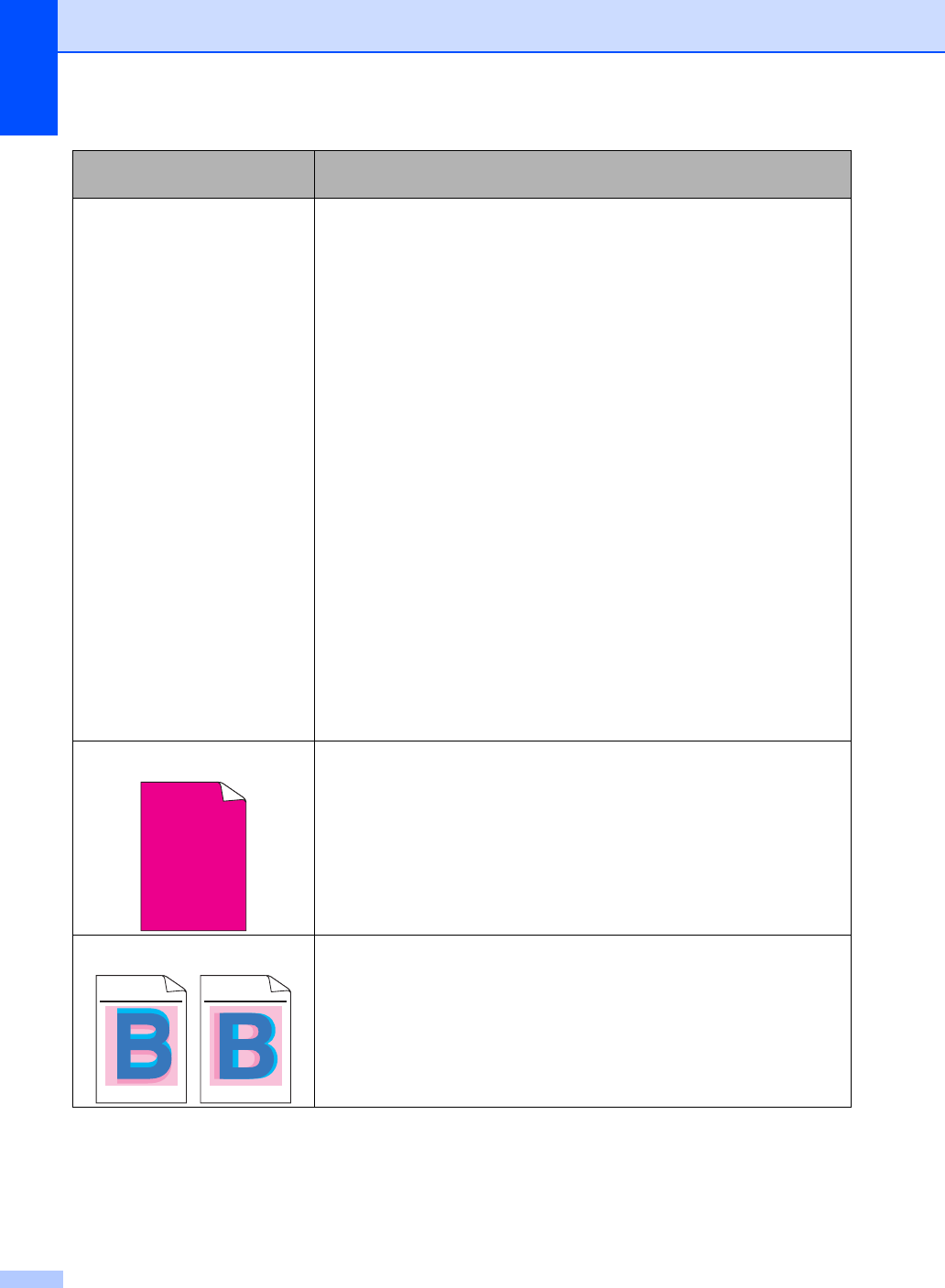
All one colour
Put in a new drum unit. (See Replacing the drum unit on page 42.)
Colour misregistration
Make sure that the machine is on a solid level surface.
Perform the auto colour registration using the control panel (see Auto
Registration on page 78) or perform the manual colour registration
using the control panel (see Manual Registration on page 78).
Put in a new drum unit. (See Replacing the drum unit on page 42.)
Put in a new belt unit. (See Replacing the belt unit on page 48.)
Examples of poor print
quality
Recommendation
ABCDEFGHIJKLMNOPQRSTUVWXYZ. 0123456789. abcdefghijklmnopqrstuvwxyz.
ABCDEFGHIJKLMNOPQRSTUVWXYZ. 0123456789. abcdefghijklmnopqrstuvwxyz.
ABCDEFGHIJKLMNOPQRSTUVWXYZ. 0123456789. abcdefghijklmnopqrstuvwxyz.
ABCDEFGHIJKLMNOPQRSTUVWXYZ. 0123456789. abcdefghijklmnopqrstuvwxyz.
ABCDEFGHIJKLMNOPQRSTUVWXYZ. 0123456789. abcdefghijklmnopqrstuvwxyz.
ABCDEFGHIJKLMNOPQRSTUVWXYZ. 0123456789. abcdefghijklmnopqrstuvwxyz.
ABCDEFGHIJKLMNOPQRSTUVWXYZ. 0123456789. abcdefghijklmnopqrstuvwxyz.
ABCDEFGHIJKLMNOPQRSTUVWXYZ. 0123456789. abcdefghijklmnopqrstuvwxyz.