Multi-Protocol On-board Ethernet Multi-function Print Server NETWORK USER’S GUIDE This Network User's Guide provides useful information of wired network settings and security settings using your Brother machine. You can also find supported protocol information and detailed troubleshooting tips. To find basic information about network and advanced network features of your Brother machine, see the Network Glossary.
Definitions of notes We use the following icons throughout this User’s Guide: IMPORTANT IMPORTANT indicates a potentially hazardous situation which, if not avoided, may result in damage to property or loss of product functionality. Note Notes tell you how you should respond to a situation that may arise or give tips about how the operation works with other features.
Table of Contents 1 Introduction 1 Network features........................................................................................................................................1 Other Network features .......................................................................................................................2 2 Changing your machine’s network settings 3 How to change your machine’s network settings (IP address, Subnet mask and Gateway)............................................
5 Security features 30 Overview..................................................................................................................................................30 Managing your network machine securely using SSL/TLS .....................................................................31 Secure Management using Web Based Management (web browser) ..............................................31 Printing documents securely using SSL/TLS.......................................................
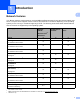
1 Introduction 1 1 Network features 1 Your Brother machine can be shared on a 10/100 MB wired Ethernet network using the internal network print server. The print server supports various functions and methods of connection depending on the operating system you are running on a network supporting TCP/IP. The following chart shows what network features and connections are supported by each operating system. Operating Systems Windows® 2000/XP Windows Server® 2003/2008 Mac OS X 10.4.11 10.6.
Introduction Other Network features 1 1 Internet fax (MFC-9465CDN: available as a download) 1 Internet fax (IFAX) allows you to send and receive fax documents using the Internet as the transport mechanism. In order to use this function, please download the necessary software from our web site, The Brother Solutions Center (http://solutions.brother.com/). Before using this function, you have to configure the necessary machine settings by using the machine’s control panel.
2 Changing your machine’s network settings 2 How to change your machine’s network settings (IP address, Subnet mask and Gateway) 2 Using the control panel 2 You can configure your machine for a network using the control panel Network menu. (See Control panel setup on page 8.) Using the BRAdmin Light utility 2 The BRAdmin Light utility is designed for initial setup of Brother network connected devices.
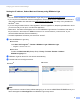
Changing your machine’s network settings Setting the IP address, Subnet Mask and Gateway using BRAdmin Light 2 Note • You can download Brother's latest BRAdmin Light utility from http://solutions.brother.com/. 2 • If you require more advanced machine management, use the latest version of BRAdmin Professional 3 utility that is available as a download from http://solutions.brother.com/. This utility is only available for Windows® users.
Changing your machine’s network settings • You can find the Node Name and MAC Address (Ethernet Address) by printing the Network Configuration List. (See Printing the Network Configuration List on page 12 for information on how to print the Network Configuration List on your print server.) You can also find the Node Name and MAC Address from the control panel. (See Chapter 3: Control panel setup.) d 2 Choose STATIC from Boot Method (BOOT Method).
Changing your machine’s network settings Other Management Utilities 2 Your Brother machine has the following management utilities other than the BRAdmin Light utility. You can change your network settings using these utilities. Web Based Management (web browser) 2 2 A standard web browser can be used to change your print server settings using the HTTP (Hyper Text Transfer Protocol). (See How to configure the machine settings using Web Based Management (web browser) on page 16.
Changing your machine’s network settings BRPrint Auditor (Windows®) 2 The BRPrint Auditor software brings the monitoring power of Brother network management tools to locally connected machines. This utility allows a client computer to collect usage and status information from a Brother machine connected via the parallel or USB interface. The BRPrint Auditor can then pass this information to another computer on the network running BRAdmin Professional 3 or Web BRAdmin 1.45 or greater.
3 Control panel setup 3 Network menu 3 The Network menu selections of the control panel allow you to set up the Brother machine for your network configuration. (For more information on how to use the control panel, see the Basic User's Guide.) Press Menu, then press a or b to choose Network. Proceed to the menu selection you wish to configure. (For additional information on the menu, see Function table and default factory settings on page 13.
Control panel setup IP Address 3 This field displays the current IP address of the machine. If you have chosen a Boot Method of Static, enter the IP address that you wish to assign to the machine (check with your network administrator for the IP address to use). If you have chosen a method other than Static, the machine will attempt to determine its IP address using the DHCP or BOOTP protocols.
Control panel setup server. If set to a non-zero value, the machine will contact this server to register its name with the Windows® Internet Name Service. If you have a primary WINS server, but no secondary WINS server, simply leave this field blank. DNS Server 3 Primary DNS Server IP Address 3 This field specifies the IP address of the primary DNS (Domain Name System) server. Secondary DNS Server IP Address 3 This field specifies the IP address of the secondary DNS server.
Control panel setup Ethernet 3 Ethernet link mode. Auto allows the print server to operate in 100BASE-TX full or half duplex, or in 10BASE-T full or half duplex mode by auto negotiation. Note If you set this value incorrectly, you may not be able to communicate with your print server. 3 Status (For DCP-9055CDN and MFC-9465CDN) 3 This field displays the current wired network status. MAC Address 3 The MAC address is a unique number assigned for the machine's network interface.
Control panel setup Reset the network settings to the factory default 3 You can reset the print server back to its default factory settings (resetting all information such as the password and IP address information). Note • This function resets all wired network settings to the factory default. 3 • You can also reset the print server back to its factory default settings using the BRAdmin applications or Web Based Management. (For more information, see Other Management Utilities on page 6.
Control panel setup Function table and default factory settings 3 DCP-9055CDN and MFC-9465CDN 3 The factory settings are shown in Bold with an asterisk. Main menu Submenu Menu selections Options 4.Network 1.TCP/IP 1.Boot Method Auto* (DCP-9055CDN) Static 7.Network RARP (MFC-9465CDN) BOOTP 3 DHCP (If you choose Auto, RARP, BOOTP or DHCP, you will be asked to enter how many times the machine tries to obtain the IP address.) 2.IP Address [000-255].[000-255].[000-255].[000-255] [000].[000].
Control panel setup Main menu Submenu Menu selections Options 4.Network 1.TCP/IP 0.IPv6 On (DCP-9055CDN) (continued) Off* 7.Network (MFC-9465CDN) 3 (continued) 2.Ethernet — Auto* 100B-FD 100B-HD 10B-FD 10B-HD 3.Status — Active 100B-FD Active 100B-HD Active 10B-FD Active 10B-HD Inactive 4.MAC Addr ess — — 5.
Control panel setup Main menu Submenu Menu selections Options 4.Network 6.ScanTo N etwork — Color 100 dpi* (If you choose Color option) Color 200 dpi PDF* 7.Network Color 300 dpi PDF/A (MFC-9465CDN) Color 600 dpi Secure PDF (continued) Gray 100 dpi Signed PDF Gray 200 dpi JPEG Gray 300 dpi XPS B&W 200 dpi (If you choose Gray option) B&W 200x100 dpi PDF* (DCP-9055CDN) 3 PDF/A Secure PDF Signed PDF JPEG XPS (If you choose B&W option) PDF* PDF/A Secure PDF Signed PDF TIFF 0.
4 Web Based Management 4 Overview 4 A standard Web Browser can be used to manage your machine using the HTTP (Hyper Text Transfer Protocol). You can get the following information from a machine on your network using a web browser. Machine status information Change Fax configuration items, such as General Setup, Address Book settings and Remote Fax 4 Change network settings such as TCP/IP information Configure Secure Function Lock 2.
Web Based Management Note • If you are using a Domain Name System or enable a NetBIOS name, you can enter another name such as “Shared_Printer” instead of the IP address. • For example: http://Shared_Printer/ If you enable a NetBIOS name, you can also use the node name. • For example: 4 http://brnxxxxxxxxxxxx/ The NetBIOS name can be seen in the Network Configuration List. (To learn how to print the Network Configuration List, see Printing the Network Configuration List on page 12.
Web Based Management Secure Function Lock 2.0 4 Secure Function Lock 2.0 from Brother helps you to save money and increase security by restricting the functions available on your Brother machine. Secure Function Lock allows you to configure passwords for selected users, granting them access to some, or all, of these functions, or limiting them to a page limit. This means that only authorized people can use them. You can configure and change the following Secure Function Lock 2.
Web Based Management e If you want to restrict the PC printing by PC user login name, click PC Print Restriction by Login Name and configure the settings. (See Restricting PC print by PC user login name on page 20.) Scanning when using Secure Function Lock 2.0 4 The Secure Function Lock 2.0 feature allows the administrator to restrict which users are allowed to scan. When the scan feature is set to off for the public user setting, only users who have scan selected in the check box will be able to scan.
Web Based Management Restricting PC print by PC user login name 4 By configuring this setting, the machine can authenticate by PC user login name to allow a print job from a registered computer. a Click PC Print Restriction by Login Name. The PC Print Restriction by Login Name screen will appear. b c Choose On from PC Print Restriction.
Web Based Management Synchronize with SNTP server 4 SNTP is the protocol used to synchronize the time used by the machine for Authentication with the SNTP time server (this time is not the time displayed on the LCD of the machine). You can synchronize the time used by the machine on a regular basis with the Coordinated Universal Time (UTC) provided by the SNTP time server. a b c Click Network Configuration, and then click Configure Protocol. Select the SNTP check box to activate the setting.
Web Based Management Note • You must configure Date&Time to synchronize the time used by the machine with the SNTP time server. Click Configure Date&Time and then configure Date&Time on the General Setup screen. You can also configure the Date & Time from the machine’s control panel. 4 • Choose the Synchronize with SNTP server check box. You also need to verify your time zone settings correctly. Choose the time difference between your location and UTC from the Time Zone pull-down list.
Web Based Management Store Print Log to Network 4 The Store Print Log to Network feature allows you to save the print log file from your Brother machine to a network server using CIFS 1. You can record the ID, type of print job, job name, user name, date, time, the number of printed pages and color pages 2 for every print job. 1 2 CIFS is the Common Internet File System protocol that runs over TCP/IP allowing computers on a network to share files over an intranet or the Internet. Supported models only.
Web Based Management Auth. Method Choose the authentication method required for access to the CIFS server Auto, Kerberos 1 or NTLMv2 2. 1 2 Kerberos is an authentication protocol which allows devices or individuals to securely prove their identity to network servers using a single sign-on. NTLMv2 is the default authentication method used by Windows to log into servers. For Kerberos and NTLMv2 Authentication you must also configure the Date&Time settings or the SNTP protocol (network time server).
Web Based Management Error Detection Setting 4 You can choose what action is taken when the print log cannot be stored to the server due to a network error. a Choose Cancel Print or Ignore Log & Print in the Error Detection Setting of Store Print Log to Network. Cancel Print If you choose Cancel Print, the print jobs are canceled when the print log cannot be stored to the server. 4 Note Even if you choose Cancel Print, your machine will print a received fax.
Web Based Management Understanding Error Messages 4 You can confirm the error status on the LCD of your machine or Connection Status in Web Based Management. Server Timeout This message will appear when you cannot connect to the server. Make sure that: • Your server address is correct. 4 • Your server is connected to the network. • The machine is connected to the network. Authentication Error The message will appear when your Authentication Setting is not correct.
Web Based Management Using Store Print Log to Network with Secure Function Lock 2.0 4 When Secure Function Lock 2.0 is active the names of the registered users for copy, Fax RX and USB Direct Print (if available) functions will be recorded in the Store Print Log to Network report. Example of the print Log with Secure Function Lock 2.
Web Based Management Changing the Scan to FTP configuration using a web browser 4 Scan to FTP allows you to scan a document directly to an FTP server on your local network or on the Internet. See Network Scanning in the Software User's Guide for more details on Scan to FTP. a Click Administrator Settings on the MFC-XXXX (or DCP-XXXX) web page, and then click FTP/Network Scan Settings. b You can choose what profile numbers (1 to 10) to use for Scan to FTP settings.
Web Based Management Changing the Scan to Network configuration using a web browser 4 Scan to Network allows you to scan documents directly to a shared folder on a CIFS server located on your local network or the Internet. (For more information on the CIFS protocol, see the Network Glossary.) To enable the CIFS protocol, check the box for CIFS on Configure Protocol from the Network Configuration page. See Network Scanning in the Software User's Guide for more details on Scan to Network.
5 Security features 5 Overview 5 In today’s world there are many security threats to your network and the data that travels over it. Your Brother machine employs some of the latest network security and encryption protocols available today. These network features can be integrated into your overall network security plan to help protect your data and prevent unauthorized access to the machine. This chapter explains how to configure them.
Security features Managing your network machine securely using SSL/TLS 5 To manage your network machine securely, you need to use the management utilities with security protocols. Secure Management using Web Based Management (web browser) 5 We recommend to use HTTPS and SNMPv3 protocol for secure management. To use the HTTPS protocol, the following machine settings are required. A self-signed certificate or a certificate issued by a CA, and a private key must be installed in the machine.
Security features i You can configure the SNMP settings from the screen below. 5 We have three SNMP connection modes of operation. 5 SNMPv3 read-write access With this mode the print server uses version 3 of the SNMP protocol. If you want to manage the print server securely, use this mode. Note When you use the SNMPv3 read-write access mode, please note the following. • You can manage the print server by using BRAdmin Professional 3, Web BRAdmin or Web Based Management only.
Security features SNMPv1/v2c read-write access In this mode the print server uses version 1 and version 2c of the SNMP protocol. You can use all Brother applications under this mode. However, it is not secure since it will not authenticate the user and the data will not be encrypted. Note For more information, see the Help text in Web Based Management. Printing documents securely using SSL/TLS 5 To print documents securely over the Internet, you can use the IPPS protocol.
Security features Sending or Receiving an E-mail securely 5 Configuration using Web Based Management (web browser) 5 You can configure secured E-mail sending with user authentication or E-mail sending and receiving using SSL/TLS on the Web Based Management screen. a b Start your web browser. Type “http://printer’s IP address/” into your browser (where “printer’s IP address” is the printer’s IP address). 5 For example: http://192.168.1.2/ c d e f g h Click Network Configuration.
Security features You will also need to check SMTP-AUTH of SMTP Server Authentication Method to enable the SMTP server authentication. SMTP settings You can change the SMTP port number using Web Based Management. This is useful if your ISP (Internet Service Provider) implements the “Outbound Port 25 Blocking (OP25B)” service.
Security features Using IEEE 802.1x authentication 5 You can configure IEEE 802.1x authentication for a wired. To use IEEE 802.1x authentication, you must install a certificate issued by a CA. Contact your network administrator or your ISP (Internet Service Provider) whether a CA certificate import is necessary. (For how to install a certificate, see Using Certificates for device security on page 39.) IEEE 802.
Security features • For Macintosh users, you can have easy access to the Web Based Management System by clicking the machine icon on the Status Monitor screen. For more information, see the Software User's Guide. c d e f g Click Network Configuration. Enter a user name and a password. The default User Name is “admin” and the default password is “access”. Click OK. Click Configure Wired802.1x. Now you can configure the IEEE 802.1x authentication settings. If you want to enable IEEE 802.
Security features h After configuring, click Submit. After configuring, connect your machine to the IEEE 802.1x supported network. After a few minutes, print the Network Configuration List to check the Status. (See Printing the Network Configuration List on page 12 for information on how to print the Network Configuration List on your print server.) Success The wired IEEE 802.1x function is enabled and the authentication was successful. Failed The wired IEEE 802.
Security features Using Certificates for device security 5 Your Brother machine supports the use of multiple security certificates allowing secure management, authentication and communication with the machine. The following security certificate features can be used with the machine. SSL/TLS communication IEEE 802.1x authentication SSL communication for SMTP/POP3 The Brother machine supports the following certificates. Self-signed certificate 5 This print server issues its own certificate.
Security features Configure certificate using Web Based Management 5 This feature can be configured using Web Based Management only. Follow these steps to access the configure certificate page using Web Based Management. a b Start your web browser. Type “http://printer’s IP address/” into your browser (where “printer’s IP address” is the printer’s IP address). For example: http://192.168.1.2/ c d e f g 5 Click Network Configuration. Enter a user name and a password.
Security features Creating and installing a certificate 5 Step by step chart for creating and installing a certificate self-signed certificate or 5 certificate from a CA Create a self-signed certificate using Web Based Management. (See page 41.) Create a CSR using Web Based Management. (See page 46.) Install the self-signed certificate to your computer. (See page 42.) Install the certificate issued by CA to your Brother machine using Web Based Management. (See page 47.
Security features How to install the self-signed certificate on your computer 5 Note The following steps are for Microsoft® Internet Explorer®. If you use another web browser, follow the help text of the web browser itself. For Windows Vista®, Windows® 7 and Windows Server® 2008 users that have administrator rights a Click the b Right-click Internet Explorer, and then click Run as administrator. 5 button and All Programs.
Security features c Type “https://printer’s IP address/” into your browser to access your machine (where “printer’s IP address” is the printer’s IP address or the node name that you assigned for the certificate). Then, click Continue to this website (not recommended).. 5 d Click Certificate Error, and then click View certificates. For the rest of the instructions, follow the steps from step d in For Windows® 2000/XP and Windows Server® 2003 users on page 44.
Security features For Windows® 2000/XP and Windows Server® 2003 users a b Start your web browser. c When the following dialog appears, click View Certificate. 5 Type “https://printer’s IP address/” into your browser to access your machine (where “printer’s IP address” is the IP address or the node name that you assigned for the certificate). 5 d Click Install Certificate... from the General tab. e When the Certificate Import Wizard appears, click Next.
Security features f Choose Place all certificates in the following store and then, click Browse.... 5 g Choose Trusted Root Certification Authorities and then click OK. h Click Next. i Click Finish.
Security features j Click Yes, if the fingerprint (thumbprint) is correct. 5 Note The fingerprint (thumbprint) is printed on the Network Configuration List. (To learn how to print the Network Configuration List, see Printing the Network Configuration List on page 12.) k l Click OK. The self-signed certificate is now installed on your computer, and SSL/TLS communication is available. How to create a CSR a b 5 Click Create CSR on the Configure Certificate page.
Security features Note • Follow your CA policy regarding the method to send a CSR to your CA. • If you are using Enterprise root CA of Windows Server® 2003/2008, we recommend using the Web Server for the certificate template when creating the Client Certificate for secure management. If you are creating a Client Certificate for an IEEE 802.1x environment with EAP-TLS authentication, we recommend using User for the certificate template.
Security features How to export the self-signed certificate, the certificate issued by a CA, and the private key a b 5 Click Export shown with Certificate List on the Configure Certificate page. Enter the password if you want to encrypt the file. Note If a blank password is used, the output is not encrypted. c d e Enter the password again for confirmation, and then click Submit. Specify the location where you want to save the file.
Security features Managing multiple certificates 5 This multiple certificate feature allows you to manage each certificate that you have installed using Web Based Management. After installing certificates, you can view what certificates are installed from the Configure Certificate page and then view each certificate's content, delete or export the certificate. For information on how to access the Configure Certificate page, see Configure certificate using Web Based Management on page 40.
6 Troubleshooting 6 Overview 6 This chapter explains how to resolve typical network problems you may encounter when using Brother machine. If, after reading this chapter, you are unable to resolve your problem, please visit the Brother Solutions Center at: http://solutions.brother.com/. Please go to the Brother Solutions Center at http://solutions.brother.com/ and click Manuals on your model page to download the other manuals.
Troubleshooting Brother machine cannot print or scan over the network. Brother machine is not found on the network even after the successful installation. Question Interface Solution Are you using security software? wired Is your Brother machine assigned with an available IP address? wired See I'm using security software. on page 53.
Troubleshooting Brother machine cannot print or scan over the network. Brother machine is not found on the network even after the successful installation. (continued) Question Interface Solution Is your Brother machine assigned with an available IP address? wired (continued) 1 (Windows® 2000/XP, Windows Server® 2003/2008) Click the Start button, All Programs (Programs for Windows® 2000), Accessories and Windows Explorer, and then My computer. (Windows Vista®/Windows® 7) Click the button and Computer.
Troubleshooting Brother machine cannot print or scan over the network. Brother machine is not found on the network even after the successful installation. (continued) Question Interface Solution Did your previous printing job fail? wired If the failed printing job is still in the print queue of your computer, delete it. Double-click the printer icon in the following folder and then choose the Cancel All Documents in the Printer menu: (Windows® 2000) Start, Settings and then Printers.
Troubleshooting I want to check my network devices are working properly. Question Interface Solution Is your Brother machine, access point/router or network hub turned on? wired Make sure you have confirmed all instructions in First check the following: on page 50. Where can I find Brother machine's network settings, such as IP address? wired Print the Network Configuration List. See Printing the Network Configuration List on page 12.
A Appendix A A Supported protocols and security features A Interface Ethernet 10/100BASE-TX Network (common) Protocol (IPv4) ARP, RARP, BOOTP, DHCP, APIPA (Auto IP), WINS/NetBIOS name resolution, DNS Resolver, mDNS, LLMNR responder, LPR/LPD, Custom Raw Port/Port9100, IPP/IPPS, FTP Client and Server, TELNET Server, HTTP/HTTPS server, TFTP client and server, SMTP Client, SNMPv1/v2c/v3, ICMP, LLTD responder, Web Services (Print), CIFS client, SNTP client Protocol (IPv6) NDP, RA, DNS resolver, mDNS,
B Index B O BRAdmin Light ........................................................1, 3 BRAdmin Professional 3 .................................. 1, 6, 38 Brother Solutions Center .........................................4, 6 BRPrint Auditor ........................................................... 7 Operating systems ...................................................... 1 P POP before SMTP .................................................... 34 C Certificate .......................................
Network Glossary In this Network Glossary, you will find basic information about advanced network features of Brother machines along general networking and common terms. The supported protocols and the network features differ depending on the model you are using. To find what features and network protocols are supported, see the Network User's Guide we have provided. To download the latest manual, please visit the Brother Solutions Center at (http://solutions.brother.com/).
Definitions of notes We use the following icon throughout this User’s Guide: Note Notes tell you how you should respond to a situation that may arise or give tips about how the operation works with other features. IMPORTANT NOTE Your product is approved for use in the country of purchase only. Do not use this product outside the country of purchase as it may violate the wireless telecommunication and power regulations of that country.
Table of Contents 1 Types of network connections and protocols 1 Types of network connections ...................................................................................................................1 Wired network connection example.....................................................................................................1 Protocols....................................................................................................................................................
B Index 26 iii
1 Types of network connections and protocols 1 1 Types of network connections 1 Wired network connection example 1 Peer-to-Peer printing using TCP/IP 1 In a Peer-to-Peer environment, each computer directly sends and receives data to each device. There is no central server controlling file access or machine sharing.
Types of network connections and protocols Network Shared printing 1 In a Network Shared environment, each computer sends data via a centrally controlled computer. This type of computer is often called a “Server” or a “Print Server”. Its job is to control the printing of all print jobs. 1 Client computer 2 Also known as “Server” or “Print server” 3 TCP/IP, USB or parallel (where available) 4 Network machine (your machine) In a larger network, we recommend a Network Shared printing environment.
Types of network connections and protocols Protocols 1 1 TCP/IP protocols and functions 1 Protocols are the standardized sets of rules for transmitting data on a network. Protocols allow users to gain access to network connected resources. The print server used on the Brother machine supports the TCP/IP (Transmission Control Protocol/Internet Protocol) protocol. TCP/IP is the most popular set of protocols used for communication such as Internet and E-mail.
Types of network connections and protocols DNS client 1 The Brother print server supports the Domain Name System (DNS) client function. This function allows the print server to communicate with other devices by using its DNS name. 1 NetBIOS name resolution 1 Network Basic Input/Output System name resolution enables you to obtain the IP address of the other device using its NetBIOS name during the network connection.
Types of network connections and protocols TELNET 1 The TELNET protocol allows you to control the remote network devices on a TCP/IP network from your computer. 1 SNMP 1 The Simple Network Management Protocol (SNMP) is used to manage network devices including computers, routers and Brother network ready machines. The Brother print server supports SNMPv1, SNMPv2c and SNMPv3. Note For the SNMPv3 protocol, see Security protocols on page 19.
Types of network connections and protocols SNTP 1 The Simple Network Time Protocol is used to synchronize computer clocks on a TCP/IP network. You can configure the SNTP settings using Web Based Management (web browser). (For the details, see the Network User's Guide.) CIFS 1 1 The Common Internet File System is the standard way that computer users share files and printers in Windows®.
2 Configuring your machine for a network 2 IP addresses, subnet masks and gateways 2 2 To use the machine in a networked TCP/IP environment, you need to configure its IP address and subnet mask. The IP address you assign to the print server must be on the same logical network as your host computers. If it is not, you must properly configure the subnet mask and the gateway address. IP address 2 An IP address is a series of numbers that identifies each device connected to a network.
Configuring your machine for a network Subnet mask 2 Subnet masks restrict network communication. Example: Computer 1 can talk to Computer 2 2 • Computer 1 IP Address: 192.168. 1. 2 Subnet Mask: 255.255.255.000 • Computer 2 IP Address: 192.168. 1. 3 Subnet Mask: 255.255.255.000 Where the 0 is in the Subnet mask, there is no limit to communication at this part of the address. What this means in the above example is, we can communicate with any device that has an IP address that begins with 192.168.1.
Configuring your machine for a network IEEE 802.1x Authentication 2 IEEE 802.1x is an IEEE standard for wired and wireless network that limits an access from unauthorized network devices. Your Brother machine (supplicant) sends an authentication request to a RADIUS server (Authentication server) through your access point (Authenticator). After your request has been verified by the RADIUS server, your machine can have an access to the network.
Configuring your machine for a network EAP-TTLS EAP-TTLS (Extensible Authentication Protocol Tunneled Transport Layer Security) has been developed by Funk Software and Certicom. EAP-TTLS creates a similar encrypt SSL tunnel to PEAP, between a client and an authentication server, for sending a user ID and password. EAP-TTLS provides mutual authentication between the server and the client.
3 Wireless network terms and concepts 3 Specifying your network 3 SSID (Service Set Identifier) and channels 3 3 You need to configure the SSID and a channel to specify the wireless network you want to connect to. SSID Each wireless network has its own unique network name and it is technically referred to as SSID or ESSID (Extended Service Set Identifier). The SSID is a 32-byte or less value and is assigned to the access point.
Wireless network terms and concepts Authentication and Encryption methods for a personal wireless network 3 Personal wireless network is a small network, for example using your machine in a wireless network at home, without IEEE 802.1x support. If you want to use your machine in an IEEE 802.1x supported wireless network, see Authentication and Encryption methods for an enterprise wireless network on page 13.
Wireless network terms and concepts Network key 3 Open system/Shared key with WEP This key is a 64-bit or 128-bit value that must be entered in an ASCII or hexadecimal format. • 64 (40) bit ASCII: Uses 5 text characters. e.g. “WSLAN” (this is case sensitive). • 64 (40) bit hexadecimal: 3 Uses 10 digits of hexadecimal data. e.g. “71f2234aba” • 128 (104) bit ASCII: Uses 13 text characters. e.g. “Wirelesscomms” (this is case sensitive) • 128 (104) bit hexadecimal: Uses 26 digits of hexadecimal data. e.
Wireless network terms and concepts Encryption methods 3 TKIP For TKIP, see TKIP on page 12. AES For AES, see AES on page 12. CKIP 3 The original Key Integrity Protocol for LEAP by Cisco Systems, Inc. User ID and password 3 The following security methods use the user ID less than 64 characters and the password less than 32 characters in length.
4 Additional network settings from Windows® 4 Types of additional network settings 4 Following features are available to use if you want to configure additional network settings. Web Services (Windows Vista® and Windows® 7) Vertical Paring (Windows® 7) 4 Note Verify the host computer and the machine are either on the same subnet, or that the router is properly configured to pass data between the two devices.
Additional network settings from Windows® d (Windows Vista®) Click , then choose Network. (Windows® 7) Click e , Control Panel, Network and Internet, and then View network computers and devices. The machine’s Web Services Name will be shown with the printer icon. Right-click the machine you want to install. Note The Web Services Name for the Brother machine is your model name and the MAC Address (Ethernet Address) of your machine (e.g.
Additional network settings from Windows® Network printing installation for Infrastructure mode when using Vertical Pairing (Windows® 7) 4 Windows® Vertical Pairing is a technology to allow your Vertical Pairing supported wireless machine to connect to your Infrastructure network using the PIN Method of Wi-Fi Protected Setup and the Web Services feature. This also enables the printer driver installation from the printer icon that is in the Add a device screen.
5 Security terms and concepts 5 Security features 5 Security terms 5 CA (Certificate Authority) A CA is an entity that issues digital certificates (especially X.509 certificates) and vouches for the binding between the data items in a certificate. CSR (Certificate Signing Request) A CSR is a message sent from an applicant to a CA in order to apply for issue of a certificate.
Security terms and concepts Security protocols 5 Note You can configure the protocol settings using Web Based Management (web browser). For the details, see the Network User's Guide. SSL (Secure Socket Layer) / TLS (Transport Layer Security) 5 These security communication protocols encrypt data to prevent security threats. HTTPS 5 5 The internet protocol that the Hyper Text Transfer Protocol (HTTP) uses SSL. IPPS 5 The printing protocol that the Internet Printing Protocol (IPP Version 1.
Security terms and concepts Security methods for E-mail Sending and Receiving 5 Note You can configure the security methods settings using Web Based Management (web browser). For the details, see the Network User's Guide. POP before SMTP (PbS) 5 The user authentication method for sending E-mail from a client. The client is given permission to use the SMTP server by accessing the POP3 server before sending the E-mail.
A Appendix A A Using services A A service is a resource that can be accessed by computers that wish to print to the Brother print server. The Brother print server provides the following predefined services (do a SHOW SERVICE command in the Brother print server remote console to see a list of available services): Enter HELP at the command prompt for a list of supported commands.
Appendix A Using RARP to configure the IP address A The Brother print server’s IP address can be configured using the Reverse ARP (RARP) facility on your host computer.
Appendix A Using BOOTP to configure the IP address A BOOTP is an alternative to RARP that has the advantage of allowing configuration of the subnet mask and gateway. In order to use BOOTP to configure the IP address make sure that BOOTP is installed and running on your host computer (it should appear in the /etc/services file on your host as a real service; type man bootpd or refer to your system documentation for information). BOOTP is usually started up via the /etc/inetd.
Appendix A Using ARP to configure the IP address A If you are unable to use the BRAdmin application and your network does not use a DHCP server, you can also use the ARP command. The ARP command is available on Windows® systems that have TCP/IP installed as well as UNIX systems.
Appendix A Using the TELNET console to configure the IP address A You can also use the TELNET command to change the IP address. TELNET is an effective method to change the machine’s IP address. But a valid IP address must already be programmed into the print server. Type TELNET at the command prompt of the system prompt, where is the IP address of the print server. When you are connected, push the Return or Enter key to get the “#” prompt.
B Index A I AES ........................................................................... 12 APIPA ...................................................................3, 23 APOP ........................................................................ 20 ARP .......................................................................3, 24 Authentication ........................................................... 12 IEEE 802.1x ................................................................ 9 IP address ...
Index S Security terms ........................................................... 18 Service ...................................................................... 21 Shared key ................................................................ 12 Shared key cryptosystem .......................................... 18 SMTP client ................................................................. 4 SMTP over SSL ........................................................ 20 SMTP-AUTH ..............................