
All in One Printer User Manual
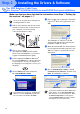
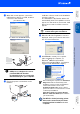
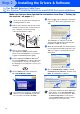
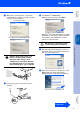
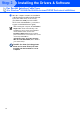
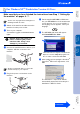
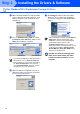
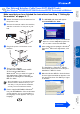
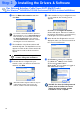
Table Of Contents
- Quick Setup Guide DCP-8060/DCP-8065DN
- Getting Started
- Table of Contents
- Step1 Setting Up the machine
- Step2 Installing the Drivers & Software
- Supplied CD-ROM “MFL-Pro Suite”
- For USB Interface Cable Users (For Windows® 98/98SE/Me/2000 Professional/XP/XP Professional x64 Edition)
- For Parallel Interface Cable Users (For Windows® 98/98SE/Me/2000 Professional/XP/XP Professional x64 Edition)
- For Windows NT® Workstation Version 4.0 Users
- For Network Interface Cable Users (DCP-8065DN only) (For Windows® 98/98SE/Me/NT/2000 Professional/XP/XP Professional x64 Edition)
- For USB Interface Cable Users
- For Network Interface Cable Users (DCP-8065DN only)
- For Network Users and Administrators (DCP-8065DN only)
- Options and Consumables
- brother ARL/ASA/NZ

13
8
When this screen appears, connect the
parallel interface cable to your PC, and then
connect it to the machine.
(For Windows
®
XP)
(For Windows
®
98/98SE/Me/2000)
DO NOT plug in the power cord
before connecting the parallel
interface cable. It may cause
damage to your machine. Brother
recommends that you connect the
machine directly to your computer.
9
Plug in the power cord and turn on the
machine.
0
For Windows
®
98/98SE/Me/
2000 Professional users, click Next.
Windows
®
XP users should wait for a while;
installation of the Brother drivers will start
automatically. The installation screens
appear one after another.
DO NOT try to cancel any of the
screens during this installation.
A
When the On-Line Registration screen is
displayed, make your selection and follow
the on-screen instructions.
B
When the following screen appears, click
Finish and wait as the PC restarts
Windows
®
and continues the installation.
Continued...
Installing the Drivers & Software
Setting Up
the machine
Network
Administrators
Windows
®
Parallel