
User Manual
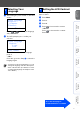
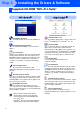
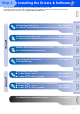
Table Of Contents
- Quick Setup Guide DCP-8060/DCP-8065DN
- Safety Precautions
- Getting Started
- Table of Contents
- Step1 Setting Up the machine
- Step2 Installing the Drivers & Software
- Supplied CD-ROM “MFL-Pro Suite”
- For USB Interface Cable Users (For Windows® 98/98SE/Me/2000 Professional/XP/XP Professional x64 Edition)
- For Parallel Interface Cable Users (For Windows® 98/98SE/Me/2000 Professional/XP/XP Professional x64 Edition)
- For Windows NT® Workstation Version 4.0 Users
- For Network Interface Cable Users (DCP-8065DN only) (For Windows® 98/98SE/Me/NT/2000 Professional/XP/XP Professional x64 Edition)
- For USB Interface Cable Users
- For Network Interface Cable Users (DCP-8065DN only)
- For Network Users and Administrators (DCP-8065DN only)
- Options and Consumables
- brother UK/IRE/SAF

7
Setting Up
the machine
Windows
®
USB
Windows
®
Parallel
Windows
NT
®
4.0
Parallel
Macintosh
®
USB
Macintosh
®
Network
Windows
®
Network
Network
Administrators
1
After turning the power switch on, the LCD
shows:
Press or to select your language
and press OK.
2
The LCD prompts you to confirm your
selection.
If the LCD shows the correct language,
press 1.
—OR—
Press 2 to go back to Step
1
to select the
language again.
You can change the contrast to help the LCD look
lighter or darker.
1
Press Menu.
2
Press 1.
3
Press 6.
4
Press to increase the contrast.
—OR—
Press to decrease the contrast.
Press OK.
5
Selecting Your
Language
Select Language
a
English
Français
b
Deutsch
Select
ab
& OK
Select Language
English
1.Yes
2.No
Enter Number
If you have set the wrong language, you can
change the language from the control panel
menu of the machine. (For details, see “How
to change LCD language” in Chapter C of the
User’s Guide.)
6 Setting the LCD Contrast
Go to the next page to
install the drivers & software