
User Manual
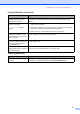
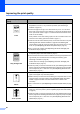
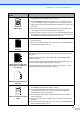

Table Of Contents
- USER’S GUIDE DCP-8060/DCP-8065DN
- Compilation and Publication Notice
- EC Declaration of Conformity
- Table of Contents
- Section I: General
- Section II: Copy
- Section III: Software
- Section IV: Appendices
- A Safety and Legal
- B Options
- C Troubleshooting and routine maintenance
- D Menu and Features
- E Specifications
- F Glossary
- Index
- brother UK/IRE/SAF

52
White lines across the page
Make sure that you use paper that meets our specifications. A rough surfaced
paper or thick print media can cause the problem. (See
Acceptable paper
and other media
on page 9.)
Make sure that you choose the correct media type in the printer driver or in the
machine
’s Paper Type menu setting. (See Acceptable paper and other
media
on page 9 and Basic tab in the Software User’s Guide on the
CD
-ROM.)
The problem may disappear by itself. Print multiple pages to clear this
problem, especially if the machine has not been used for a long time.
Clean the scanner window with a soft cloth. (See
Cleaning the laser
scanner window
on page 66.)
The drum unit may be damaged. Put in a new drum unit. (See
Replacing the
drum unit (DR-3100)
on page 73.)
Lines across the page
Clean the primary corona wire in the drum unit. (See Cleaning the corona
wire
on page 68.)
Clean the scanner window with a soft cloth. (See
Cleaning the laser
scanner window
on page 66.)
The drum unit may be damaged. Put in a new drum unit. (See
Replacing the
drum unit (DR-3100)
on page 73.)
Black lines down the page
Printed pages have toner
stains or stripes down the page.
Clean the primary corona wire of the drum unit. (See Cleaning the corona
wire
on page 68.)
Make sure the primary corona wire
’s blue tab is at the home position (a).
The drum unit may be damaged. Put in a new drum unit. (See
Replacing the
drum unit (DR-3100)
on page 73.)
The toner cartridge may be damaged. Put in a new toner cartridge. (See
Replacing the toner cartridge (TN-3130/TN-3170) on page 70.)
The fuser unit may be smudged. Call Brother or your dealer for service.
White lines down the page
Clean the laser scanner window with a soft cloth. (See Cleaning the laser
scanner window
on page 66.)
The toner cartridge may be damaged. Put in a new toner cartridge.
(See
Replacing the toner cartridge (TN-3130/TN-3170) on page 70.)
Page skewed
Make sure the paper or other print media is loaded properly in the paper tray
and that the guides are not too tight or too loose against the paper stack.
Set the paper guides correctly.
If you are using the MP tray, see
Loading envelopes and other media on
page 13.
The paper tray may be too full.
Check the paper type and quality. (See
Acceptable paper and other
media
on page 9.)
Examples of poor print
quality
Recommendation
ABCDEFGH
abcdefghijk
ABCD
abcde
01234
ABCDEFGH
abcdefghijk
ABCD
abcde
01234
ABCDEFGH
abcdefghijk
ABCD
abcde
01234
ABCDEFGH
abcdefghijk
ABCD
abcde
01234
ABCDEFGH
abcdefghijk
ABCD
abcde
01234