
User Manual
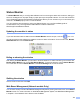
Table Of Contents
- SOFTWARE USER’S GUIDE MFC-8460N MFC-8860DN DCP-8060
- Table of Contents
- Section I Windows®
- 1 Printing
- Using the Brother printer driver
- Printing a document
- Duplex (two-sided) printing
- Simultaneous scanning, printing and faxing
- Printer operation key
- Status Monitor
- Printer driver settings (For Windows®)
- How to access the printer driver settings (For Windows®)
- Features in the Windows® printer driver
- Features in BR-Script3 (Post Script® 3™ language emulation) Printer compatible driver
- 2 Scanning
- 3 ControlCenter2
- 4 Network Scanning (For models with built-in network support)
- 5 Remote Setup (Not available for DCP model)
- 6 Brother PC-FAX Software (Not available for DCP model)
- PC-FAX sending
- Speed Dial setup
- Registering an address in a Speed Dial button
- Clearing a Speed Dial button
- Brother Address Book
- Setting up a member in the Address Book
- Setting up a group for broadcasting
- Editing member information
- Deleting a member or group
- Exporting the Address Book
- Importing to the Address Book
- Sending a file as a PC-FAX using the Facsimile style user interface
- Sending a file as a PC-FAX using the Simple style user interface
- PC-FAX receiving
- 1 Printing
- Section II Apple® Macintosh®
- 7 Printing and Faxing
- 8 Scanning
- 9 ControlCenter2
- 10 Network Scanning (Not available for DCP- 8060)
- 11 Remote Setup (Not available for DCP model)
- Index
- Brother ENG

7.
112
Status Monitor 7
The Status Monitor utility is a configurable software tool for monitoring the status of the machine, letting you
see error messages such as paper empty or paper jam at pre-set update intervals. You can also access the
Colour Calibration settings and web based management. Before you can use the tool your must choose your
machine in the Model pop-up menu in ControlCenter2.
You can check the device status by clicking the Status Monitor icon in the DeviceSettings tab of
ControlCenter2 or by choosing Brother Status Monitor located in Macintosh
HD/Library/Printers/Brother/Utilities.
Updating the machine’s status 7
If you want the latest machine status while the Status Monitor window is open, click the icon. You
can set what interval the software will update the machine status information. Go to the menu bar, Brother
Status Monitor and choose Preferences.
Hiding or showing the window 7
After starting the Status Monitor, you can hide or show the window. To hide the window, go to the menu bar,
Brother Status Monitor and choose Hide Status Monitor. To show the window, click the Status Monitor
icon in the dock or click the Status Monitor in the DeviceSettings tab of ControlCenter2.
Quitting the window 7
Go to the menu bar and choose Quit.
Web Based Management (Network models Only) 7
You can have an easy access to Web Based Management System by clicking the machine icon on the Status
Monitor screen. For more information on Web Based Management System, see Web Based Management
in Chapter 7 of the Network User’s Guide on the CD-ROM.