
Software User's Guide
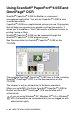

Table Of Contents
- SOFTWARE USER’S GUIDE
- Table of contents
- 1 Using the machine as a printer
- 2 Printer driver settings (Windows® Only)
- 3 How to scan using Windows®
- Scanning a document (For Windows® XP only)
- Scanning a document
- Using the scan key (For USB or Parallel interface cable users)
- Using ScanSoft® PaperPort® 9.0SE and OmniPage® OCR
- 4 Using ControlCenter2.0 (For Windows®)
- 5 Using MFC Remote Setup (For Windows®) (For MFC-8440, MFC-8840D and MFC-8840DN only)
- 6 Using Brother PC-FAX software (For Windows®) (For MFC-8440, MFC-8840D and MFC-8840DN only)
- PC-FAX sending
- Speed-Dial setup
- Brother Address Book
- Setting up a Member in the Address Book
- Setting up a Group for Broadcasting
- Editing Member information
- Deleting a Member or Group
- Exporting the Address Book
- Importing to the Address Book
- Setting up a Cover Page
- Entering Cover Page Information
- Sending a file as a PC-FAX using the Facsimile style user interface
- Sending a file as a PC-FAX using the Simple style user interface
- Setting up PC-FAX receiving
- 7 Using your machine with a Macintosh®
- Setting up your USB-equipped Apple® Macintosh®
- Using the Brother printer driver with your Apple® Macintosh® (Mac OS® 8.6 - 9.2)
- Using the Brother Printer Driver with Your Apple® Macintosh® (Mac OS® X)
- Using the PS driver with your Apple® Macintosh®
- Sending a fax from your Macintosh® application (For MFC-8440, MFC-8840D and MFC-8840DN only)
- Using the Brother TWAIN scanner driver with your Macintosh®
- Using Presto!® PageManager®
- Using ControlCenter2.0 (For Mac OS® X 10.2.1 or greater)
- MFC Remote Setup (Mac OS® X) (For MFC-8440, MFC-8840D and MFC-8840DN only)
- 8 Network Scanning (Windows® 98/98SE/Me/2000 Professional and XP only)
- 9 Brother Network PC-FAX software (For MFC-8440, MFC-8840D and MFC-8840DN only)
- Index
- brother USA/CANADA

HOW TO SCAN USING WINDOWS
®
3 - 23
ScanSoft
®
OmniPage
®
OCR lets you convert
image text into text you can edit
ScanSoft
®
OmniPage
®
OCR is installed automatically with
PaperPort
®
9.0SE when you install MFL-Pro Suite on your computer.
ScanSoft
®
PaperPort
®
9.0SE can quickly convert the text on a
ScanSoft
®
PaperPort
®
9.0SE item (which is really just a picture of the
text) into text that you can edit with a word processing application.
PaperPort
®
9.0SE uses the optical character recognition application
ScanSoft
®
OmniPage
®
, which comes with PaperPort
®
9.0SE
—
OR
—
PaperPort
®
9.0SE can use your preferred OCR application if it is
already on your computer. You can convert the entire item, or by
using the Copy Text command, you can select only a portion of the
text to convert.
Dragging an item onto a word-processing link icon starts PaperPort
®
9.0SE’s built-in OCR application, or you can use your own OCR
application.
You can Import items from other applications
In addition to scanning items, you can bring items into PaperPort
®
9.0SE in a variety of ways and convert them to PaperPort
®
9.0SE
(MAX) files in several different ways:
■
Print to the Desktop View from another application, such as
Microsoft
®
Excel.
■
Import files saved in other file formats, such as Windows
®
Bitmap
(BMP) or Tagged Image File Format (TIFF).
Software by: