
Software User's Guide
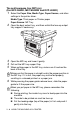

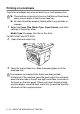
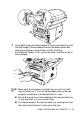
Table Of Contents
- SOFTWARE USER’S GUIDE
- Table of contents
- 1 Using the machine as a printer
- 2 Printer driver settings (Windows® Only)
- 3 How to scan using Windows®
- Scanning a document (For Windows® XP only)
- Scanning a document
- Using the scan key (For USB or Parallel interface cable users)
- Using ScanSoft® PaperPort® 9.0SE and OmniPage® OCR
- 4 Using ControlCenter2.0 (For Windows®)
- 5 Using MFC Remote Setup (For Windows®) (For MFC-8440, MFC-8840D and MFC-8840DN only)
- 6 Using Brother PC-FAX software (For Windows®) (For MFC-8440, MFC-8840D and MFC-8840DN only)
- PC-FAX sending
- Speed-Dial setup
- Brother Address Book
- Setting up a Member in the Address Book
- Setting up a Group for Broadcasting
- Editing Member information
- Deleting a Member or Group
- Exporting the Address Book
- Importing to the Address Book
- Setting up a Cover Page
- Entering Cover Page Information
- Sending a file as a PC-FAX using the Facsimile style user interface
- Sending a file as a PC-FAX using the Simple style user interface
- Setting up PC-FAX receiving
- 7 Using your machine with a Macintosh®
- Setting up your USB-equipped Apple® Macintosh®
- Using the Brother printer driver with your Apple® Macintosh® (Mac OS® 8.6 - 9.2)
- Using the Brother Printer Driver with Your Apple® Macintosh® (Mac OS® X)
- Using the PS driver with your Apple® Macintosh®
- Sending a fax from your Macintosh® application (For MFC-8440, MFC-8840D and MFC-8840DN only)
- Using the Brother TWAIN scanner driver with your Macintosh®
- Using Presto!® PageManager®
- Using ControlCenter2.0 (For Mac OS® X 10.2.1 or greater)
- MFC Remote Setup (Mac OS® X) (For MFC-8440, MFC-8840D and MFC-8840DN only)
- 8 Network Scanning (Windows® 98/98SE/Me/2000 Professional and XP only)
- 9 Brother Network PC-FAX software (For MFC-8440, MFC-8840D and MFC-8840DN only)
- Index
- brother USA/CANADA

1 - 11 USING THE MACHINE AS A PRINTER
Printing on envelopes
To print on envelopes use manual feed tray or multi-purpose tray.
1
Select the Paper Size, Media Type, Paper Source, and other
settings in the printer driver.
Media Type: Envelope, Env.thin or Env.thick
For MFC-8440 and DCP-8040:
2
Open the back output tray.
3
Open the manual feed tray. Slide the paper guides to fit the
envelope size.
■
The machine automatically turns on the Manual Feed mode
when you put paper in the manual feed tray.
■
All sides should be properly folded without any wrinkles or
creases.
If envelopes are creased after they have been printed:
At the back of the machine, open the back output tray and push
down the blue tabs at the left and right hand sides (as shown in
the figure on the next page). When you have finished printing
your envelopes, close the back output tray to reset the two blue
tabs back to their original position.