
Owner's Manual
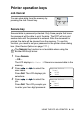

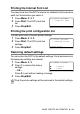
Table Of Contents
- Top Page
- Network User’s Guide
- USER'S GUIDE DCP-8040 DCP-8045D
- Brother numbers
- Ordering accessories and supplies
- Safety precautions
- Choosing a location
- Table of Contents
- 1 Introduction
- 2 Paper
- 3 On-screen programming
- 4 Getting started
- 5 Making copies
- 6 Using the DCP as a printer
- 7 Printer driver settings
- 8 How to scan using Windows®
- Scanning a document
- Scanning a document (For Windows® XP only)
- Using the scan key (For USB or Parallel interface cable users)
- Using ScanSoft® PaperPort® and OmniPage® OCR
- 9 Using the Brother Control Center (For Windows® 98/98SE/Me/2000 Professional and Windows NT® WS 4.0)
- 10 Using the Windows®-Based Brother SmartUI Control Center (For Windows® XP)
- 11 Using your DCP with a Macintosh®
- Setting up your USB-equipped Apple® Macintosh®
- Using the Brother printer driver with your Apple® Macintosh® (Mac OS® 8.6 - 9.2)
- Using the Brother Printer Driver with Your Apple® Macintosh® (Mac OS® X)
- Using the PS driver with your Apple® Macintosh®
- Using the Brother TWAIN scanner driver with your Macintosh®
- Using Presto!® PageManager®
- 12 Network Scanning (Windows® 98/98SE/Me/2000 Professional and XP only)
- 13 Important information
- 14 Troubleshooting and routine maintenance
- 15 Optional accessories
- Glossary
- Specifications
- Index
- brother USA
6 - 17 USING THE DCP AS A PRINTER
4
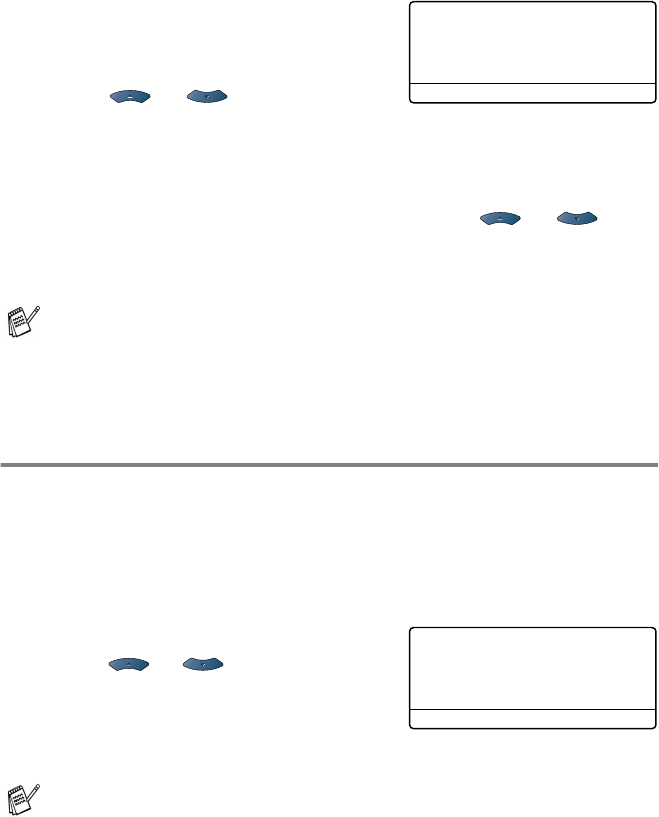
Enter your password using the
numeric keys.
Press
Set
.
5
Press or to select
Print
.
Press
Set
. The DCP prints the data.
—OR—
If you want to delete the secured data press or to
select
Delete
.
Press
Stop/Exit
.
Setting the Emulation Selection
This DCP has an Automatic Emulation Selection function. When the
DCP receives information from the PC, it automatically chooses the
emulation mode. This function has been set at the factory to AUTO.
You can change the default emulation mode manually by using the
control panel.
1
Press
Menu
,
3
,
1
.
2
Press or to select
Auto
,
HP LaserJet
or
BR-Script 3
.
Press
Set
.
3
Press
Stop/Exit
.
■
If you turn the power switch off, the secured data saved in
memory will be cleared.
■
After you print the secured data, it will be cleared from
memory.
Try this function with your application software or network
server. If the function does not work properly, either select the
required emulation mode manually using the DCP panel buttons
or use the emulation selection commands in your software.
Secure Print
Test1
Password:XXXX
Enter & Set Key
31.Emulation
▲
Auto
HP LaserJet
▼
BS-Script 3
Select
▲▼
& Set