
Owner's Manual


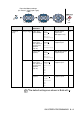
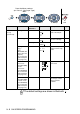


Table Of Contents
- Top Page
- Network User’s Guide
- USER'S GUIDE DCP-8040 DCP-8045D
- Brother numbers
- Ordering accessories and supplies
- Safety precautions
- Choosing a location
- Table of Contents
- 1 Introduction
- 2 Paper
- 3 On-screen programming
- 4 Getting started
- 5 Making copies
- 6 Using the DCP as a printer
- 7 Printer driver settings
- 8 How to scan using Windows®
- Scanning a document
- Scanning a document (For Windows® XP only)
- Using the scan key (For USB or Parallel interface cable users)
- Using ScanSoft® PaperPort® and OmniPage® OCR
- 9 Using the Brother Control Center (For Windows® 98/98SE/Me/2000 Professional and Windows NT® WS 4.0)
- 10 Using the Windows®-Based Brother SmartUI Control Center (For Windows® XP)
- 11 Using your DCP with a Macintosh®
- Setting up your USB-equipped Apple® Macintosh®
- Using the Brother printer driver with your Apple® Macintosh® (Mac OS® 8.6 - 9.2)
- Using the Brother Printer Driver with Your Apple® Macintosh® (Mac OS® X)
- Using the PS driver with your Apple® Macintosh®
- Using the Brother TWAIN scanner driver with your Macintosh®
- Using Presto!® PageManager®
- 12 Network Scanning (Windows® 98/98SE/Me/2000 Professional and XP only)
- 13 Important information
- 14 Troubleshooting and routine maintenance
- 15 Optional accessories
- Glossary
- Specifications
- Index
- brother USA
3 - 7 ON-SCREEN PROGRAMMING
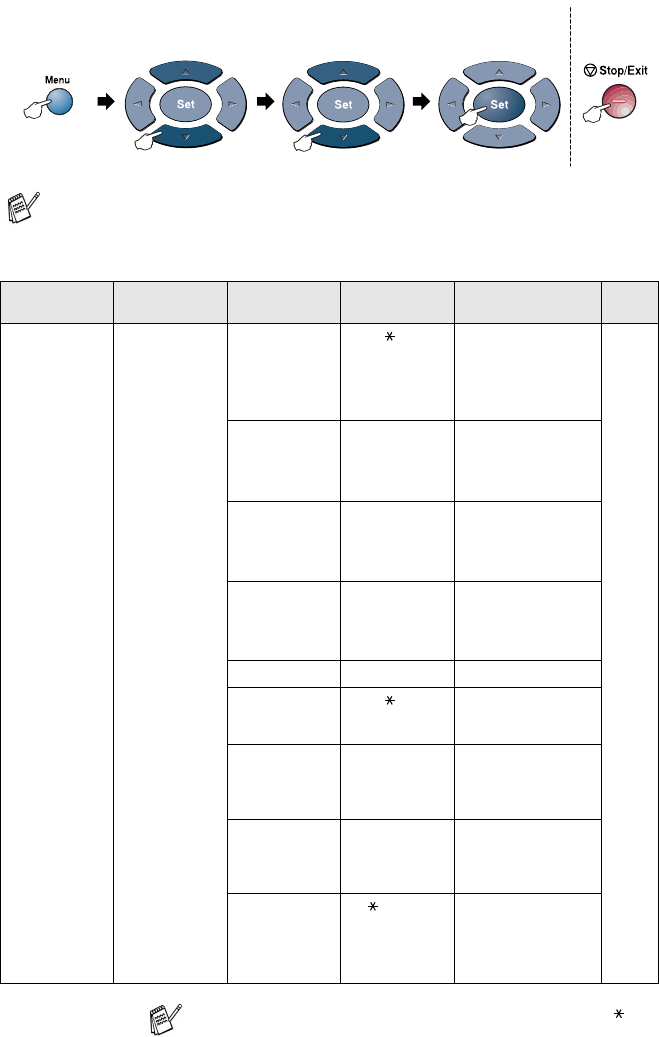
If you installed optional LAN board (NC-9100h), the LCD shows
the following LAN menu. (See the Network User’s Guide on the
CD-ROM.)
Main Menu Submenu Menu
Selections
Options Descriptions Page
4.LAN
(option)
1.Setup
TCP/IP
1
.
BOOT Method
Auto
Static
RARP
BOOTP
DHCP
You can choose the
BOOT method that
best suits you needs.
See
Network
User’s
Guide
on the
CD-ROM.
2.IP Address [000-255].
[000-255].
[000-255].
[000-255]
Enter the IP address.
3
.
Subnet Mask
[000-255].
[000-255].
[000-255].
[000-255]
Enter the Subnet
mask.
4.Gateway [000-255].
[000-255].
[000-255].
[000-255]
Enter the Gateway
address.
5.Host Name BRN_XXXXXX Enter the Host name.
6
.
WINS Config
Auto
Static
You can choose the
WINS configuration
mode.
7.WINS
Server
Primary
Secondary
Specifies the IP
address of the
primary or secondary
server.
8.DNS Server Primary
Secondary
Specifies the IP
address of the
primary or secondary
server.
9.APIPA On
Off
Automatically
allocates the IP
address from the
link-local address
range.
The default settings are shown in Bold with .
to accept
to
exit
Press the Menu numbers.
(ex. Press 1, 1 for Paper Type)
—
OR
—
to select to select