
Owner's Manual
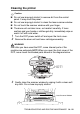
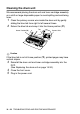
Table Of Contents
- Top Page
- Network User’s Guide
- USER'S GUIDE DCP-8040 DCP-8045D
- Brother numbers
- Ordering accessories and supplies
- Safety precautions
- Choosing a location
- Table of Contents
- 1 Introduction
- 2 Paper
- 3 On-screen programming
- 4 Getting started
- 5 Making copies
- 6 Using the DCP as a printer
- 7 Printer driver settings
- 8 How to scan using Windows®
- Scanning a document
- Scanning a document (For Windows® XP only)
- Using the scan key (For USB or Parallel interface cable users)
- Using ScanSoft® PaperPort® and OmniPage® OCR
- 9 Using the Brother Control Center (For Windows® 98/98SE/Me/2000 Professional and Windows NT® WS 4.0)
- 10 Using the Windows®-Based Brother SmartUI Control Center (For Windows® XP)
- 11 Using your DCP with a Macintosh®
- Setting up your USB-equipped Apple® Macintosh®
- Using the Brother printer driver with your Apple® Macintosh® (Mac OS® 8.6 - 9.2)
- Using the Brother Printer Driver with Your Apple® Macintosh® (Mac OS® X)
- Using the PS driver with your Apple® Macintosh®
- Using the Brother TWAIN scanner driver with your Macintosh®
- Using Presto!® PageManager®
- 12 Network Scanning (Windows® 98/98SE/Me/2000 Professional and XP only)
- 13 Important information
- 14 Troubleshooting and routine maintenance
- 15 Optional accessories
- Glossary
- Specifications
- Index
- brother USA
TROUBLESHOOTING AND ROUTINE MAINTENANCE 14 - 22
Cleaning the printer
Caution
■
Do not use isopropyl alcohol to remove dirt from the control
panel. It may crack the panel.
■
Do
not
use isopropyl alcohol to clean the laser scanner window.
■
Do not touch the scanner window with your finger.
■
The drum unit contains toner, so handle it carefully. If toner
scatters and your hands or clothes get dirty, immediately wipe or
wash it off with cold water.
1
Turn the DCP power switch off and open the front cover.
2
Remove the drum unit and toner cartridge assembly.
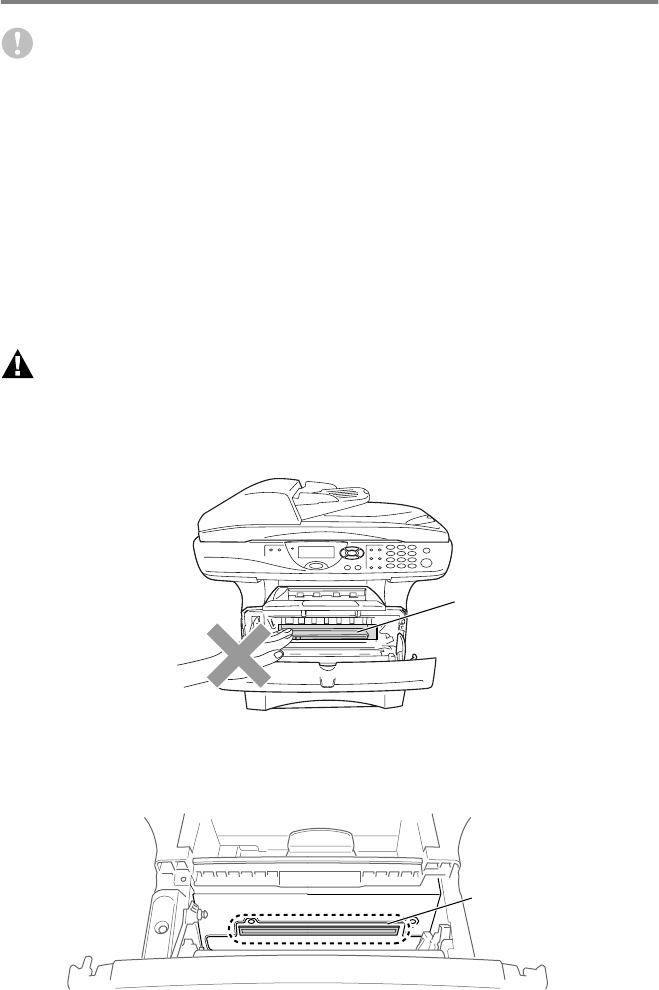
WARNI NG
Just after you have used the DCP, some internal parts of the
machine are extremely HOT! When you open the front cover of the
DCP, never touch the shaded parts shown in the diagram below.
3
Gently clean the scanner window by wiping it with a clean soft
dry cloth. Do
not
use isoproply alcohol.
Front view
HOT!
Laser Scanner Window