
Owner's Manual
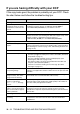
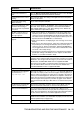
Table Of Contents
- Top Page
- Network User’s Guide
- USER'S GUIDE DCP-8040 DCP-8045D
- Brother numbers
- Ordering accessories and supplies
- Safety precautions
- Choosing a location
- Table of Contents
- 1 Introduction
- 2 Paper
- 3 On-screen programming
- 4 Getting started
- 5 Making copies
- 6 Using the DCP as a printer
- 7 Printer driver settings
- 8 How to scan using Windows®
- Scanning a document
- Scanning a document (For Windows® XP only)
- Using the scan key (For USB or Parallel interface cable users)
- Using ScanSoft® PaperPort® and OmniPage® OCR
- 9 Using the Brother Control Center (For Windows® 98/98SE/Me/2000 Professional and Windows NT® WS 4.0)
- 10 Using the Windows®-Based Brother SmartUI Control Center (For Windows® XP)
- 11 Using your DCP with a Macintosh®
- Setting up your USB-equipped Apple® Macintosh®
- Using the Brother printer driver with your Apple® Macintosh® (Mac OS® 8.6 - 9.2)
- Using the Brother Printer Driver with Your Apple® Macintosh® (Mac OS® X)
- Using the PS driver with your Apple® Macintosh®
- Using the Brother TWAIN scanner driver with your Macintosh®
- Using Presto!® PageManager®
- 12 Network Scanning (Windows® 98/98SE/Me/2000 Professional and XP only)
- 13 Important information
- 14 Troubleshooting and routine maintenance
- 15 Optional accessories
- Glossary
- Specifications
- Index
- brother USA
14 - 13 TROUBLESHOOTING AND ROUTINE MAINTENANCE
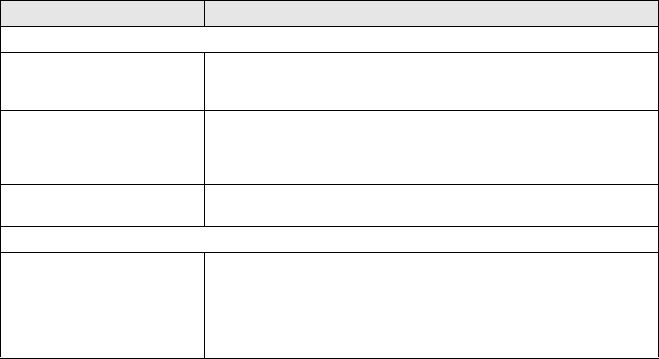
Print Quality Difficulties
Printed pages are curled. Thin or thick paper below the standard can cause this problem. Make
sure you select the Paper Type that suits the media type you use. (See
Setting the Paper Type on page 4-1 and Media Type on page 7-4.)
Printed pages are smeared. The Paper Type setting may be incorrect for the type of print media you
are using—OR—The print media may be too thick or have a rough
surface. (See Setting the Paper Type on page 4-1 and Media Type on
page 7-4.)
Printouts are too light. Set Toner Save mode to off in the Advance tab in the printer driver. (See
Toner Save Mode on page 7-6.)
Network Difficulties
I cannot print over the Network Make sure that your DCP is powered on and is On Line and in Ready
mode. Press the Test switch. Then the current settings of the NC-9100h
are printed.Verify that the cabling and Network connections are good. If
possible, try connecting the DCP to a different port on your hub using a
different cable. Check to see if there is any LED activity. The NC-9100h
has a two color LED for diagnosing problems.
DIFFICULTY SUGGESTIONS