
Owner's Manual
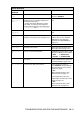
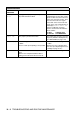
Table Of Contents
- Top Page
- Network User’s Guide
- USER'S GUIDE DCP-8040 DCP-8045D
- Brother numbers
- Ordering accessories and supplies
- Safety precautions
- Choosing a location
- Table of Contents
- 1 Introduction
- 2 Paper
- 3 On-screen programming
- 4 Getting started
- 5 Making copies
- 6 Using the DCP as a printer
- 7 Printer driver settings
- 8 How to scan using Windows®
- Scanning a document
- Scanning a document (For Windows® XP only)
- Using the scan key (For USB or Parallel interface cable users)
- Using ScanSoft® PaperPort® and OmniPage® OCR
- 9 Using the Brother Control Center (For Windows® 98/98SE/Me/2000 Professional and Windows NT® WS 4.0)
- 10 Using the Windows®-Based Brother SmartUI Control Center (For Windows® XP)
- 11 Using your DCP with a Macintosh®
- Setting up your USB-equipped Apple® Macintosh®
- Using the Brother printer driver with your Apple® Macintosh® (Mac OS® 8.6 - 9.2)
- Using the Brother Printer Driver with Your Apple® Macintosh® (Mac OS® X)
- Using the PS driver with your Apple® Macintosh®
- Using the Brother TWAIN scanner driver with your Macintosh®
- Using Presto!® PageManager®
- 12 Network Scanning (Windows® 98/98SE/Me/2000 Professional and XP only)
- 13 Important information
- 14 Troubleshooting and routine maintenance
- 15 Optional accessories
- Glossary
- Specifications
- Index
- brother USA

14 - 3 TROUBLESHOOTING AND ROUTINE MAINTENANCE
Pls Open
Cover
A page, piece of paper or paper clip, etc. may
be jammed inside the DCP.
Open the front cover. If you see any
jammed paper or other item, gently
pull it out, then close the front cover.
If the error message remains, open
and close the front cover again.
If the DCP cannot reset itself and
return to the copy setting prompt, it
will display Machine Error XX.
Please call Brother Customer
Service and tell them the Machine
Error number:
In USA: 1-800-284-4329
In Canada: 1-877-BROTHER
Paper Jam The paper is jammed in the DCP. See
Paper jams
on page 14-5 and
Paper is jammed in the duplex tray
(For DCP-8045D) on page 14-9.
Toner Empty Toner cartridge is not installed.
—OR—
Toner is used up and printing is not possible.
Reinstall the toner cartridge.
—OR—
Replace the toner cartridge with a
new one. (See Replacing the toner
cartridge
on page 14-24.)
Toner Low If the LCD shows Toner Low, you can still
print.
But the toner is depleted and the DCP is
telling you that the toner will soon run out.
Order a new toner cartridge now.
ERROR MESSAGES
ERROR
MESSAGE
CAUSE ACTION