
Owner's Manual
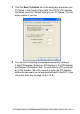
Table Of Contents
- Top Page
- Network User’s Guide
- USER'S GUIDE DCP-8040 DCP-8045D
- Brother numbers
- Ordering accessories and supplies
- Safety precautions
- Choosing a location
- Table of Contents
- 1 Introduction
- 2 Paper
- 3 On-screen programming
- 4 Getting started
- 5 Making copies
- 6 Using the DCP as a printer
- 7 Printer driver settings
- 8 How to scan using Windows®
- Scanning a document
- Scanning a document (For Windows® XP only)
- Using the scan key (For USB or Parallel interface cable users)
- Using ScanSoft® PaperPort® and OmniPage® OCR
- 9 Using the Brother Control Center (For Windows® 98/98SE/Me/2000 Professional and Windows NT® WS 4.0)
- 10 Using the Windows®-Based Brother SmartUI Control Center (For Windows® XP)
- 11 Using your DCP with a Macintosh®
- Setting up your USB-equipped Apple® Macintosh®
- Using the Brother printer driver with your Apple® Macintosh® (Mac OS® 8.6 - 9.2)
- Using the Brother Printer Driver with Your Apple® Macintosh® (Mac OS® X)
- Using the PS driver with your Apple® Macintosh®
- Using the Brother TWAIN scanner driver with your Macintosh®
- Using Presto!® PageManager®
- 12 Network Scanning (Windows® 98/98SE/Me/2000 Professional and XP only)
- 13 Important information
- 14 Troubleshooting and routine maintenance
- 15 Optional accessories
- Glossary
- Specifications
- Index
- brother USA
NETWORK SCANNING (WINDOWS
®
98/98SE/ME/2000 PROFESSIONAL AND XP ONLY)
12 - 4
3
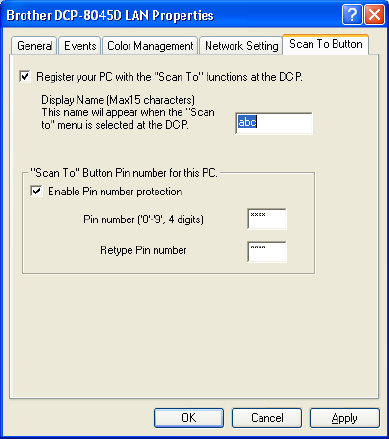
Click the Scan To Button tab in the dialog box and enter your
PC Name in the Display Name field. The DCP's LCD displays
the Name you enter. Default setting is your PC Name. You can
enter a name if you like.
4
You can avoid receiving unwanted documents by setting a
4-digit PIN Number. Enter your PIN Number in the PIN Number
and Retype PIN Number field. To send data to a PC protected
by a PIN Number, the LCD prompts to enter the PIN Number
before the document can be scanned and sent to the DCP. (See
Using the Scan key on page 12-5 to 12-8.)