
Owner's Manual
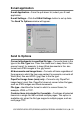
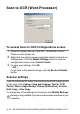
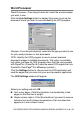
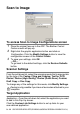

Table Of Contents
- Top Page
- Network User’s Guide
- USER'S GUIDE DCP-8040 DCP-8045D
- Brother numbers
- Ordering accessories and supplies
- Safety precautions
- Choosing a location
- Table of Contents
- 1 Introduction
- 2 Paper
- 3 On-screen programming
- 4 Getting started
- 5 Making copies
- 6 Using the DCP as a printer
- 7 Printer driver settings
- 8 How to scan using Windows®
- Scanning a document
- Scanning a document (For Windows® XP only)
- Using the scan key (For USB or Parallel interface cable users)
- Using ScanSoft® PaperPort® and OmniPage® OCR
- 9 Using the Brother Control Center (For Windows® 98/98SE/Me/2000 Professional and Windows NT® WS 4.0)
- 10 Using the Windows®-Based Brother SmartUI Control Center (For Windows® XP)
- 11 Using your DCP with a Macintosh®
- Setting up your USB-equipped Apple® Macintosh®
- Using the Brother printer driver with your Apple® Macintosh® (Mac OS® 8.6 - 9.2)
- Using the Brother Printer Driver with Your Apple® Macintosh® (Mac OS® X)
- Using the PS driver with your Apple® Macintosh®
- Using the Brother TWAIN scanner driver with your Macintosh®
- Using Presto!® PageManager®
- 12 Network Scanning (Windows® 98/98SE/Me/2000 Professional and XP only)
- 13 Important information
- 14 Troubleshooting and routine maintenance
- 15 Optional accessories
- Glossary
- Specifications
- Index
- brother USA
USING THE BROTHER CONTROL CENTER (FOR WINDOWS
®
98/98SE/ME/2000 PROFESSIONAL AND WINDOWS NT
®
WS 4.0)
9 - 13
Word Processor
Word Processor—From the pull-down list, select the word processor
you want to use.
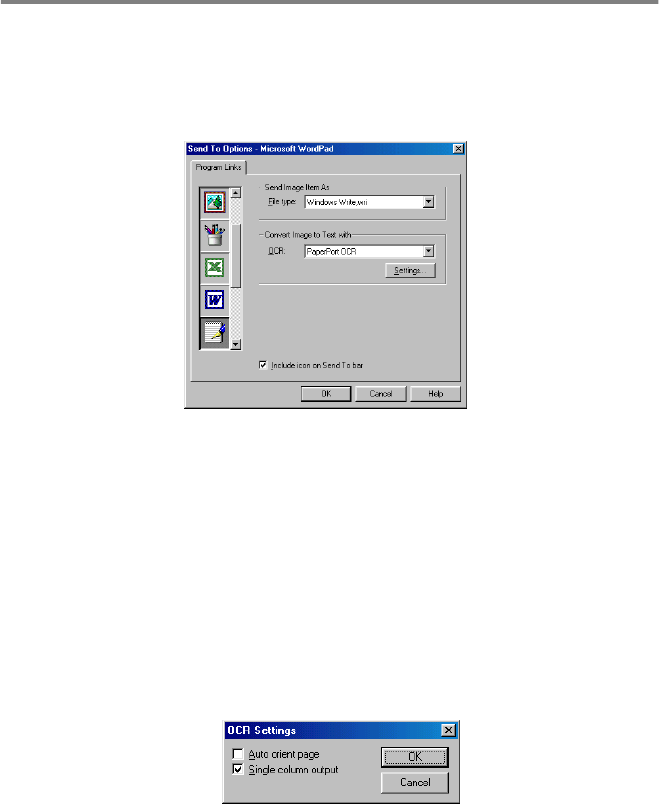
Click the Link Settings button to display the screen to set up the
document format you want to use and identify the OCR program:
File type
—From the pull-down list, select the file type you want to use
for your word processor or text documents.
OCR—Identify the OCR program to use to convert scanned
document images to editable documents. This option is available
only when you have an OCR program other than the one provided
with PaperPort. (PaperPort 8.0 uses the same OCR engine that is in
ScanSoft's OmniPage
®
Pro Millennium product.)
Click the Settings button to choose how the OCR application will
read the pages that you scan into your word processor application.
The OCR Settings window will appear:
Select your setting and click OK.
■
Auto orient page
—Click this checkbox to automatically rotate
pages so that the text is upright.
■
Single column output
—Click this checkbox if you want to remove
columns from multi-column documents so that converted text
appears in a one-column format.