
Owner's Manual
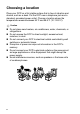
Table Of Contents
- Top Page
- Network User’s Guide
- USER'S GUIDE DCP-8040 DCP-8045D
- Brother numbers
- Ordering accessories and supplies
- Safety precautions
- Choosing a location
- Table of Contents
- 1 Introduction
- 2 Paper
- 3 On-screen programming
- 4 Getting started
- 5 Making copies
- 6 Using the DCP as a printer
- 7 Printer driver settings
- 8 How to scan using Windows®
- Scanning a document
- Scanning a document (For Windows® XP only)
- Using the scan key (For USB or Parallel interface cable users)
- Using ScanSoft® PaperPort® and OmniPage® OCR
- 9 Using the Brother Control Center (For Windows® 98/98SE/Me/2000 Professional and Windows NT® WS 4.0)
- 10 Using the Windows®-Based Brother SmartUI Control Center (For Windows® XP)
- 11 Using your DCP with a Macintosh®
- Setting up your USB-equipped Apple® Macintosh®
- Using the Brother printer driver with your Apple® Macintosh® (Mac OS® 8.6 - 9.2)
- Using the Brother Printer Driver with Your Apple® Macintosh® (Mac OS® X)
- Using the PS driver with your Apple® Macintosh®
- Using the Brother TWAIN scanner driver with your Macintosh®
- Using Presto!® PageManager®
- 12 Network Scanning (Windows® 98/98SE/Me/2000 Professional and XP only)
- 13 Important information
- 14 Troubleshooting and routine maintenance
- 15 Optional accessories
- Glossary
- Specifications
- Index
- brother USA

xiii
The multi-purpose tray (MP tray)
(For DCP-8045D) ............................................... 6-9
Printing on envelopes ............................................... 6-11
Printer operation keys..................................................... 6-16
Job Cancel................................................................6-16
Secure key................................................................6-16
Setting the Emulation Selection................................ 6-17
Printing the Internal Font List.................................... 6-18
Printing the print configuration list ............................ 6-18
Restoring default settings......................................... 6-18
7
Printer driver settings ......................................................... 7-1
Printer driver settings........................................................7-1
How to access the printer driver settings.......................... 7-1
Features in the Brother Native Driver ............................... 7-2
Basic tab..................................................................... 7-2
Paper Size.............................................................. 7-3
Multiple Page.......................................................... 7-3
Orientation.............................................................. 7-3
Copies .................................................................... 7-4
Media Type............................................................. 7-4
Advanced tab..............................................................7-5
Print Quality............................................................ 7-5
Duplex Printing ....................................................... 7-7
Watermark.............................................................. 7-8
Page Setting ......................................................... 7-10
Device Options ..................................................... 7-11
Secure Print..............................................................7-11
Accessories tab .................................................... 7-14
Support tab ........................................................... 7-16
Features in the PS printer driver (For Windows
®
) .......... 7-17
Ports tab ................................................................... 7-18
Device Settings tab................................................... 7-19
Layout tab................................................................. 7-20
Booklet (For DCP-8045D)
(For Windows
®
2000/XP) .................................7-20
Paper/Quality tab......................................................7-21
Advanced Options .................................................... 7-22
8
How to scan using Windows
®
............................................ 8-1
Scanning a document....................................................... 8-1
TWAIN compliant........................................................ 8-1
How to access the Scanner........................................ 8-2
Scanning a document into the PC.............................. 8-3