
Owner's Manual
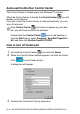
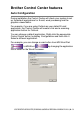

Table Of Contents
- Top Page
- Network User’s Guide
- USER'S GUIDE DCP-8040 DCP-8045D
- Brother numbers
- Ordering accessories and supplies
- Safety precautions
- Choosing a location
- Table of Contents
- 1 Introduction
- 2 Paper
- 3 On-screen programming
- 4 Getting started
- 5 Making copies
- 6 Using the DCP as a printer
- 7 Printer driver settings
- 8 How to scan using Windows®
- Scanning a document
- Scanning a document (For Windows® XP only)
- Using the scan key (For USB or Parallel interface cable users)
- Using ScanSoft® PaperPort® and OmniPage® OCR
- 9 Using the Brother Control Center (For Windows® 98/98SE/Me/2000 Professional and Windows NT® WS 4.0)
- 10 Using the Windows®-Based Brother SmartUI Control Center (For Windows® XP)
- 11 Using your DCP with a Macintosh®
- Setting up your USB-equipped Apple® Macintosh®
- Using the Brother printer driver with your Apple® Macintosh® (Mac OS® 8.6 - 9.2)
- Using the Brother Printer Driver with Your Apple® Macintosh® (Mac OS® X)
- Using the PS driver with your Apple® Macintosh®
- Using the Brother TWAIN scanner driver with your Macintosh®
- Using Presto!® PageManager®
- 12 Network Scanning (Windows® 98/98SE/Me/2000 Professional and XP only)
- 13 Important information
- 14 Troubleshooting and routine maintenance
- 15 Optional accessories
- Glossary
- Specifications
- Index
- brother USA

USING THE BROTHER CONTROL CENTER (FOR WINDOWS
®
98/98SE/ME/2000 PROFESSIONAL AND WINDOWS NT
®
WS 4.0)
9 - 1
9
Brother MFL-Pro Control Center
The Brother Control Center is a software utility that pops up on the
PC screen whenever paper is put in the ADF of the DCP. This allows
you to quickly and with very few mouse clicks, to access the most
frequently used scanning applications. Using the Control Center
stops the need to manually startup any specific applications.
The Brother Control Center provides two operations (Scan and
Copy):
■
Scan directly to a file, E-mail, word processor or graphic
application of your choice
■
Copy
Using the Brother Control
Center
(For Windows
®
98/98SE/Me/2000 Professional
and Windows NT
®
WS 4.0)
If you are using Windows
®
2000 Professional or Windows
®
4.0,
we recommend that you are logged on with administrator rights.