
User Guide
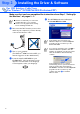
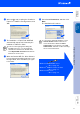
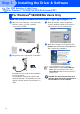

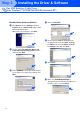


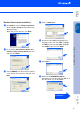
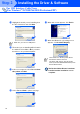

Table Of Contents
- Quick Setup Guide DCP-8040/DCP-8045D
- Getting Started
- Table of Contents
- Step1 Setting Up the Machine
- Step2 Installing the Driver & Software
- Supplied CD-ROM “MFL-Pro Suite”
- For USB Interface Cable Users (For Windows® 98/98SE/Me/2000 Professional/XP)
- For Parallel Interface Cable Users (For Windows® 98/98SE/Me/2000 Professional/XP)
- For Windows NT® Workstation Version 4.0 Users
- For Network Interface Cable Users (For Windows® 98/98SE/Me/NT/2000 Professional/XP)
- For USB Interface Cable Users
- For Network Interface Cable Users
- For Administrators
- brother UK

9
5
After reading and accepting the ScanSoft
®
PaperPort
®
9.0SE License Agreement, click
Yes.
6
The installation of PaperPort
®
9.0SE will
automatically start and is followed by the
installation of MFL-Pro Suite.
7
When the Brother MFL-Pro Suite Software
License Agreement window appears, read
the agreement, then click Yes if you agree
to its terms.
8
Select Local Connection, and then click
Next.
The installation will continue.
If an error message appears during the
installation process, you can repair and
reinstall the software. From the CD menu,
select Repair MFL-Pro Suite and follow the
instructions on the screen.
If you want to install the PS driver, select
Custom Install and then follow the on-
screen instructions. When the Select
Components screen appears, check PS
Printer Driver, and then continue following
the on-screen instructions.
Windows
®
98/98SE/Me Users
➝
Go to page 10
Windows
®
2000 Professional Users
➝
Go to page 11
Windows
®
XP Users
➝
Go to page 14
Step 2
Installing the Driver & Software
Setting Up
the Machine
Windows
®
USB
For
Administrators