
User's Guide
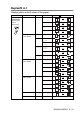
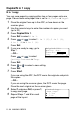
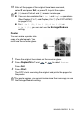
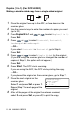
Table Of Contents
- USER'S GUIDE DCP-8020 DCP-8025D
- Brother numbers
- Ordering accessories and supplies
- Safety precautions
- Choosing a location
- Table of Contents
- 1 Introduction
- 2 Paper
- 3 On-screen programming
- 4 Getting started
- 5 Making copies
- 6 Using the DCP as a printer
- 7 Printer driver settings
- 8 How to scan using Windows®
- Scanning a document
- Scanning a document (For Windows® XP only)
- Using the scan key (For USB or Parallel interface cable users)
- Using ScanSoft® PaperPort® and TextBridge® OCR
- 9 Using the Brother Control Center (For Windows® 95/98/98SE/Me/2000 Professional and Windows NT® WS...
- 10 Using the Windows®-Based Brother SmartUI Control Center (For Windows® XP)
- 11 Using your DCP with a Macintosh®
- Setting up your USB-equipped Apple® Macintosh®
- Using the Brother printer driver with your Apple® Macintosh® (Mac OS® 8.6 - 9.2)
- Using the Brother Printer Driver with Your Apple® Macintosh® (Mac OS® X)
- Using the PS driver with your Apple® Macintosh®
- Using the Brother TWAIN scanner driver with your Macintosh®
- Using Presto!® PageManager®
- 12 Network Scanning (Windows® 98/98SE/Me/2000 Professional and XP only)
- 13 Important information
- 14 Troubleshooting and routine maintenance
- 15 Optional accessories
- Glossary
- Specifications
- Index
- brother US

MAKING COPIES 5 - 15
Making a double-sided copy from a double-sided original
(Not available for multiple copies)
1
Place the original face up in the ADF.
2
Press
Duplex/N in 1
and or to select
Duplex(1 in 1)
.
Press
Set
.
3
Press or to select
Portrait2
or
Landscape1
.
Press
Set
.
4
Press or to select
Double Sided
for the original.
Press
Set
.
5
Make sure that you have put the original in the ADF as shown
on the LCD and press
Start
.
6
After all the pages of the original have been scanned on one
side, turn over the original so the other side is face up in the
ADF.
Press
Start
.
1
2
1
2