
Quick Setup Guide
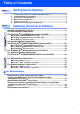
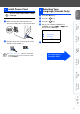
Table Of Contents
- Quick Setup Guide DCP-8020 DCP-8025D
- Getting Started
- Table of Contents
- Step1 Setting Up the Machine
- Step2 Installing the Driver & Software
- Supplied CD-ROM (MFL-Pro Suite)
- For USB Interface Cable Users (For Windows® 98/98SE/Me/2000 Professional/XP)
- For Parallel Interface Cable Users (For Windows® 95/98/98SE/Me/2000 Professional/XP)
- For Windows NT® Workstation Version 4.0 Users
- For Network Interface Cable Users (For Windows® 95/98/98SE/Me/NT/2000 Professional/XP)
- For USB Interface Cable Users
- For Network Interface Cable Users
- For Administrators
- brother US

5
Setting Up
the Machine
Windows
®
USB
Windows
®
Parallel
Windows
NT
®
4.0
Parallel
Macintosh
®
USB
Macintosh
®
Network
Windows
®
Network
For
Administrators
Do not connect the Parallel or USB
cable yet.
1
Make sure that the power switch is off.
Connect the AC power cord to the machine.
2
Plug the AC power cord into an AC outlet.
Turn the power switch on.
1
Press the Menu key.
2
Press the key.
3
Press the key.
4
Select your language (ENGLISH or
FRENCH) by using or , and
then press the Set key.
5
Press the Stop/Exit key.
5 Install Power Cord
If Check Scan Lock appears on the LCD,
immediately release the scanner lock and
press Stop/Exit.
6
Selecting Your
Language (Canada Only)
10.Local Language
▲ English *
▼ French
Select ▲▼ & Set
Go to Next page to
install the driver