Quick Setup Guide DCP-770CW Before you can use the machine, you must set up the hardware and install the software. Please read this Quick Setup Guide for the correct setup procedure and installation instructions. STEP 1 Setting Up the Machine STEP 2 Installing the Driver & Software Setup is Complete! Keep this Quick Setup Guide, the User’s Guide and the supplied CD-ROM in a convenient place for quick and easy reference at all times.
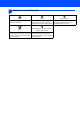
1 Symbols used in this guide Warning Warnings tell you what to do to prevent possible personal injury. Caution Improper Setup Improper Setup icons alert you to Cautions specify procedures you must devices and operations that are not follow or avoid to prevent possible damage to the machine or other objects. compatible with the machine.
Table of Contents Getting Started Carton components ...................................................................................................................................... 3 Control panel................................................................................................................................................ 4 STEP 1 – Setting Up the Machine Removing the protective parts ....................................................................................................
For Network Users BRAdmin Light utility (For Windows® users) ............................................................................................. 45 Installing the BRAdmin Light configuration utility .................................................................................. 45 Setting your IP address, Subnet Mask and Gateway using BRAdmin Light ........................................ 45 BRAdmin Light utility (For Mac OS® X users).............................................................
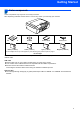
Getting Started 1 1 Carton components Carton components may vary from one country to another. Save all packing materials and the carton in case for any reason you must ship your machine. Quick Setup Guide CD-ROM User’s Guide Power Cord Black (LC1000BK) Yellow (LC1000Y) Cyan (LC1000C) Magenta (LC1000M) The ink cartridges are on top of the paper tray. See Removing the protective parts on page 5. Ink Cartridges An interface cable is not a standard accessory.
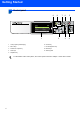
Getting Started 2 Control panel 9 Quality Enlarge/Reduce Ratio: Paper Type 8 7 6 5 3 4 Normal 100% 100% Plain Paper Mem. 1 2 1 LCD (Liquid Crystal Display) 6 On/Off key 2 Menu keys 7 Ink Management key 3 Number of Copies key 8 Mode keys 4 Start keys 9 Warning LED 5 Stop/Exit key For the details of the control panel, see Control panel overview in Chapter 1 of the User’s Guide.
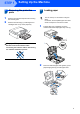
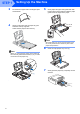
STEP 1 Setting Up the Machine 1 1 1 2 Removing the protective parts 2 You can load up to 100 sheets of 80 g/m2 paper. For details, see Acceptable paper and other media in Chapter 2 of the User’s Guide. Remove the protective tape and film covering the scanner glass. Remove the foam bag (1) containing the ink cartridges from on top of the paper tray. Loading paper 1 Pull the paper tray completely out of the machine and lift the output paper tray cover (1).
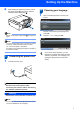
STEP 1 3 4 Setting Up the Machine Fan the stack of paper well to avoid paper jams and misfeeds. 5 Gently adjust the paper side guides with both hands to fit the paper. Make sure that the paper guides touch the edges of the paper. Gently put the paper into the paper tray print side down and top edge first. Check that the paper is flat in the tray. Note Be careful that you do not push the paper in too far; it may lift at the back of the tray and cause paper feed problems.
Setting Up the Machine 8 While holding the paper tray in place, pull out the paper support until it clicks, and then unfold the paper support flap . 4 1 for Legal size Note You can use the photo paper tray which is located on the top of the paper tray to print on photo 10 × 15 cm and photo L size paper. For details, see Loading photo paper in Chapter 2 of the User’s Guide.
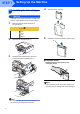
STEP 1 5 Setting Up the Machine Installing the ink cartridges 4 Take out the ink cartridge. 5 Carefully remove the protective yellow cap (1). Warning If ink gets in your eyes, wash them out with water at once, and if irritation occurs consult a doctor. 1 Make sure that the power is turned on. The LCD shows: No Cartridge Black Yellow Cyan Magenta 2 Open the ink cartridge cover (1). 1 3 Pull all the lock release levers down and remove the yellow protective part (1).
Setting Up the Machine 6 Install each ink cartridge in the direction of the arrow on the label. Take care to match the colour of the lock release lever (1) with the cartridge colour (2), as shown in the diagram below. The first time the ink cartridges are installed the machine prepares and cleans the ink tube system. This initial process will take more time than a normal cleaning cycle but will happen only once.
STEP 1 6 1 2 Setting Up the Machine 4 Print quality check The LCD asks you if the print quality is OK for black and colour. Press Make sure A4, Letter or Legal size paper is loaded in the paper tray. Press Colour Start. The machine starts printing the Print Quality Check Sheet (only during initial ink cartridge installation). Black OK? Check the quality of the four colour blocks on the sheet. (black/yellow/cyan/magenta) Color OK? Yes No Yes No (Yes) or (No).
Setting Up the Machine 8 Setting the date and time 8 Date&Time Time: 15:25 Setting the date and time allows the machine to clean the print head regularly and maintain optimum print quality. It also allows the machine to name files created when using the Scan to Card feature. 1 2 3 4 Press Menu. MENU Input & Press (e.g. Enter 0 7 for 2007.) 9 Press Stop/Exit. If you make a mistake and want to start again, press Stop/Exit and go back to step 1.
Supplied CD-ROM ‘MFL-Pro Suite’ 1 1 Supplied CD-ROM ‘MFL-Pro Suite’ Windows® Install MFL-Pro Suite You can install the MFL-Pro Suite software and multifunction drivers. Install Other Drivers or Utilities You can install additional MFL-Pro Suite software utilities, install without ScanSoft™ PaperPort™ 11SE with OCR by NUANCE™, install the printer driver only or install FaceFilter Studio. Documentation View the Software User’s Guide and Network User’s Guide in HTML format.
STEP 2 Installing the Driver & Software Follow the instructions on this page for your operating system and interface. For the latest drivers, documentation, and to find the best solution for your problem, access the Brother Solution Center directly from the CD-ROM / Driver or visit http://solutions.brother.com. Windows® For USB Interface Users (For Windows® 2000 Professional/XP/ XP Professional x64 Edition/Windows Vista™) ...........................................................
STEP 2 Installing the Driver & Software Windows® 1 Windows® USB 1 For USB Interface Users (For Windows® 2000 Professional/XP/ XP Professional x64 Edition/Windows Vista™) Important 4 The CD-ROM main menu will appear. Click Install MFL-Pro Suite. Make sure that you have finished the instructions from STEP 1 Setting Up the Machine on pages 5 through 11. Note • The supplied CD-ROM includes ScanSoft™ PaperPort™ 11SE.
Installing the Driver & Software After reading and accepting the ScanSoft™ PaperPort™ 11SE License Agreement, click Yes. 11 Connect the USB cable to the USB socket marked with a symbol. You will find the USB socket inside the machine on the right as shown below. Windows® USB 6 Windows® 7 8 9 The installation of ScanSoft™ PaperPort™ 11SE will automatically start and is followed by the installation of MFL-Pro Suite.
STEP 2 Installing the Driver & Software 14 Turn on the machine by connecting the power Windows® USB cord. Windows® The MFL-Pro Suite has been installed completely. Proceed to Installing FaceFilter Studio on page 17 to install the FaceFilter Studio application. Note The installation of the Brother drivers will automatically start. The installation screens appear one after another. Please wait, it will take a few seconds for all the screens to appear.
Installing the Driver & Software Windows® FaceFilter Studio is an easy-to-use borderless photo printing application. FaceFilter Studio also lets you edit your photo data and add photo effects such as red eye reduction or skin tone enhancement. Important Windows® USB Installing FaceFilter Studio Before you launch FaceFilter Studio for the first time, you must confirm MFL-Pro Suite is installed, your Brother machine is turned ON and connected to your computer.
STEP 2 2 Installing the Driver & Software For Wired Network Interface Users (For Windows® 2000 Professional/XP/ XP Professional x64 Edition/Windows Vista™) Windows® Wired Network Important 4 Make sure that you have finished the instructions from STEP 1 Setting Up the Machine on pages 5 through 11. Carefully guide the network cable into the trench as shown below, following the trench around and toward the back of the machine. Then, connect the cable to your network.
Installing the Driver & Software If you have previously set up your machine for a wireless network and then want to set it up on a wired network, you should check that the machine’s Network I/F is Wired LAN. The wireless network interface will become inactive with this setting. On your machine, press Menu. Press a or b to choose LAN and press OK. Press a or b to choose Network I/F and press OK. Press a or b to choose Wired LAN and press OK. Press Stop/Exit.
STEP 2 Installing the Driver & Software 13 When the Brother MFL-Pro Suite Software License Agreement window appears, click Yes if you agree to the Software License Agreement. Windows® • If the machine is not yet configured for use on your network, the following screen appears. Windows® Wired Network Click OK. The Configure IP Address window will appear. Enter an IP address for your machine that is suitable for your network by following the on-screen instructions.
Installing the Driver & Software 17 Click Finish to restart your computer. After restarting the computer, you must be logged on with Administrator rights. Windows® Installing FaceFilter Studio FaceFilter Studio is an easy-to-use borderless photo printing application. FaceFilter Studio also lets you edit your photo data and add photo effects such as red eye reduction or skin tone enhancement. Note After restarting the computer, the Installation Diagnostics will run automatically.
STEP 2 3 Installing the Driver & Software Windows® For Wireless Network Interface Users (For Windows® 2000 Professional/XP/XP Professional x64 Edition/Windows Vista™) in infrastructure mode Connecting your wireless machine and wireless network together and installing the printer driver in infrastructure mode Windows® Wireless Network First you must configure the wireless network settings of your machine to communicate with your network access point (router).
Installing the Driver & Software Windows® Confirm your network environment The setup process will be different depending on your network environment. If your wireless access point (A) supports SecureEasySetup™ or AOSS™, you do not need to use a computer to configure the machine. The access point (router) and your machine can automatically negotiate using the SecureEasySetup™ or AOSS™ procedure. For instructions, go to page 24. Windows® Wireless Network Installation using SecureEasySetup™ or AOSS™.
STEP 2 Installing the Driver & Software Windows® Using the SecureEasySetup™ or AOSS™ software to configure your machine for a wireless network Important 1 Turn on the machine by connecting the power cord. Windows® Wireless Network Make sure that you have finished the instructions from STEP 1 Setting Up the Machine on pages 5 through 11. The SecureEasySetup™ or AOSS™ software allows you to configure the wireless network easier than configuring it manually.
Installing the Driver & Software The wireless network connection status using the SecureEasySetup™ or AOSS™ software will be displayed: Connecting WLAN, Setting AOSS or Connecting AOSS. Wait till either Connected or Connection Error (Connection Fail) is displayed. Connected is displayed when the print server is successfully connected to your router or access point. You can now use your machine in a wireless network.
STEP 2 Installing the Driver & Software Windows® Using the Setup Wizard from the control panel LAN menu for wireless network configuration 2 Important Turn on the machine by connecting the power cord. Windows® Wireless Network Make sure that you have finished the instructions from STEP 1 Setting Up the Machine on pages 5 through 11. 1 Write down the wireless network settings of your access point or wireless router.
Installing the Driver & Software Enter the SSID you wrote down in step 1 using a, b keys to choose each letter or number. You can use the and keys to move the cursor left and right. For example, to enter the letter a, press the a key once. To enter the number 3, hold down the a key until it appears. The letters appear in this order: lower case, upper case, numbers and then special letters. (For more information, see Entering Text on page 47.) Press OK when you have entered all the characters.
STEP 2 Installing the Driver & Software Note • The supplied CD–ROM includes ScanSoft™ PaperPort™ 11SE. This software supports Windows® 2000 (SP4 or greater), XP (SP2 or greater), XP Professional x64 Edition and Windows Vista™ only. Please update to the latest Windows® Service Pack before installing MFL-Pro Suite. • Please close any applications running before installing MFL-Pro Suite.
Installing the Driver & Software 17 After reading and accepting the ScanSoft™ PaperPort™ 11SE License Agreement, click Yes. Windows® Note • If the machine is configured for your network, choose the machine from the list, and then click Next. This window will not appear if there is only one machine connected on the network, it will be chosen automatically.
STEP 2 Installing the Driver & Software Note For Windows Vista™, when this screen appears, click the check box and click Install to complete the installation properly. Windows® Installing FaceFilter Studio FaceFilter Studio is an easy-to-use borderless photo printing application. FaceFilter Studio also lets you edit your photo data and add photo effects such as red eye reduction or skin tone enhancement.
Installing the Driver & Software 4 Macintosh® For USB Interface Users (For Mac OS® X 10.2.4 or greater) Important 3 Make sure that you have finished the instructions from STEP 1 Setting Up the Machine on pages 5 through 11. Carefully guide the USB cable into the trench as shown below, following the trench around and toward the back of the machine. Then, connect the cable to your Macintosh®. Note • For Mac OS® X 10.2.0 to 10.2.3 users, upgrade to Mac OS ® X 10.2.4 or greater.
STEP 2 6 7 Macintosh® USB 8 Installing the Driver & Software Put the supplied CD-ROM into your CD-ROM drive. Macintosh® 11 For Mac OS® X 10.2.4 to 10.2.8 users: Click Add. 12 Choose USB. Double-click the Start Here OSX icon to install. 13 Choose DCP-XXXX (where XXXX is your Choose Local Connection, and then click Next. Follow the on-screen instruction. Note model name), and then click Add. 14 Click Print Center, then Quit Print Center.
Installing the Driver & Software Macintosh® 15 To install Presto!® PageManager®, double-click the Presto! PageManager icon and follow the on-screen instructions. For Mac OS ® X 10.2.4 to 10.3.8 users: When this screen appears, click Go to download the software from the Brother Solutions Center web site. When Presto!® PageManager® is installed OCR capability is added to Brother ControlCenter2. You can easily scan, share and organize photos and documents using Presto!® PageManager®.
STEP 2 5 Installing the Driver & Software Macintosh® For Wired Network Interface Users (For Mac OS® X 10.2.4 or greater) Important 3 Make sure that you have finished the instructions from STEP 1 Setting Up the Machine on pages 5 through 11. Carefully guide the network cable to the trench as shown below, following the trench around and toward the back of the machine. Then, connect the cable to your network. Note • For Mac OS® X 10.2.0 to 10.2.3 users, upgrade to Mac OS® X 10.2.4 or greater.
Installing the Driver & Software Improper Setup If you have previously set up your machine for a wireless network and then want to set it up on a wired network, you should check that the machine’s Network I/F is Wired LAN. The wireless network interface will become inactive with this setting. On your machine, press Menu. Press a or b to choose LAN and press OK. Press a or b to choose Network I/F and press OK. Press a or b to choose Wired LAN and press OK. Press Stop/Exit.
STEP 2 Installing the Driver & Software 10 When this screen appears, click OK. Macintosh® 14 Click Print Center, then Quit Print Center. For Mac OS® X 10.3.x or greater users: The MFL-Pro Suite, Brother printer driver, scanner driver and Brother ControlCenter2 have been installed and the installation is now complete. Go to step 15. 11 For Mac OS® X 10.2.4 to 10.2.8 users: Click Add.
Installing the Driver & Software 6 Macintosh® For Wireless Network Interface Users (For Mac OS® X 10.2.4 or greater) in infrastructure mode Connecting your wireless machine and wireless network together and installing the printer driver in infrastructure mode First you must configure the wireless network settings of your machine to communicate with your network access point (router).
STEP 2 Installing the Driver & Software Macintosh® Confirm your network environment The setup process will be different depending on your network environment. Installation using SecureEasySetup™ or AOSS™. If your wireless access point (A) supports SecureEasySetup™ or AOSS™, you do not need to use a computer to configure the machine. The access point (router) and your machine can automatically negotiate using the SecureEasySetup™ or AOSS™ procedure. For instructions, go to page 39.
Installing the Driver & Software Macintosh® Using the SecureEasySetup™ or AOSS™ software to configure your machine for a wireless network Important The SecureEasySetup™ or AOSS™ software allows you to configure the wireless network easier than configuring it manually. By pushing a button on the wireless router or access point, you can complete setup and secure the wireless network. Your router or access point must also support SecureEasySetup™ or AOSS™.
STEP 2 4 Installing the Driver & Software The wireless network connection status using the SecureEasySetup™ or AOSS™ software will be displayed: Connecting WLAN, Setting AOSS or Connecting AOSS. Wait till either Connected or Connection Error (Connection Fail) is displayed. Connected is displayed when the print server is successfully connected to your router or access point. You can now use your machine in a wireless network.
Installing the Driver & Software Macintosh® Using the Setup Wizard from the control panel LAN menu for wireless network configuration Important Note Make sure that the machine is turned on by connecting the power cord. Make sure that you have finished the instructions from STEP 1 Setting Up the Machine on pages 5 through 11. Improper Setup Write down the wireless network settings of your access point or wireless router.
STEP 2 5 Installing the Driver & Software Enter the SSID you wrote down in step 1 using a, b keys to choose each letter or number. You can use the and keys to move the cursor left and right. For example, to enter the letter a, press the a key once. To enter the number 3, hold down the a key until it appears. The letters appear in this order: lower case, upper case, numbers and then special letters. (For more information, see Entering Text on page 47.) Press OK when you have entered all the characters.
Installing the Driver & Software Note • For Mac OS® X 10.2.0 to 10.2.3 users, upgrade to Mac OS ® X 10.2.4 or greater. (For the latest information for Mac OS® X, visit http://solutions.brother.com) • Make sure there are no memory cards or a USB Flash memory drive inserted into the media drives or USB direct interface at the front of the machine. 11 Turn on your Macintosh®. 12 Put the supplied CD-ROM into your CD-ROM drive. 13 Double-click the Start Here OSX icon to install.
STEP 2 Installing the Driver & Software 17 When this screen appears, click OK. Macintosh® 21 Click Print Center, then Quit Print Center. For Mac OS® X 10.3.x or greater users: The MFL-Pro Suite, Brother printer driver, scanner driver and Brother ControlCenter2 have been installed and the installation is now complete. Go to step 22. 18 For Mac OS® X 10.2.4 to 10.2.8 users: Click Add.
For Network Users 1 1 BRAdmin Light utility (For Windows® users) BRAdmin Light is a utility for initial setup of Brother network connected devices. It also can search for Brother products on your network, view the status and configure basic network settings, such as IP address. For more information on BRAdmin Light, visit us at http://solutions.brother.com.
For Network Users 2 BRAdmin Light utility (For Mac OS® X users) BRAdmin Light is a utility for initial setup of Brother network connected devices. It also can search for Brother products on your network, view the status and configure basic network settings, such as IP address from a computer running Mac OS® X 10.2.4 or greater. The BRAdmin Light software will be installed automatically when you install the printer driver.
For Network Users 3 Entering Text Press a or b repeatedly to select a character from the list below: abcdefghijklmnopqrstuvwxyzABCDEFGHIJKLMNOP QRSTUVWXYZ0123456789 (space)!"#$%&'()l+,-./:;<=>?@[\]^_`{|}˜ Press or repeatedly to move the cursor. 4 To restore all network settings of the internal Print/Scan server to factory default, please follow the steps below.
Installing FaceFilter Studio Help 1 1 Instructions on how to install FaceFilter Studio Help (For Windows® users) To get instructions on how to use FaceFilter Studio, download and install FaceFilter Studio Help. Your computer must be connected to the internet. Installing FaceFilter Studio Help 1 2 3 4 5 To run FaceFilter Studio, go to Start/All Programs/FaceFilter Studio/ FaceFilter Studio in the Start menu. Click the button on the upper right corner of the screen.
Consumables 1 1 Replacement consumables When the time comes to replace ink cartridges, an error message will be indicated on the LCD. For more information about the ink cartridges for your machine, visit http://solutions.brother.com or contact your local Brother re-seller. Ink cartridge Black Yellow Cyan Magenta LC1000BK LC1000Y LC1000C LC1000M What is Innobella™? Innobella™ is a range of genuine consumables offered by Brother.
Trademarks The Brother logo is a registered trademark of Brother Industries, Ltd. Brother is a registered trademark of Brother Industries, Ltd. Multi-Function Link is a registered trademark of Brother International Corporation. Microsoft and Windows are registered trademarks of Microsoft Corporation in the United States and /or other countries. Windows Vista is either a registered trademark or trademark of Microsoft Corporation in the United States and /or other countries.
UK/IRE/GEN/SAF