
Installation Instructions

Installing the Driver & Software
35
Macintosh
®
Macintosh
®
Wired
Network
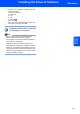
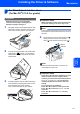
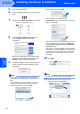
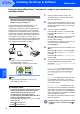
12 Choose DCP-XXXX (where XXXX is your
model name), and then click Add.
Go to step 14.
13 For Mac OS
®
X 10.4 users:
Choose DCP-XXXX (where XXXX is your
model name), and then click Add.
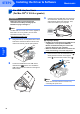
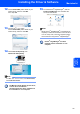
14 Click Printer Setup Utility, then
Quit Printer Setup Utility.
Note
For Mac OS
®
X 10.2.x users, click Print Center,
then Quit Print Center.
The MFL-Pro Suite, Brother printer driver,
scanner driver and Brother
ControlCenter2 have been installed and
the installation is now complete.
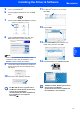
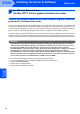
15 To install Presto!
®
PageManager
®
, click the
Presto! PageManager icon and follow the
on-screen instructions.
Note
When Presto!
®
PageManager
®
is installed OCR
capability is added to the Brother ControlCenter2.
You can easily scan, share and organize photos
and documents using Presto!
®
PageManager
®
.
Presto!
®
PageManager
®
has been
installed and the installation is now
complete.