
User Manual

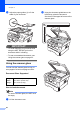

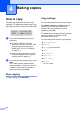
Table Of Contents
- BASIC USER’S GUIDE DCP-7060D/DCP-7065DN/HL-2280DW
- Brother numbers
- Ordering accessories and supplies
- Notice - Disclaimer of Warranties (USA and Canada)
- Compilation and Publication Notice
- Brother® One-Year Limited Warranty and Replacement Service (USA Only)
- BROTHER MULTIFUNCTION CENTER® / FAX MACHINELIMITED WARRANTY (Canada only)
- User’s Guides and where do I find it?
- Table of Contents
- 1 General information
- 2 Loading paper
- 3 Loading documents
- 4 Making copies
- 5 How to print from a computer
- 6 How to scan to a computer
- A Routine maintenance
- B Troubleshooting
- C Menu and features
- D Specifications
- Index
- brother USA/CAN

24
4
How to copy 4
The following steps show the basic copy
operation. For details about each option, see
the Advanced User's Guide on the CD-ROM.
a Do one of the following to load your
document:
(For DCP-7065DN) Place the
document face up in the ADF. (See
Using the automatic document
feeder (ADF) (For DCP-7065DN)
on page 21.)
Load your document face down on
the scanner glass. (See Using the
scanner glass on page 22.)
b If you want to make a single copy, press
Start.
If you want to make multiple copies,
press repeatedly or hold down a or b to
increase or decrease the number of
copies, and then press Start.
Stop copying 4
To stop copying, press Stop/Exit.
Copy settings 4
You can change the following copy settings:
Press Menu, Options or Duplex and then
press a or b to scroll through the copy
settings. When the setting you want is
displayed, press OK.
For details about changing the copy settings,
see Copy settings in Chapter 2 of the
Advanced User's Guide.
You can change the following copy settings:
Enlarge/Reduce
Quality
Stack (up to 99 copies)
Sort
1
Brightness
Contrast
Page Layout
Duplex
1
For DCP-7065DN
Making copies 4
Stack Copies:01
100%
□□■□□
Auto