
User Manual
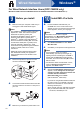
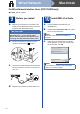



Table Of Contents
- Quick Setup Guide DCP-7055/DCP-7060D/DCP-7065DN
- Start Here
- For USB Interface Users (Windows® 2000 Professional/XP/XP Professional x64 Edition/Windows Vista®/Windows® 7)
- For USB Interface Users (Mac OS X 10.4.11 - 10.6.x)
- For Wired Network Interface Users (DCP-7065DN only) (Windows® 2000 Professional/XP/XP Professional x64 Edition/Windows Vista®/Windows® 7)
- For Wired Network Interface Users (DCP-7065DN only) (Mac OS X 10.4.11 - 10.6.x)
- Other Information
- Consumables
- brother CEE-ENG

12
Windows
®
Wired Network
For Wired Network Interface Users (DCP-7065DN only)
(Windows
®
2000 Professional/XP/XP Professional x64 Edition/Windows Vista
®
/Windows
®
7)
9
Before you install
a Make sure that your computer is ON and you
are logged on with Administrator rights.
b Remove the protective cap from the LAN
connector marked with a symbol.
c Connect the network interface cable to the LAN
connector and then connect it to a free port on
your hub.
d Make sure your machine’s power switch is on.
10
Install MFL-Pro Suite
a Put the installation CD-ROM into your
CD-ROM drive. If the model name screen
appears, choose your machine. If the language
screen appears, choose your language.
b Click Initial Installation and then Install
MFL-Pro Suite.
c Click Yes if you accept the license agreements.
d When the Firewall/AntiVirus detected screen
appears, choose Change the Firewall port
settings to enable network connection and
continue with the installation.
(Recommended) and click Next.
(Not for Windows
®
2000 users)
If you are not using the Windows
®
Firewall, see
the user's guide of your firewall or antivirus
software for information on how to add the
following network ports.
For network scanning, add UDP port 54925.
If you still have trouble with your network
connection, add UDP port 137.
Note
• The installation CD-ROM includes ScanSoft™
PaperPort™ 12SE. This software supports
Windows
®
XP (SP3 or greater), XP
Professional x64 Edition (SP2 or greater),
Windows Vista
®
(SP2 or greater) and
Windows
®
7. Update to the latest Windows
®
Service Pack before installing MFL-Pro Suite.
For Windows
®
2000 (SP4 or greater) users,
when the ScanSoft™ PaperPort™ 11SE
download screen appears during the installation
of MFL-Pro Suite, follow the on-screen
instructions.
• Disable all personal firewall software (other
than Windows
®
Firewall), anti-spyware or
antivirus applications for the duration of the
installation.
Note
If the Brother screen does not appear
automatically, go to My Computer (Computer),
double-click the CD-ROM icon, and then
double-click start.exe.
Note
• If the installation does not continue
automatically, open the top menu again by
ejecting and then reinserting the CD-ROM or
double-click the start.exe program from the
root folder, and continue from step b to install
MFL-Pro Suite.
• For Windows Vista
®
and Windows
®
7 users,
when the User Account Control screen
appears, click Allow or Yes.