
Software User's Guide

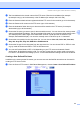
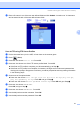


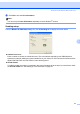
Table Of Contents
- SOFTWARE USER'S GUIDE MFC-7840W MFC-7440N MFC-7340 MFC-7345N DCP-7040 DCP-7030
- Table of Contents
- Section I Windows®
- 1 Printing
- Using the Brother printer driver
- Printing a document
- Duplex printing
- Simultaneous scanning, printing and faxing
- Printer operation keys
- Status Monitor
- Printer driver settings
- Features in the Windows® printer driver
- Features in the BR-Script (PostScript® 3 ™ language emulation) printer driver (MFC-7840W only)
- 2 Scanning
- Scanning a document using the TWAIN driver
- Scanning a document using the WIA driver (For Windows® XP/ Windows Vista®)
- Scanning a document using the WIA driver (For Windows Photo Gallery and Windows Fax and Scan users)
- Using the Scan key (For USB users)
- Using ScanSoft™ PaperPort™ 11SE with OCR by NUANCE™
- 3 ControlCenter3
- 4 Network Scanning (For models with built-in network)
- 5 Remote Setup (MFC models only)
- 6 Brother PC-FAX Software (MFC models only)
- 7 Firewall settings (For Network users)
- 1 Printing
- Section II Apple® Macintosh®
- 8 Printing and Faxing
- Printer operation key
- Status Monitor
- Features in the printer driver (For Macintosh®)
- Removing the Printer driver for Macintosh®
- Using the BR-Script3 Driver (MFC-7840W only) (Post Script® 3 ™ language emulation printer driver)
- Features in the BR-Script (PostScript® 3 ™ language emulation) printer driver (MFC-7840W only)
- Sending a fax (MFC models only)
- 9 Scanning
- 10 ControlCenter2
- 11 Network Scanning
- 12 Remote Setup
- 8 Printing and Faxing
- Index
- brother USA

90
5
5
Remote Setup 5
The Remote Setup program lets you configure many machine settings from a Windows
®
application. When
you start this application, the settings on your machine will be downloaded automatically to your PC and
displayed on your PC screen. If you change the settings, you can upload them directly to the machine.
Click the Start button, All Programs, Brother, MFC-XXXX (or MFC-XXXX LAN), and Remote Setup.
Note
• If your machine is connected via a Network, you have to enter your password.
• The default password is "access". You can use BRAdmin Light or Web Based Management to change this
password (See the Network Users Guide for details).
OK
Lets you start uploading data to the machine and exit the Remote Setup application. If an error message
is displayed, enter the correct data again and then click OK.
Cancel
Lets you exit the Remote Setup application without uploading data to the machine.
Apply
Lets you upload data to the machine without exiting the Remote Setup application.
Print
Lets you print the chosen items on the machine. You cannot print the data until it is uploaded to the
machine. Click Apply to upload the new data to the machine and then click Print.
Remote Setup (MFC models only) 5