
Software User's Guide
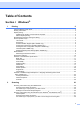
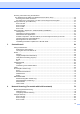
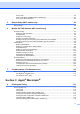
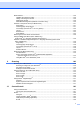
Table Of Contents
- SOFTWARE USER'S GUIDE MFC-7840W MFC-7440N MFC-7340 MFC-7345N DCP-7040 DCP-7030
- Table of Contents
- Section I Windows®
- 1 Printing
- Using the Brother printer driver
- Printing a document
- Duplex printing
- Simultaneous scanning, printing and faxing
- Printer operation keys
- Status Monitor
- Printer driver settings
- Features in the Windows® printer driver
- Features in the BR-Script (PostScript® 3 ™ language emulation) printer driver (MFC-7840W only)
- 2 Scanning
- Scanning a document using the TWAIN driver
- Scanning a document using the WIA driver (For Windows® XP/ Windows Vista®)
- Scanning a document using the WIA driver (For Windows Photo Gallery and Windows Fax and Scan users)
- Using the Scan key (For USB users)
- Using ScanSoft™ PaperPort™ 11SE with OCR by NUANCE™
- 3 ControlCenter3
- 4 Network Scanning (For models with built-in network)
- 5 Remote Setup (MFC models only)
- 6 Brother PC-FAX Software (MFC models only)
- 7 Firewall settings (For Network users)
- 1 Printing
- Section II Apple® Macintosh®
- 8 Printing and Faxing
- Printer operation key
- Status Monitor
- Features in the printer driver (For Macintosh®)
- Removing the Printer driver for Macintosh®
- Using the BR-Script3 Driver (MFC-7840W only) (Post Script® 3 ™ language emulation printer driver)
- Features in the BR-Script (PostScript® 3 ™ language emulation) printer driver (MFC-7840W only)
- Sending a fax (MFC models only)
- 9 Scanning
- 10 ControlCenter2
- 11 Network Scanning
- 12 Remote Setup
- 8 Printing and Faxing
- Index
- brother USA

2
1
1
Note
• The screens in this section are from Windows
®
XP. Screens on your PC may vary depending on your
operating system.
• If your PC is protected by a firewall, and is unable to print, you may need to configure the firewall settings
to allow communication through port number 137. See Firewall settings (For Network users) on page 110.
Using the Brother printer driver 1
A printer driver is software that translates data from the format used by a PC into the format needed by a
particular printer, using a printer command language or page description language.
The printer drivers are on the CD-ROM we have supplied. Install the drivers by following the Quick Setup
Guide. The latest printer driver can also be downloaded from the Brother Solutions Center at:
http://solutions.brother.com
Windows
®
Printing
The dedicated printer drivers for Microsoft
®
Windows
®
2000 Professional/XP/Windows Vista
®
are available
on the CD-ROM supplied with your Brother device. You can install them easily into your Windows
®
system
using our installer program. The drivers support our unique compression mode to enhance printing speed in
Windows
®
applications, and allows you to set various printer settings, including economy printing mode and
custom paper size.
Printing 1