
Software User's Guide


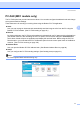
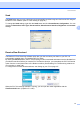
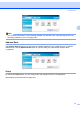
Table Of Contents
- SOFTWARE USER'S GUIDE MFC-7840W MFC-7440N MFC-7340 MFC-7345N DCP-7040 DCP-7030
- Table of Contents
- Section I Windows®
- 1 Printing
- Using the Brother printer driver
- Printing a document
- Duplex printing
- Simultaneous scanning, printing and faxing
- Printer operation keys
- Status Monitor
- Printer driver settings
- Features in the Windows® printer driver
- Features in the BR-Script (PostScript® 3 ™ language emulation) printer driver (MFC-7840W only)
- 2 Scanning
- Scanning a document using the TWAIN driver
- Scanning a document using the WIA driver (For Windows® XP/ Windows Vista®)
- Scanning a document using the WIA driver (For Windows Photo Gallery and Windows Fax and Scan users)
- Using the Scan key (For USB users)
- Using ScanSoft™ PaperPort™ 11SE with OCR by NUANCE™
- 3 ControlCenter3
- 4 Network Scanning (For models with built-in network)
- 5 Remote Setup (MFC models only)
- 6 Brother PC-FAX Software (MFC models only)
- 7 Firewall settings (For Network users)
- 1 Printing
- Section II Apple® Macintosh®
- 8 Printing and Faxing
- Printer operation key
- Status Monitor
- Features in the printer driver (For Macintosh®)
- Removing the Printer driver for Macintosh®
- Using the BR-Script3 Driver (MFC-7840W only) (Post Script® 3 ™ language emulation printer driver)
- Features in the BR-Script (PostScript® 3 ™ language emulation) printer driver (MFC-7840W only)
- Sending a fax (MFC models only)
- 9 Scanning
- 10 ControlCenter2
- 11 Network Scanning
- 12 Remote Setup
- 8 Printing and Faxing
- Index
- brother USA

ControlCenter3
71
3
PC-FAX (MFC models only) 3
The PC-FAX option lets you send and receive faxes. You can also configure the address book and change
some general machine settings.
These buttons are for sending or receiving faxes using the Brother PC-FAX application.
Send
Lets you scan a page or document and automatically send the image as a fax from the PC using the
Brother PC-FAX software. (See PC-FAX sending on page 92.)
Receive
By clicking this button, the PC-FAX receive software is activated and your PC starts receiving fax data from
your Brother machine. After activating the PC-FAX option, the icon name changes to View Received
which when clicked will open an application and display the received faxes. Before using the PC-FAX
Receive option, you must select the PC-FAX Receive option from the control panel menu of the Brother
machine. (See PC-FAX receiving on page 105.)
Address Book
Lets you open the Brother PC-FAX address book. (See Brother Address Book on page 99.)
Setup
Lets you configure the PC-FAX sending settings. (See Sending setup on page 93.)
Note
PC-FAX supports Black and white faxing only.