
Software User's Guide
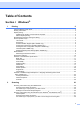
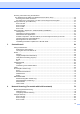
Table Of Contents
- SOFTWARE USER'S GUIDE MFC-7840W MFC-7440N MFC-7340 MFC-7345N DCP-7040 DCP-7030
- Table of Contents
- Section I Windows®
- 1 Printing
- Using the Brother printer driver
- Printing a document
- Duplex printing
- Simultaneous scanning, printing and faxing
- Printer operation keys
- Status Monitor
- Printer driver settings
- Features in the Windows® printer driver
- Features in the BR-Script (PostScript® 3 ™ language emulation) printer driver (MFC-7840W only)
- 2 Scanning
- Scanning a document using the TWAIN driver
- Scanning a document using the WIA driver (For Windows® XP/ Windows Vista®)
- Scanning a document using the WIA driver (For Windows Photo Gallery and Windows Fax and Scan users)
- Using the Scan key (For USB users)
- Using ScanSoft™ PaperPort™ 11SE with OCR by NUANCE™
- 3 ControlCenter3
- 4 Network Scanning (For models with built-in network)
- 5 Remote Setup (MFC models only)
- 6 Brother PC-FAX Software (MFC models only)
- 7 Firewall settings (For Network users)
- 1 Printing
- Section II Apple® Macintosh®
- 8 Printing and Faxing
- Printer operation key
- Status Monitor
- Features in the printer driver (For Macintosh®)
- Removing the Printer driver for Macintosh®
- Using the BR-Script3 Driver (MFC-7840W only) (Post Script® 3 ™ language emulation printer driver)
- Features in the BR-Script (PostScript® 3 ™ language emulation) printer driver (MFC-7840W only)
- Sending a fax (MFC models only)
- 9 Scanning
- 10 ControlCenter2
- 11 Network Scanning
- 12 Remote Setup
- 8 Printing and Faxing
- Index
- brother USA

v
Status Monitor........................................................................................................................................120
Updating the machine’s status ........................................................................................................120
Hiding or showing the window .........................................................................................................120
Quitting the window .........................................................................................................................120
Web Based Management (Network Connection Only)....................................................................120
Features in the printer driver (For Macintosh
®
) .....................................................................................121
Page Setup......................................................................................................................................121
Choosing page setup options..........................................................................................................121
Cover Page (For Mac OS
®
X 10.4 or greater).................................................................................123
Layout..............................................................................................................................................123
Secure Print.....................................................................................................................................124
Print Settings ...................................................................................................................................125
Removing the Printer driver for Macintosh
®
..........................................................................................129
Using the BR-Script3 Driver (MFC-7840W only)
(Post Script
®
3 ™ language emulation printer driver).........................................................................130
Features in the BR-Script (PostScript
®
3 ™ language emulation) printer driver
(MFC-7840W only) .............................................................................................................................136
Page Setup......................................................................................................................................136
Choosing page setup options..........................................................................................................136
Cover Page (For Mac OS
®
X 10.4) .................................................................................................138
Layout..............................................................................................................................................138
Printer Features...............................................................................................................................139
Sending a fax (MFC models only) .........................................................................................................142
For Macintosh
®
...............................................................................................................................142
Drag a Vcard from the Mac OS
®
X Address Book application
(For Mac OS
®
X 10.2.x to 10.4.x).................................................................................................145
Using Mac OS
®
X 10.5 Addresses panel .........................................................................................147
9 Scanning 149
Scanning from a Macintosh
®
.................................................................................................................149
Scanning an image into your Macintosh
®
.......................................................................................150
Pre-Scanning an image...................................................................................................................150
Settings in the Scanner window ......................................................................................................151
Using the Scan key (For USB cable users) ...........................................................................................154
Scan to E-mail .................................................................................................................................154
Scan to Image .................................................................................................................................155
Scan to OCR ...................................................................................................................................155
Scan to File......................................................................................................................................156
Using Presto!
®
PageManager
®
.............................................................................................................157
Features ..........................................................................................................................................157
System requirements for Presto!
®
PageManager
®
.........................................................................157
NewSoft Technical Support .............................................................................................................157
10 ControlCenter2 160
Using ControlCenter2 ............................................................................................................................160
Turning the AutoLoad feature off.....................................................................................................161
SCAN.....................................................................................................................................................162
File types .........................................................................................................................................163
Image (example: Apple
®
Preview) ..................................................................................................163
OCR (word processing application).................................................................................................165
E-mail ..............................................................................................................................................166