
Software User's Guide


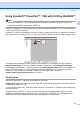

Table Of Contents
- SOFTWARE USER'S GUIDE MFC-7840W MFC-7440N MFC-7340 MFC-7345N DCP-7040 DCP-7030
- Table of Contents
- Section I Windows®
- 1 Printing
- Using the Brother printer driver
- Printing a document
- Duplex printing
- Simultaneous scanning, printing and faxing
- Printer operation keys
- Status Monitor
- Printer driver settings
- Features in the Windows® printer driver
- Features in the BR-Script (PostScript® 3 ™ language emulation) printer driver (MFC-7840W only)
- 2 Scanning
- Scanning a document using the TWAIN driver
- Scanning a document using the WIA driver (For Windows® XP/ Windows Vista®)
- Scanning a document using the WIA driver (For Windows Photo Gallery and Windows Fax and Scan users)
- Using the Scan key (For USB users)
- Using ScanSoft™ PaperPort™ 11SE with OCR by NUANCE™
- 3 ControlCenter3
- 4 Network Scanning (For models with built-in network)
- 5 Remote Setup (MFC models only)
- 6 Brother PC-FAX Software (MFC models only)
- 7 Firewall settings (For Network users)
- 1 Printing
- Section II Apple® Macintosh®
- 8 Printing and Faxing
- Printer operation key
- Status Monitor
- Features in the printer driver (For Macintosh®)
- Removing the Printer driver for Macintosh®
- Using the BR-Script3 Driver (MFC-7840W only) (Post Script® 3 ™ language emulation printer driver)
- Features in the BR-Script (PostScript® 3 ™ language emulation) printer driver (MFC-7840W only)
- Sending a fax (MFC models only)
- 9 Scanning
- 10 ControlCenter2
- 11 Network Scanning
- 12 Remote Setup
- 8 Printing and Faxing
- Index
- brother USA

Scanning
50
2
Using ScanSoft™ PaperPort™ 11SE with OCR by NUANCE™2
Note
ScanSoft™ PaperPort™ 11SE supports Windows
®
2000 (SP4 or greater), XP (SP2 or greater), XP
Professional x64 Edition and Windows Vista
®
only.
ScanSoft™ PaperPort™ 11SE for Brother is a document management application. You can use PaperPort™
11SE to view scanned documents.
PaperPort™ 11SE has a sophisticated, yet easy-to-use filing system that will help you organize your graphics
and text documents. It allows you to mix or ‘stack’ documents of different formats for printing, faxing or filing.
This chapter only introduces the basic functions of the software. For more details, see the ScanSoft™
Getting Started Guide. To view the complete ScanSoft™ PaperPort™ 11SE Getting Started Guide,
choose Help from PaperPort™ 11SE menu bar and click Getting Started Guide. When you install MFL-Pro
Suite, ScanSoft™ PaperPort™ 11SE for Brother is installed automatically. You can access ScanSoft™
PaperPort™ 11SE through the ScanSoft™ PaperPort™ SE program group located in
Start/All Programs/ScanSoft PaperPort 11 on your PC.
Viewing items 2
ScanSoft™ PaperPort™ 11SE gives several ways to view items:
Desktop View displays the item in the chosen folder with a thumbnail (a small graphic that shows each item
in a desktop or folder) or an icon.
You can see both PaperPort™ 11SE items (MAX files) and non-PaperPort™ 11SE items (files created using
other applications).
All graphical files (PaperPort™ 11SE's *.max and other files) will be displayed and include an icon that
indicates the application that the specific file type is associated or created with. Non-graphical files are
indicated by a small rectangular thumbnail and are not displayed as actual images.