
Software User's Guide

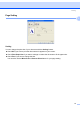
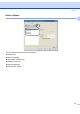

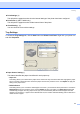
Table Of Contents
- SOFTWARE USER'S GUIDE MFC-7840W MFC-7440N MFC-7340 MFC-7345N DCP-7040 DCP-7030
- Table of Contents
- Section I Windows®
- 1 Printing
- Using the Brother printer driver
- Printing a document
- Duplex printing
- Simultaneous scanning, printing and faxing
- Printer operation keys
- Status Monitor
- Printer driver settings
- Features in the Windows® printer driver
- Features in the BR-Script (PostScript® 3 ™ language emulation) printer driver (MFC-7840W only)
- 2 Scanning
- Scanning a document using the TWAIN driver
- Scanning a document using the WIA driver (For Windows® XP/ Windows Vista®)
- Scanning a document using the WIA driver (For Windows Photo Gallery and Windows Fax and Scan users)
- Using the Scan key (For USB users)
- Using ScanSoft™ PaperPort™ 11SE with OCR by NUANCE™
- 3 ControlCenter3
- 4 Network Scanning (For models with built-in network)
- 5 Remote Setup (MFC models only)
- 6 Brother PC-FAX Software (MFC models only)
- 7 Firewall settings (For Network users)
- 1 Printing
- Section II Apple® Macintosh®
- 8 Printing and Faxing
- Printer operation key
- Status Monitor
- Features in the printer driver (For Macintosh®)
- Removing the Printer driver for Macintosh®
- Using the BR-Script3 Driver (MFC-7840W only) (Post Script® 3 ™ language emulation printer driver)
- Features in the BR-Script (PostScript® 3 ™ language emulation) printer driver (MFC-7840W only)
- Sending a fax (MFC models only)
- 9 Scanning
- 10 ControlCenter2
- 11 Network Scanning
- 12 Remote Setup
- 8 Printing and Faxing
- Index
- brother USA

Printing
21
1
Secure Print
Secure documents are documents that are password protected when they are sent to the machine. Only
the people who know the password will be able to print them. Since the documents are secured at the
machine, you must enter the password using the control panel of the machine to print them.
To send a secured document:
a Select Secure Print from the Printer Function menu and check Secure Print.
b Enter your password, user name and job name and click OK.
c You must print the secured documents from the control panel of the machine. (See Secure Key
on page 5.)
To delete a secured document:
You need to use the control panel of the machine to delete a secured document. (See Secure Key
on page 5.)
Quick Print Setup
The feature allows you to quickly choose driver settings by clicking a tasktray icon.
You can turn the quick print setting on or off. By placing a check in the selection boxes for the following
functions you can choose which will be available in the quick print setting.
• Multiple Page
• Manual Duplex
• Toner Save Mode
• Paper Source
• Media Type
Macro
You can save a page of a document as a macro to printer memory. You can also execute the saved macro
(you can use the saved macro as an overlay on any document). This will save time and increase printing
speed for often used information such as forms, company logos, letterhead formats or invoices.
Header-Footer Print
When this feature is enabled, it will print the date and time on your document from your computer’s system
clock and the PC login user name or the text you entered. By clicking Setting, you can customize the
information.
•ID Print
If you select Login User Name, your PC login user name will print. If you select Custom and enter the
text in the Custom edit box, the text you entered will print.