
Software User's Guide
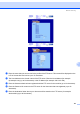
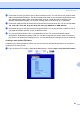
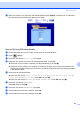
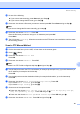
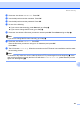
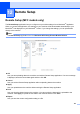

Table Of Contents
- SOFTWARE USER'S GUIDE MFC-7840W MFC-7440N MFC-7340 MFC-7345N DCP-7040 DCP-7030
- Table of Contents
- Section I Windows®
- 1 Printing
- Using the Brother printer driver
- Printing a document
- Duplex printing
- Simultaneous scanning, printing and faxing
- Printer operation keys
- Status Monitor
- Printer driver settings
- Features in the Windows® printer driver
- Features in the BR-Script (PostScript® 3 ™ language emulation) printer driver (MFC-7840W only)
- 2 Scanning
- Scanning a document using the TWAIN driver
- Scanning a document using the WIA driver (For Windows® XP/ Windows Vista®)
- Scanning a document using the WIA driver (For Windows Photo Gallery and Windows Fax and Scan users)
- Using the Scan key (For USB users)
- Using ScanSoft™ PaperPort™ 11SE with OCR by NUANCE™
- 3 ControlCenter3
- 4 Network Scanning (For models with built-in network)
- 5 Remote Setup (MFC models only)
- 6 Brother PC-FAX Software (MFC models only)
- 7 Firewall settings (For Network users)
- 1 Printing
- Section II Apple® Macintosh®
- 8 Printing and Faxing
- Printer operation key
- Status Monitor
- Features in the printer driver (For Macintosh®)
- Removing the Printer driver for Macintosh®
- Using the BR-Script3 Driver (MFC-7840W only) (Post Script® 3 ™ language emulation printer driver)
- Features in the BR-Script (PostScript® 3 ™ language emulation) printer driver (MFC-7840W only)
- Sending a fax (MFC models only)
- 9 Scanning
- 10 ControlCenter2
- 11 Network Scanning
- 12 Remote Setup
- 8 Printing and Faxing
- Index
- brother USA

Network Scanning
185
11
f Choose the file name you want to use for the scanned document. You can choose from seven present
and two user defined File Names. The file name that will be used for your document will be the file name
you selected plus the last 6 digits of the flatbed/ADF scanner counter plus the file extension (For
example, Estimate098765.pdf). You can also manually enter a File Name up to 15 characters.
g Choose the quality that the document will be scanned at from the pull-down list. You can choose Color
150, Color 300, Color 600, Gray 300, Gray 200, Gray 100, B&W 200 or B&W 200x100.
h Choose the file type for the document from the pull-down list. You can choose PDF or JPEG for color or
gray scale documents and PDF or TIFF for B/W document.
i You can set Passive Mode to OFF or ON depending on your FTP server and network firewall
configuration. By default this setting is ON. You can also change the port number used to access the
FTP server. The default for this setting is port 21. In most cases these two settings can remain as default.
Creating a user defined File Name 11
In addition to the seven present file names you can store two user defined file names that can be used for
creating an FTP Server Profile.
a From the Scan to FTP screen in Web Based Management, choose Create a User Defined File Name.