
Software User's Guide
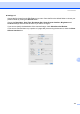
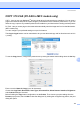





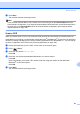
Table Of Contents
- SOFTWARE USER'S GUIDE MFC-7840W MFC-7440N MFC-7340 MFC-7345N DCP-7040 DCP-7030
- Table of Contents
- Section I Windows®
- 1 Printing
- Using the Brother printer driver
- Printing a document
- Duplex printing
- Simultaneous scanning, printing and faxing
- Printer operation keys
- Status Monitor
- Printer driver settings
- Features in the Windows® printer driver
- Features in the BR-Script (PostScript® 3 ™ language emulation) printer driver (MFC-7840W only)
- 2 Scanning
- Scanning a document using the TWAIN driver
- Scanning a document using the WIA driver (For Windows® XP/ Windows Vista®)
- Scanning a document using the WIA driver (For Windows Photo Gallery and Windows Fax and Scan users)
- Using the Scan key (For USB users)
- Using ScanSoft™ PaperPort™ 11SE with OCR by NUANCE™
- 3 ControlCenter3
- 4 Network Scanning (For models with built-in network)
- 5 Remote Setup (MFC models only)
- 6 Brother PC-FAX Software (MFC models only)
- 7 Firewall settings (For Network users)
- 1 Printing
- Section II Apple® Macintosh®
- 8 Printing and Faxing
- Printer operation key
- Status Monitor
- Features in the printer driver (For Macintosh®)
- Removing the Printer driver for Macintosh®
- Using the BR-Script3 Driver (MFC-7840W only) (Post Script® 3 ™ language emulation printer driver)
- Features in the BR-Script (PostScript® 3 ™ language emulation) printer driver (MFC-7840W only)
- Sending a fax (MFC models only)
- 9 Scanning
- 10 ControlCenter2
- 11 Network Scanning
- 12 Remote Setup
- 8 Printing and Faxing
- Index
- brother USA

179
11
11
If you want to scan from the machine on a network, you must choose the networked machine in the
Device Selector application located in Macintosh HD/Library/Printers/Brother/Utilities/DeviceSelector or
from the Model pop-up menu in the main screen of ControlCenter2. If you already installed the MFL-Pro Suite
Software following the network installation steps in the Quick Setup Guide then this selection should already
be made.
To use the machine as a network scanner, the machine must be configured with a TCP/IP address. You can
set or change the address settings from the control panel. (See Control Panel Setup in the Network User’s
Guide.)
Note
For network scanning, a maximum 25 of clients can be connected to one machine on a network. For
example, if 30 clients try to connect at a time, 5 clients will not be shown on the LCD.
Before using Network Scanning 11
Configuring network scanning 11
a From Library, choose Printers, Brother, Utilities and DeviceSelector, and then double-click
Device Selector.
The Device Selector window appears. This window can also be opened from ControlCenter2.
For more information, see Using ControlCenter2 on page 160.
b Specify your machine by IP address or mDNS service Name. To change the IP address, enter the new
IP address. You can also choose a machine from the list of the available machines. Click Browse to
show the list.
Network Scanning
11