
Software User's Guide
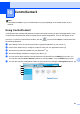
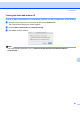

Table Of Contents
- SOFTWARE USER'S GUIDE MFC-7840W MFC-7440N MFC-7340 MFC-7345N DCP-7040 DCP-7030
- Table of Contents
- Section I Windows®
- 1 Printing
- Using the Brother printer driver
- Printing a document
- Duplex printing
- Simultaneous scanning, printing and faxing
- Printer operation keys
- Status Monitor
- Printer driver settings
- Features in the Windows® printer driver
- Features in the BR-Script (PostScript® 3 ™ language emulation) printer driver (MFC-7840W only)
- 2 Scanning
- Scanning a document using the TWAIN driver
- Scanning a document using the WIA driver (For Windows® XP/ Windows Vista®)
- Scanning a document using the WIA driver (For Windows Photo Gallery and Windows Fax and Scan users)
- Using the Scan key (For USB users)
- Using ScanSoft™ PaperPort™ 11SE with OCR by NUANCE™
- 3 ControlCenter3
- 4 Network Scanning (For models with built-in network)
- 5 Remote Setup (MFC models only)
- 6 Brother PC-FAX Software (MFC models only)
- 7 Firewall settings (For Network users)
- 1 Printing
- Section II Apple® Macintosh®
- 8 Printing and Faxing
- Printer operation key
- Status Monitor
- Features in the printer driver (For Macintosh®)
- Removing the Printer driver for Macintosh®
- Using the BR-Script3 Driver (MFC-7840W only) (Post Script® 3 ™ language emulation printer driver)
- Features in the BR-Script (PostScript® 3 ™ language emulation) printer driver (MFC-7840W only)
- Sending a fax (MFC models only)
- 9 Scanning
- 10 ControlCenter2
- 11 Network Scanning
- 12 Remote Setup
- 8 Printing and Faxing
- Index
- brother USA

160
10
10
Note
The features available to you in ControlCenter2 may vary depending on the model number of your
machine.
Using ControlCenter2 10
ControlCenter2 is a software utility that lets you quickly and easily access your often used applications. Using
ControlCenter2 eliminates the need to manually launch specific applications. The icon will appear on the
menu bar. To open the ControlCenter2 window, click the icon and choose Open. ControlCenter2 has
the following operations:
a Scan directly to a file, E-mail, word processor or graphics application of your choice. (1)
b Custom Scan buttons let you configure a button to meet your own application needs. (2)
c Access the Copy features available via your Macintosh
®
. (3)
d Access the settings available to configure your device. (4)
e You can choose which machine ControlCenter2 will connect with from the Model pop-up menu. (5)
You can also open the Device Selector window by choosing Other... from the Model pop-up menu.
f You can also open the configuration window for each function by clicking the Configuration button. (6)
ControlCenter2 10