
User`s guide
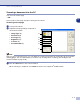
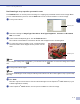
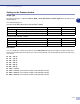
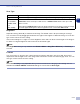
Table Of Contents
- SOFTWARE USER’S GUIDE
- Table of Contents
- 1 Using the machine as a printer
- Using the Brother printer driver
- How to print your document
- Simultaneous printing and faxing
- Printer operation key
- Printer driver settings (For Windows®)
- How to access the printer driver settings (For Windows®)
- Features in the PCL printer driver (For Windows®)
- Features in the PS (PostScript®) Brother printer driver (DCP-7025, MFC-7225N and MFC-7820N only) (For Windows®)
- Status Monitor (Windows® only)
- 2 How to scan using Windows®
- Scanning a document using WIA driver (For Windows® XP only)
- Scanning a document using the TWAIN driver
- Using the Scan key (For USB or Parallel cable users)
- Using ScanSoft® PaperPort® 9.0SE and OmniPage® OCR
- 3 Using ControlCenter2.0 (For Windows®)
- 4 Using MFC Remote Setup (For Windows®) (not available for DCP-7010 and DCP-7025)
- 5 Using Brother PC-FAX software (For Windows®) (not available for DCP-7010 and DCP-7025)
- PC-FAX sending
- Speed-Dial setup
- Brother Address Book
- Setting up a Member in the Address Book
- Setting up a Group for Broadcasting
- Editing Member information
- Deleting a Member or Group
- Exporting the Address Book
- Importing to the Address Book
- Sending a file as a PC-FAX using the Facsimile style user interface
- Sending a file as a PC-FAX using the Simple style user interface
- Setting up PC-FAX receiving
- 6 Network Scanning (For Windows®) (MFC-7225N, MFC-7820N or models with the optional NC-2200w Only)
- 7 Using your machine with a Macintosh®
- Setting up your USB-equipped Apple® Macintosh®
- Using the Brother printer driver with your Apple® Macintosh® (Mac OS® X)
- Using the Brother printer driver with your Apple® Macintosh® (Mac OS® 9.1 to 9.2)
- Using the PS driver with your Apple® Macintosh® (DCP-7025, MFC-7225N and MFC-7820N only)
- Sending a fax from your Macintosh® application (not available for DCP-7010 and DCP-7025)
- Scanning from a Macintosh®
- Configuring Network Scanning
- Using Presto!® PageManager®
- Using ControlCenter2.0 (For Mac OS® X 10.2.4 or greater)
- MFC Remote Setup (Mac OS® X 10.2.4 or greater) (not available for DCP-7010 and DCP-7025)
- Index
- brother ARL/ASA/NZ

How to scan using Windows
®
2 - 10
2
Settings in the Scanner window
Image Type
Select the image type of output from Photo, Web or Text. Resolution and Scan Type will be altered for each
default setting.
The default settings are:
(For DCP-7010, DCP-7025, MFC-7420 and MFC-7820N)
(For MFC-7220 and MFC-7225N)
Resolution
You can change the scanning resolution from the Resolution drop down list. Higher resolutions take more
memory and transfer time, but can achieve a finer scanned image. The following list shows the resolution you
can choose.
■
100
×
100 dpi
■
150
×
150 dpi
■
200
×
200 dpi
■
300
×
300 dpi
■
400
×
400 dpi
■
600
×
600 dpi
■
1200
×
1200 dpi
■
2400
×
2400 dpi (not available for MFC-7220 and MFC-7225N)
■
4800
×
4800 dpi (not available for MFC-7220 and MFC-7225N)
■
9600
×
9600 dpi (not available for MFC-7220 and MFC-7225N)
Image Type Resolution Scan Type
Photo Select for scanning photo images. 300 x 300 dpi 24-bit colour
Web Select for attaching the scanned image to web pages. 100 x 100 dpi 24-bit colour
Text Select for scanning text documents. 200 x 200 dpi Black & White
Image Type Resolution Scan Type
Photo Select for scanning photo images. 300 x 300 dpi True Gray
Web Select for attaching the scanned image to web pages. 100 x 100 dpi True Gray
Text Select for scanning text documents. 200 x 200 dpi Black & White