
User Manual


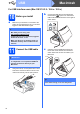


Table Of Contents
- Quick Setup Guide DCP-395CN
- Start Here
- For USB interface users (Windows® 2000 Professional/XP/ XP Professional x64 Edition/ Windows Vista®)
- For USB interface users (Mac OS X 10.3.9 - 10.4.x - 10.5.x)
- For wired network interface users (Windows® 2000 Professional/XP/ XP Professional x64 Edition/ Windows Vista®)
- For wired network interface users (Mac OS X 10.3.9 - 10.4.x - 10.5.x)
- Install Optional Applications Windows®
- For Network Users
- Consumables
- brother USA/CAN

15
Macintosh
USB
Windows
®
Macintosh
USB
d Lift the scanner cover to release the lock a.
Gently push the scanner cover support
down b and close the scanner cover c.
12
Install MFL-Pro Suite
a Put the supplied CD-ROM into your CD-ROM
drive.
b Double-click the Start Here OSX icon to install.
c Please wait, it will take a few seconds for the
software to install. After the installation, click
Restart to finish installing the software.
d The Brother software will search for the Brother
device.
e Choose the machine from the list, and then
click OK.
f When this screen appears, click OK.
The installation of MFL-Pro Suite is now
complete.
Go to step 13 on page 15.
13
Install
Presto! PageManager
When Presto! PageManager is installed OCR
capability is added to Brother ControlCenter2. You
can easily scan, share and organize photos and
documents using Presto! PageManager.
a Double-click the Presto! PageManager icon
and follow the on-screen instructions.
2
1
3
Finish
The installation is now
complete.